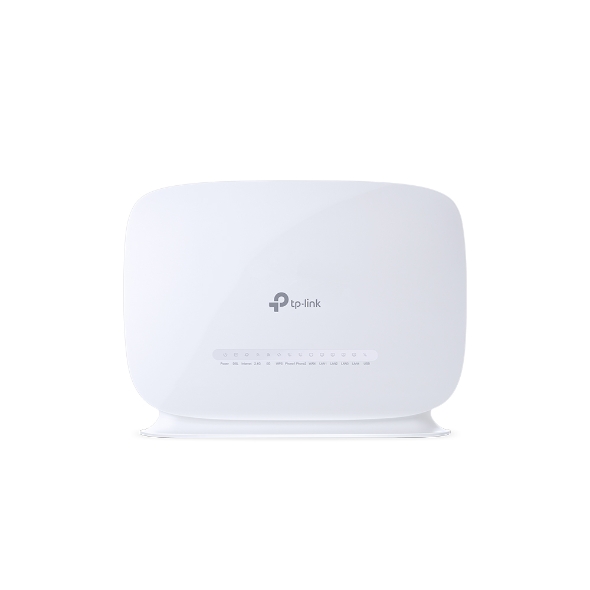
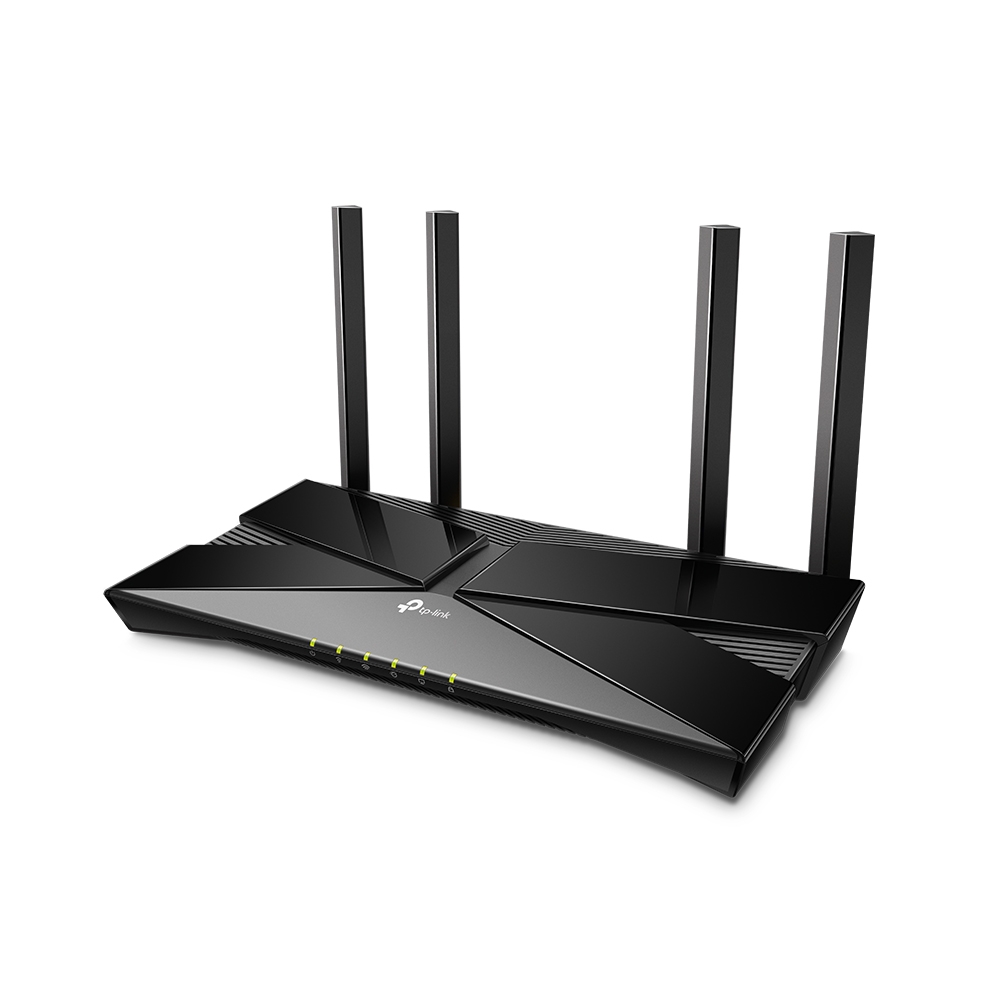
Connect the WAN (Internet) port of the TP-Link Archer VR1600v router to the first port (LAN1 or GE1) on your Optical Network Terminal (ONT) using an ethernet cable.
Sometimes we connect to second port instead of first - check your Welcome email instructions to make sure which port you should use.
Ensure the router is powered on and that your computer or smartphone is connected to the router via Wi-Fi or a LAN cable.
Open a web browser on a connected device and type the default IP address: http://192.168.0.1 (or try: http://192.168.1.1, http://tplinkwifi.net) into the address bar.
You might be prompted to set a new password or you will be prompted to log in. The default credentials are usually:
Username: admin
Password: admin
If you have changed the default credentials and cannot remember them, proceed to Step 8 for resetting the router.
Once the router has restarted, check the status of your internet connection by looking at the WAN/Internet LED indicator on the router. It should be solid green.
On your connected device, try accessing a website to confirm that your connection is active.
TP-Link has a dedicated Toll-Free number to assist customers with tricky configurations in New Zealand. You can contact TP-Link support in New Zealand by calling 0800 875 465.
If you are still unable to connect, please reach out to our support team at our Support Portal -https://help.simplybroadband.co.nz for further assistance.
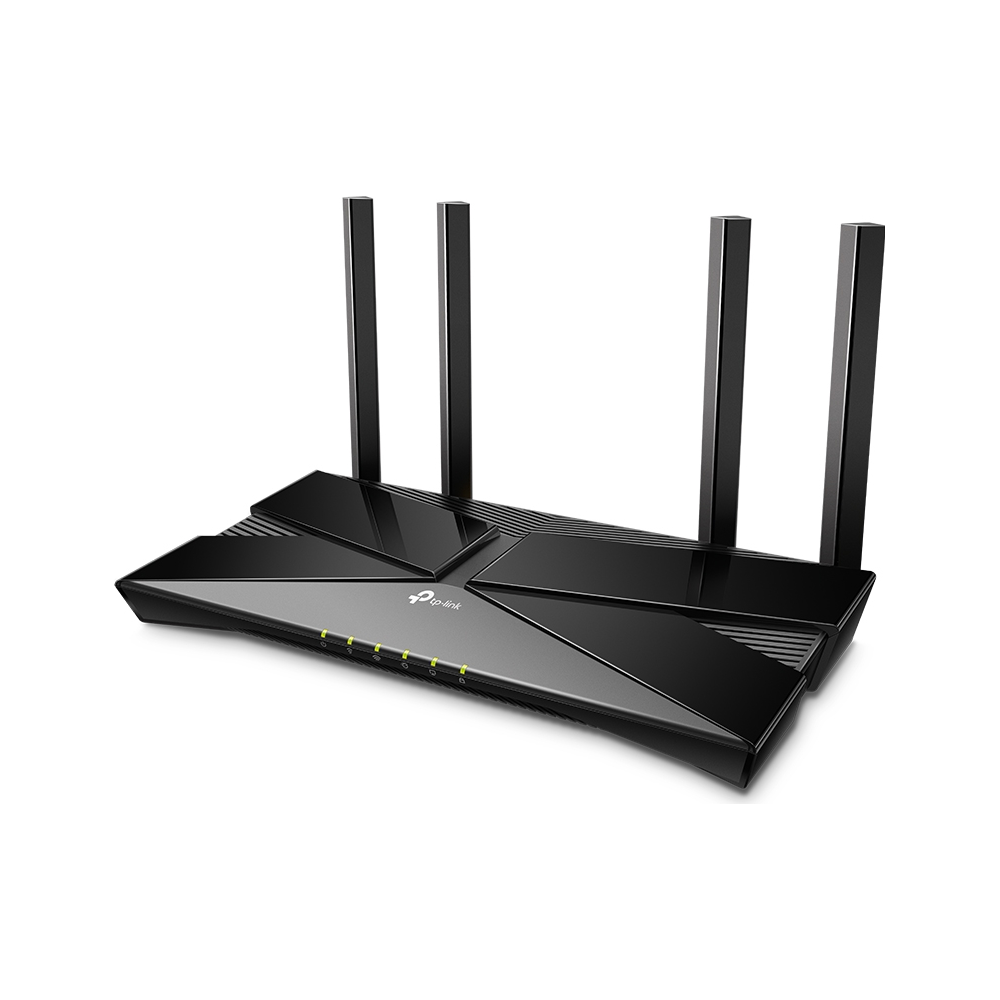
Recommended routers
Simply Broadband does not currently offer a router for sale directly. We can recommend these options which
are available from a number of major retailers. Click image to shop or
compare more routers on PriceMe.