← Back to Linksys Modem / Router UFB Settings
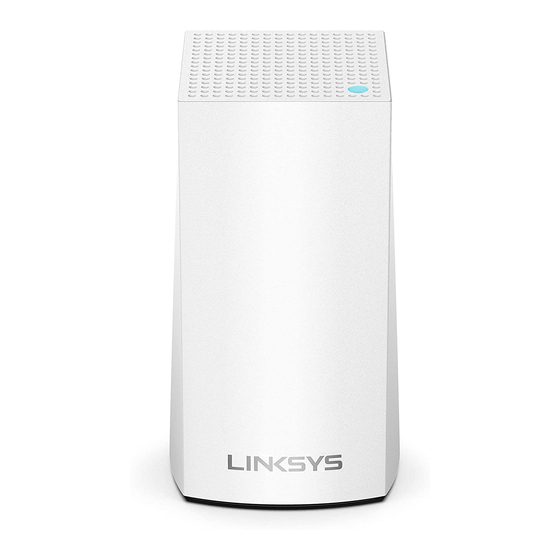
Linksys Linksys Velop AO3 V2 Settings
Official page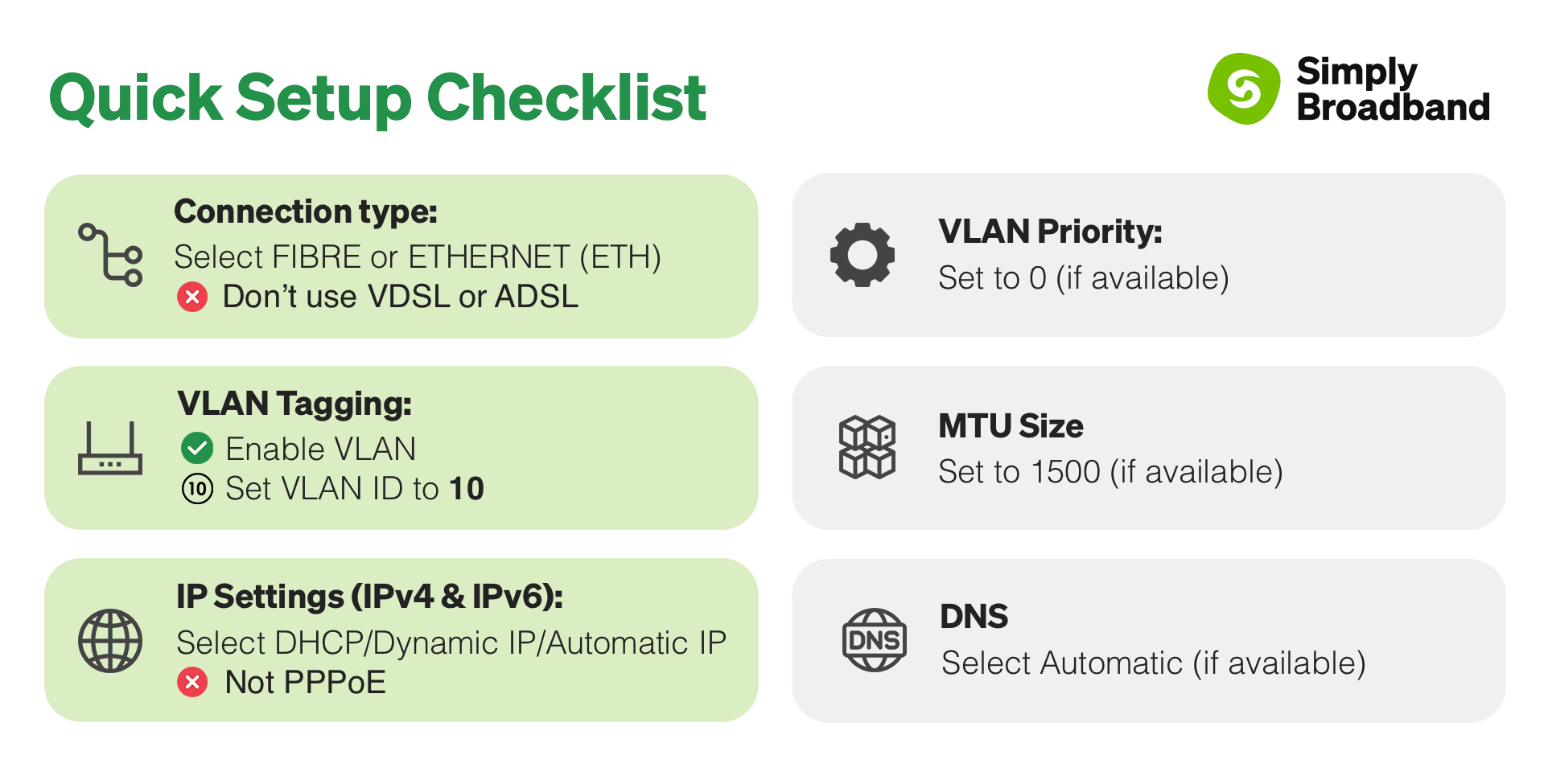
Things to consider for this router
- This router has an APP that you can configure through. The app is the preferred method of configuration.
- Manual configuration is available, but is not as user friendly as the app.
Step-by-step guide to set up Linksys Velop AO3 V2 router
Download the Linksys app
- If you're going to go ahead with the app setup, you will need to download the app first and make an account:
- https://play.google.com/store/... - Google Play
- https://apps.apple.com/us/app/... - App Store
- Follow in app prompts to make an account.
1. Connect your router to the ONT
- Physical connection:
- Connect the WAN port of the Linksys Velop AO3 V2 router to the first port (LAN1 or GE1) on your Optical Network Terminal (ONT) using an ethernet cable.
- Sometimes we connect to second port instead of first - check your Welcome email instructions to make sure which port you should use.
- Ensure the router is powered on and that your computer or smartphone is connected to the router via Wi-Fi or a LAN cable.
2. Access the router’s Admin Panel (manual configuration part 1)
- Open a web browser on a connected device and enter 192.168.1.1 (or
myrouter.local) into the address bar.- You will be prompted to download the app, click on the mobile image.
- You will be prompted to log in using your router password.
- Password:
(should be available on the router information tag).
- Password:
- You will be prompted to log in using your router password.
- You will be prompted to download the app, click on the mobile image.
- If you have changed the default credentials and cannot remember them, proceed to step 8 for resetting the router.
3. Internet connection type (DHCP) & VLAN settings (manual configuration part 2)
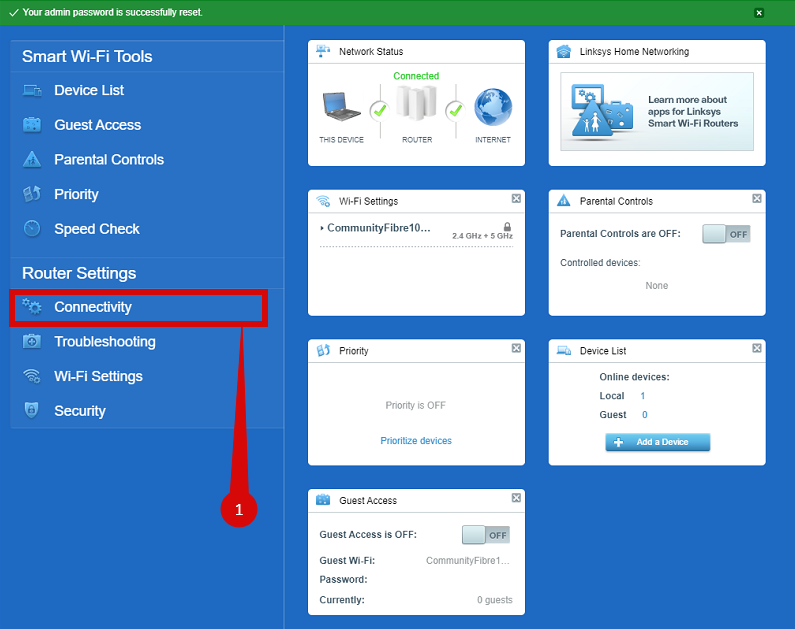
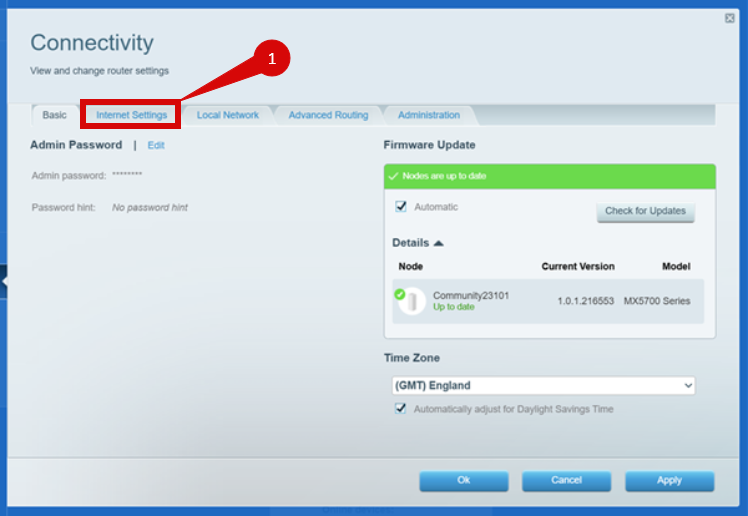
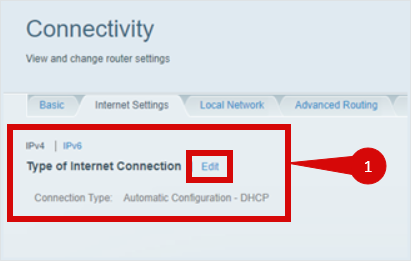
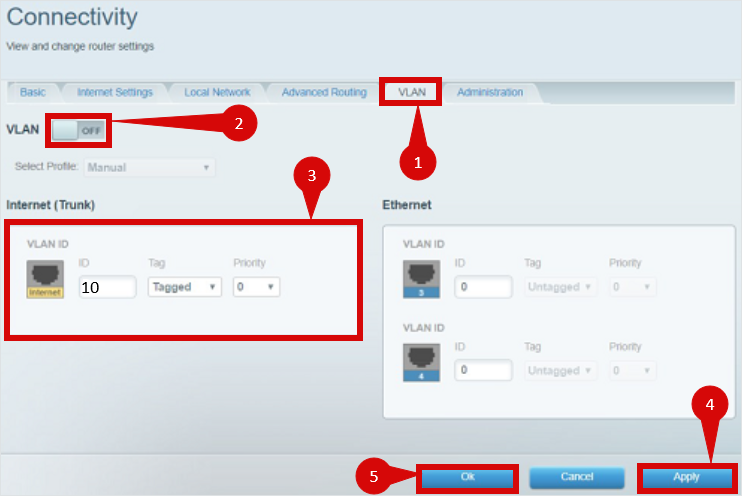
- Once logged in, follow these steps to set up the internet connection type:
- You will be re-directed to the home page.
- Select Connectivity (step 1).
- Navigate to Internet Settings configure the following: (step 1).
- Make sure that you are on IPv4:
- Set internet connection to Dynamic IP (DHCP) (step 1).
- Navigate to VLAN (step 1).
- Enable VLAN (step 2).
- Set Internet VLAN (Trunk) to the following: (step 3).
- ID = 10
- Tag = Tagged
- Prio = 0
- Click on Apply (step 4).
- Click OK (step 5).
5. Setup via Linksys app (first time setup)
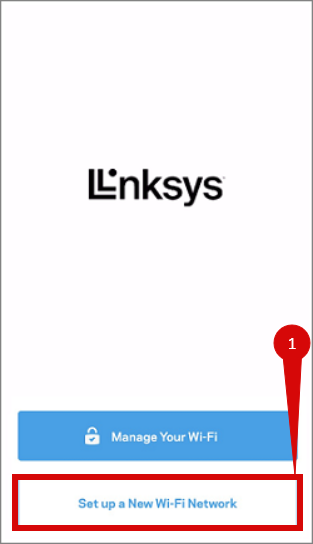
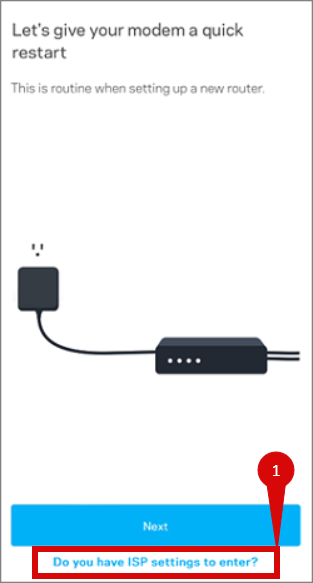
- Once your router is connected correctly you will need to launch the app and follow the prompts:
- Click on Set up a New Wi-Fi Network (step 1).
- Follow the in app prompts to continue with setup.
- When detecting internet connection you can select:
- Do you have ISP settings to enter? (step 1).
- Set to the following:
- Internet connection type = Dynamic IP (DHCP)
- VLAN ID = 10
- VLAN Prio = 0
- Continue with app prompts.
5. Save the configuration
- After entering the VLAN and DHCP settings, click Apply to confirm the changes.
- The router may restart to apply the new settings. Wait a few minutes for the restart to complete.
6. Verify the internet connection
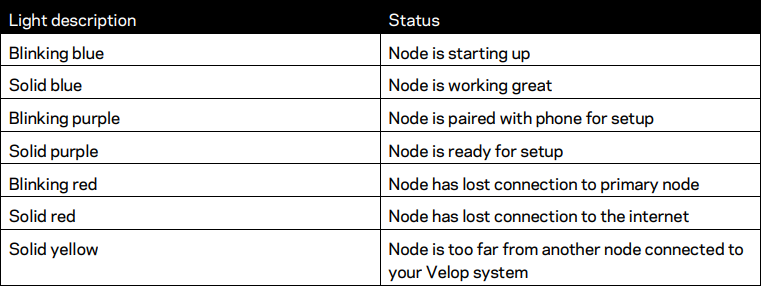
- Once the router has restarted, check the status of your internet connection by looking at the WAN/Internet LED indicator on the router. It should be solid white.
- On your connected device, try accessing a website to confirm that your connection is active.
7. Troubleshooting (if needed)
- If your internet connection is not working:
- Restart both the ONT and the router by unplugging them for 30 seconds and plugging them back in.
- Double-check the VLAN and DHCP settings in the router’s configuration.
- Ensure that the ethernet cable is securely connected to the correct ports (first port on the ONT and the WAN port on the router).
8. Reset the router (if required)
- If you cannot access the router due to forgotten login credentials or misconfiguration, reset the router to factory settings:
- Find the reset button at the back of the router.
- Press and hold the reset button for about 10-15 seconds using a pin or paperclip.
- Release the button once the router’s lights start flashing. The router will reboot and return to factory settings.
- Log in using the default credentials (admin/password) and repeat the configuration process from Step 2.
9. Contact support
- If you are still unable to connect, please reach out to our support team at our Support Portal - https://help.simplybroadband.co.nz for further assistance.