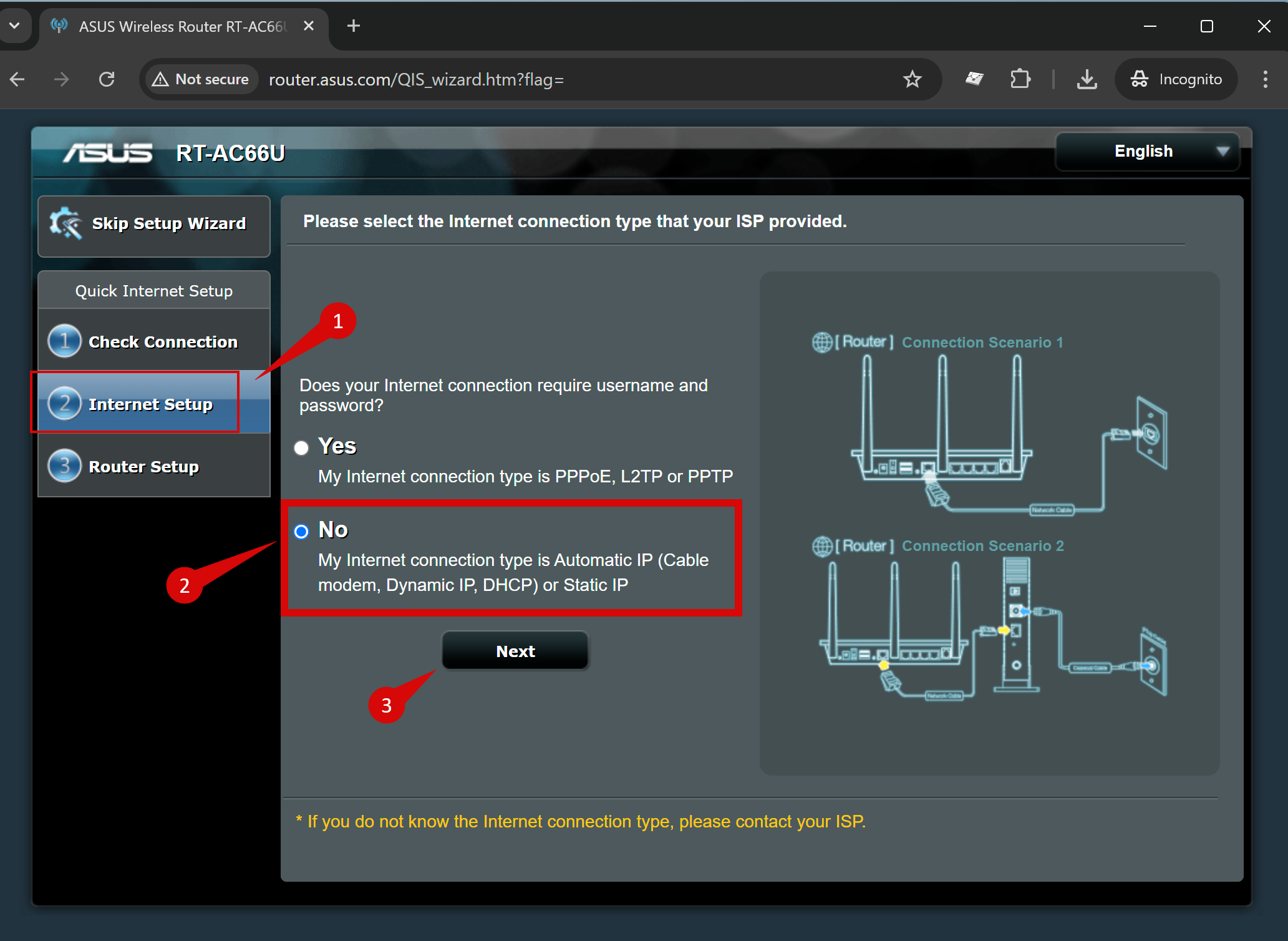
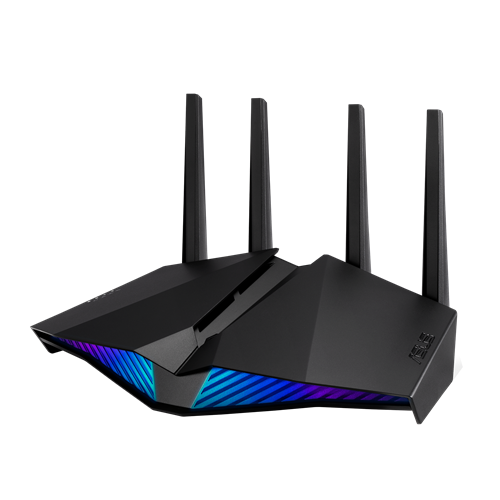
Connect the WAN port of the ASUS DSL-AX82U AX5400 router to the first port (LAN1 or GE1) on your Optical Network Terminal (ONT) using an ethernet cable.
Sometimes we connect to second port instead of first - check your Welcome email instructions to make sure which port you should use.
Ensure the router is powered on and that your computer or smartphone is connected to the router via Wi-Fi or a LAN cable.
Open a web browser on a connected device and enter either http://router.asus.com or 192.168.50.1 (if neither of those options work try: 192.168.0.1, or 192.168.1.1) into the address bar.
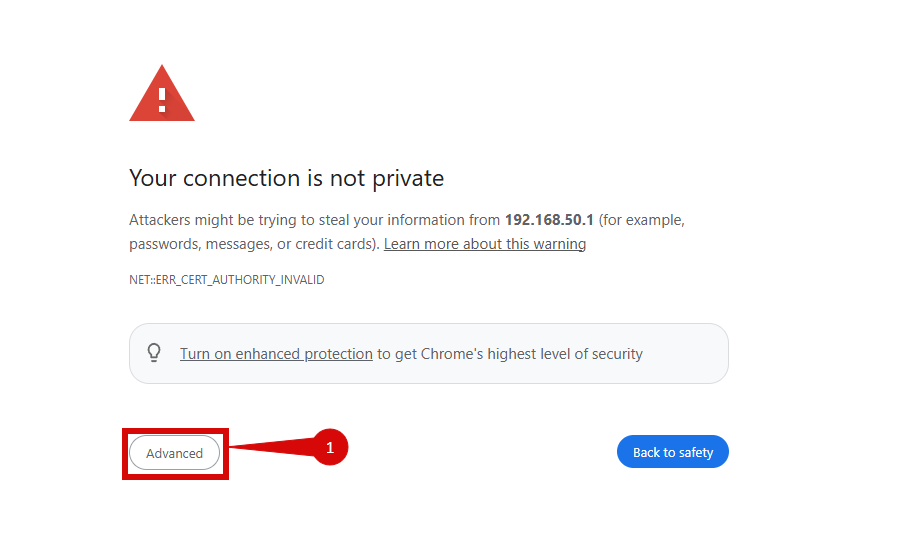
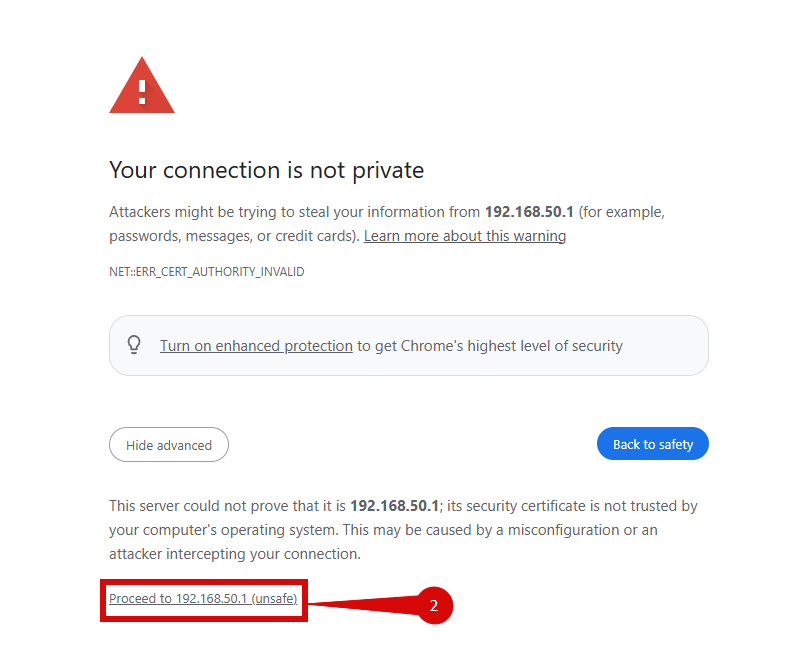
You may be redirected to the below page, follow steps to reach configuration:
Click Advanced (step 1).
Click Proceed to 192.168.50.1 (unsafe) (step 2).
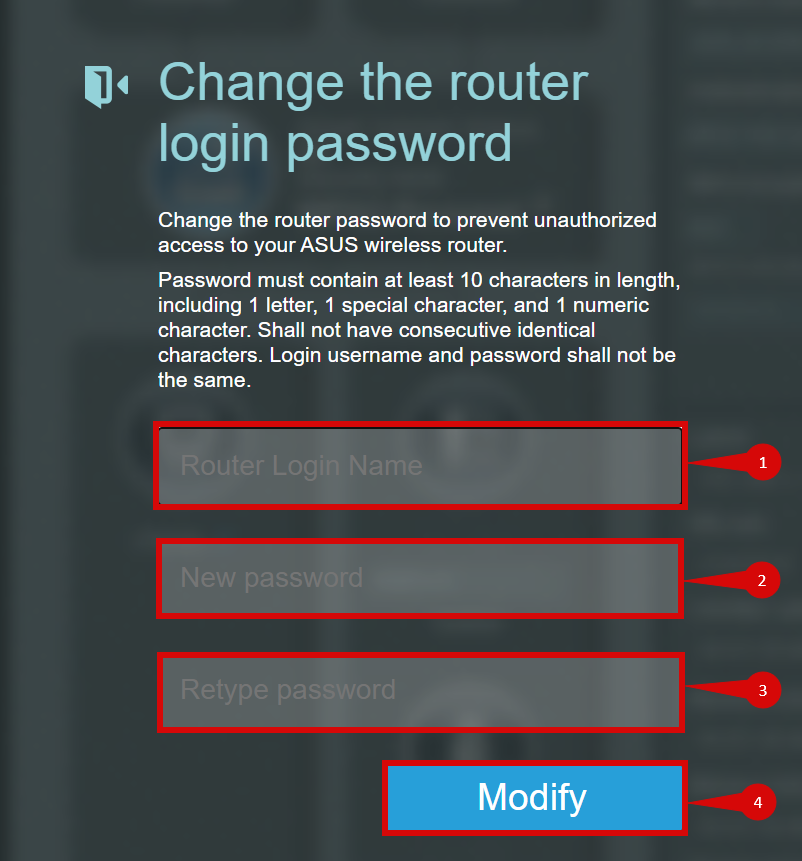
You might be prompted to Change the router login password
Enter the Router Login Name (this will be the admin username going forward) (step 1).
Enter the New password you wish to use to login to the admin panel going forward (step 2).
Confirm teh New password (step 3).
Click Modify (step 4).
You may be prompted to log in. Use the credentials you have just set or try credentials below:
Username:admin
Password:admin
If you have changed the default credentials and cannot remember them, proceed to 8 for resetting the router.
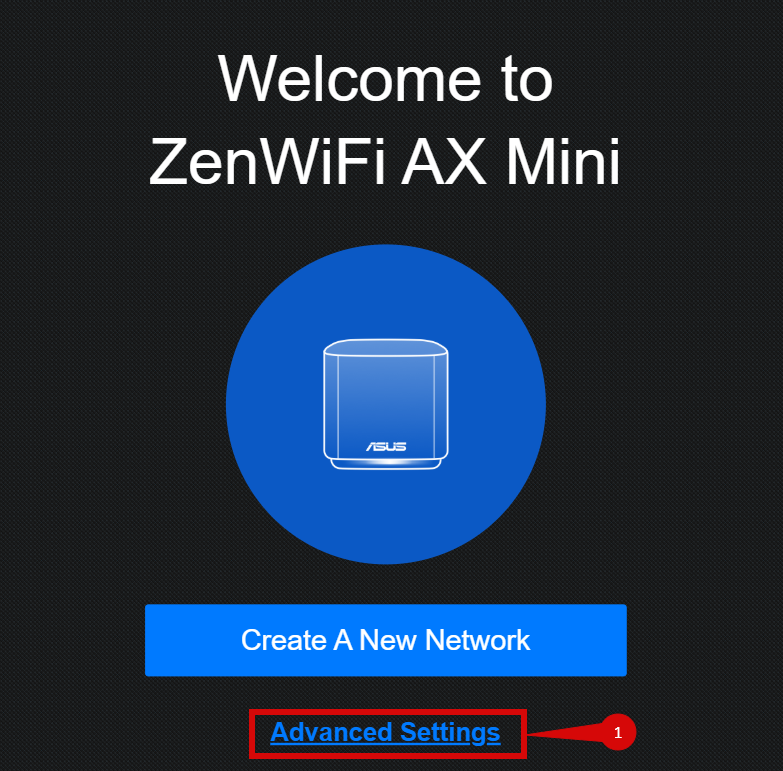
You may be prompted to go through a "quick setup", this is usually more user friendly:
Click Advanced Settings (step 1).
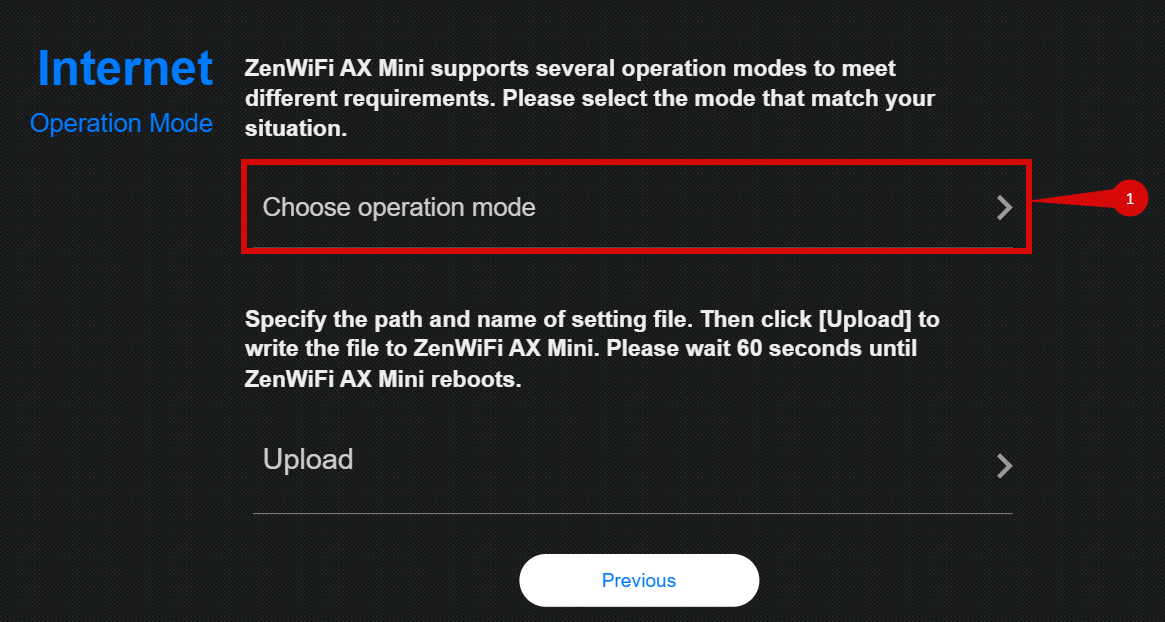
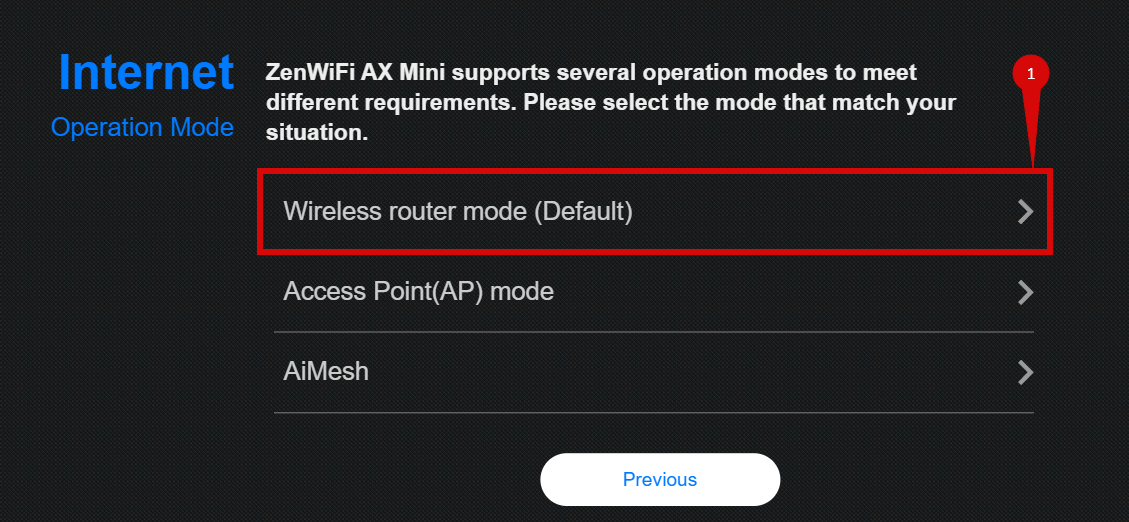
Click on Choose operation mode (step 1).
Click on Wireless router mode (Default) (step 1).
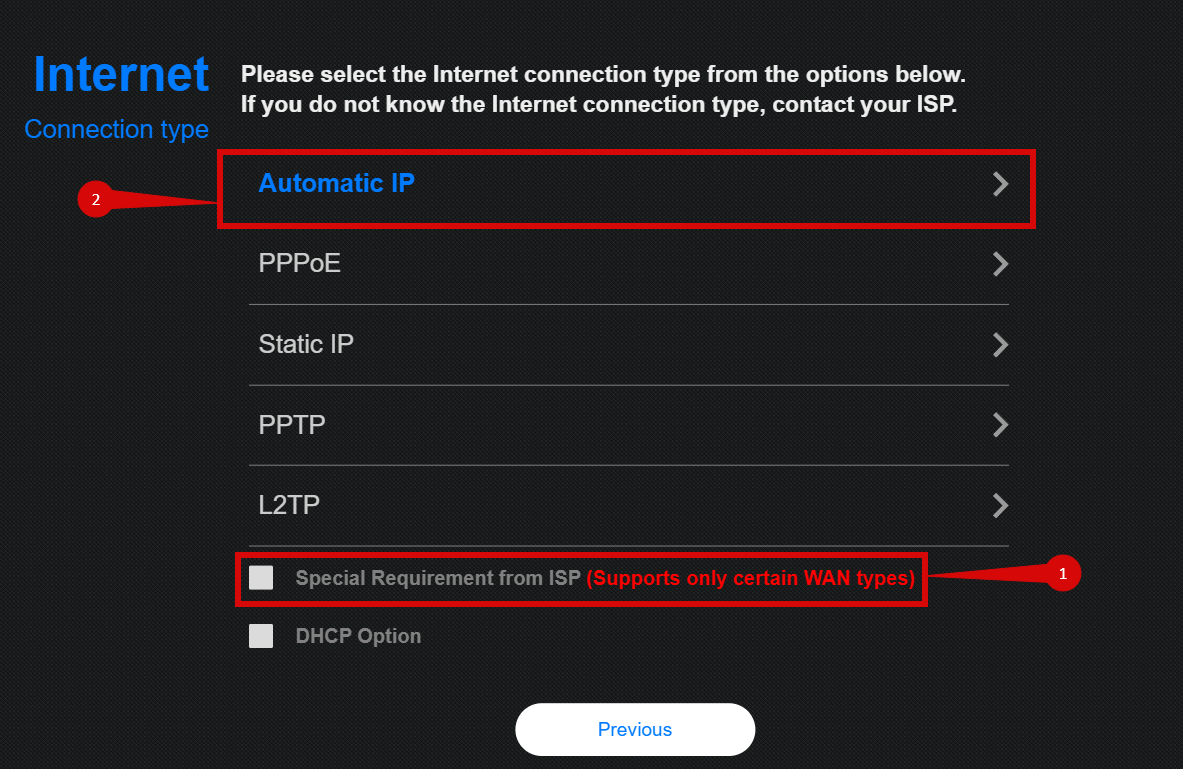
Make sure that you Tick Special Requirements from ISP (Supports only certain WAN types) (step 1).
Then click Automatic IP (step 2)
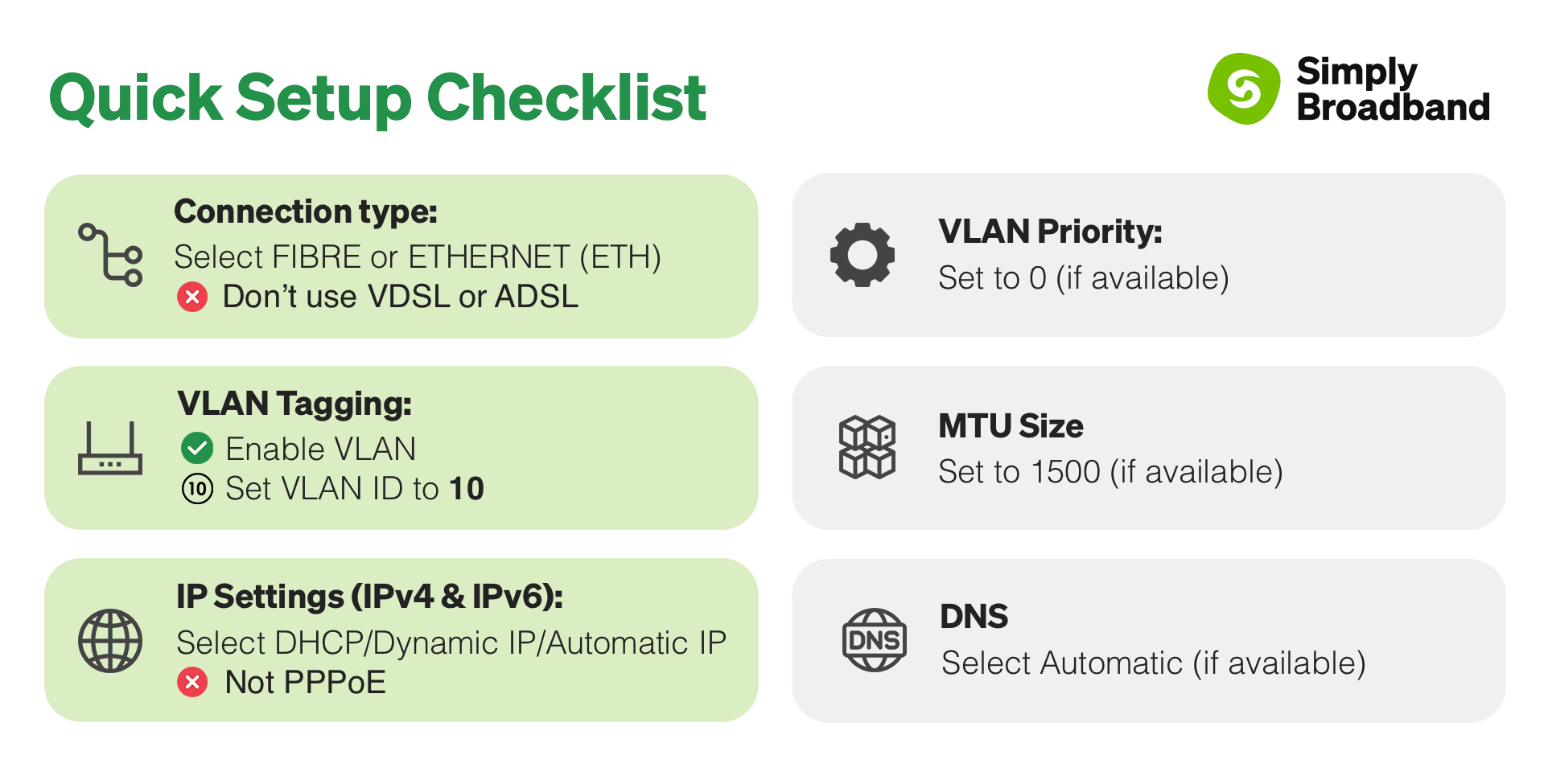
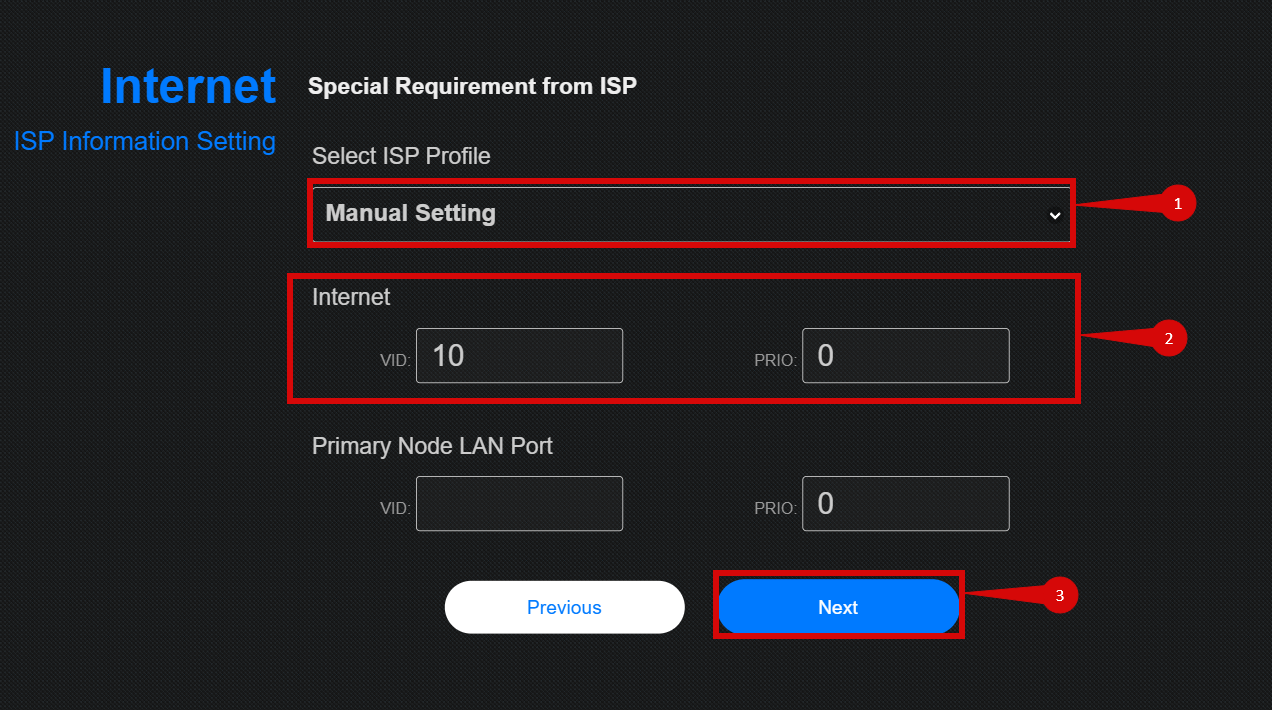
Under Special Requirements from ISP configure as follows:
Select Manual Setting from the drop down (step 1).
Set Internet VID = 10 (step 2).
Set Internet PRIO = 0 (step 2).
Click Next (step 3).
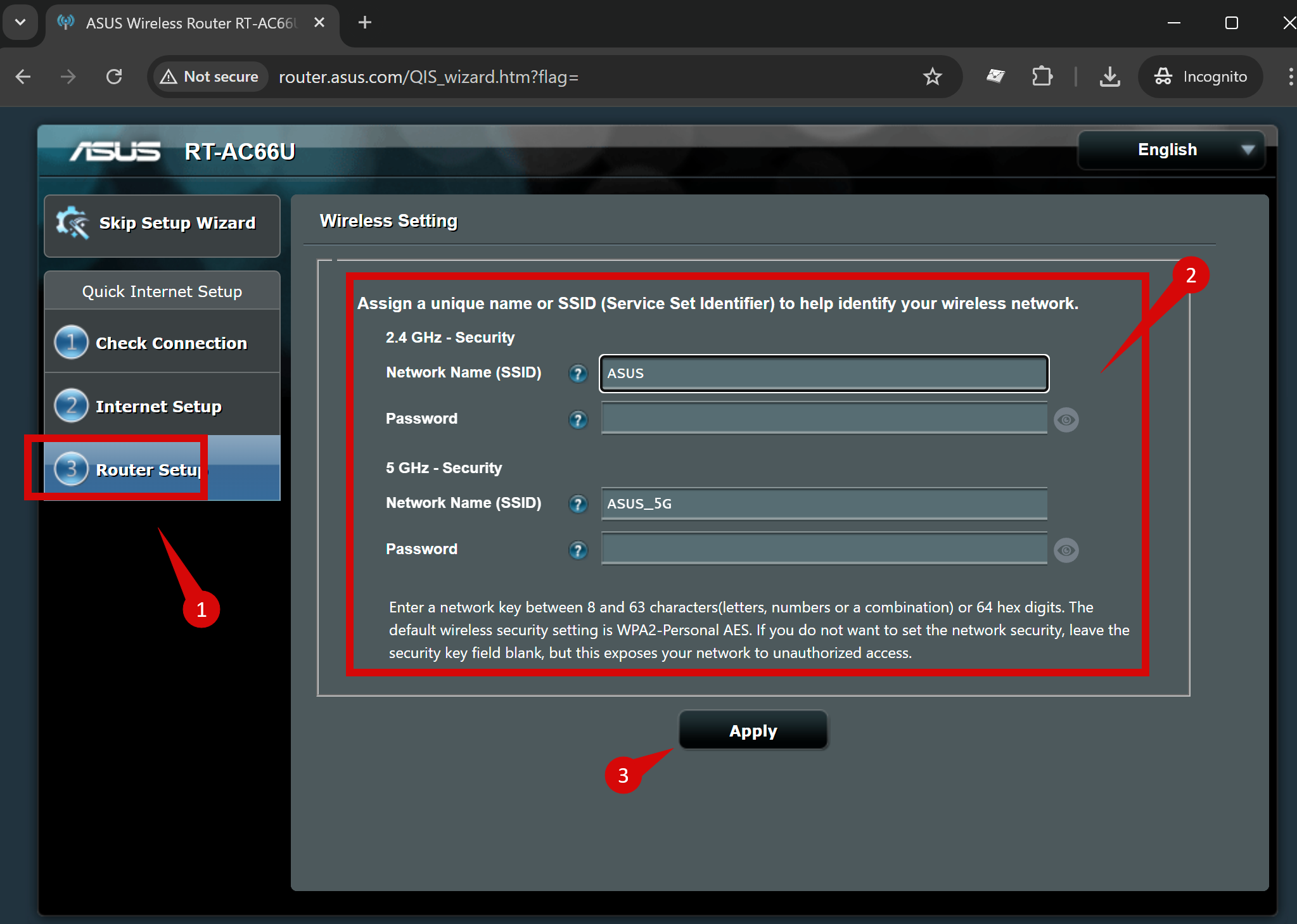
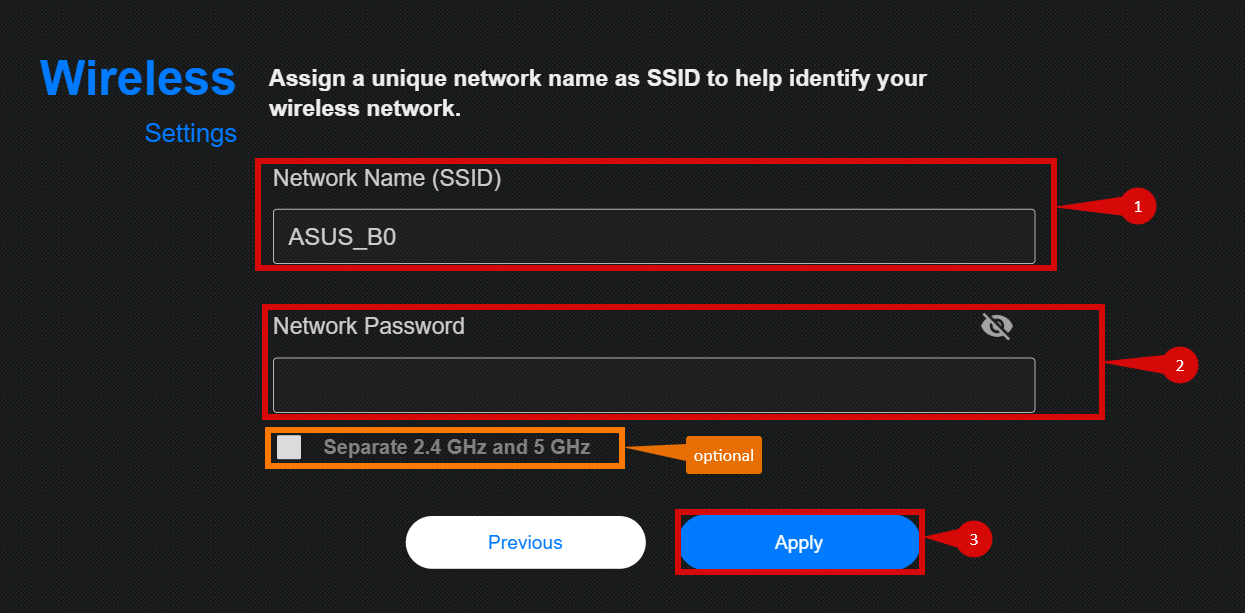
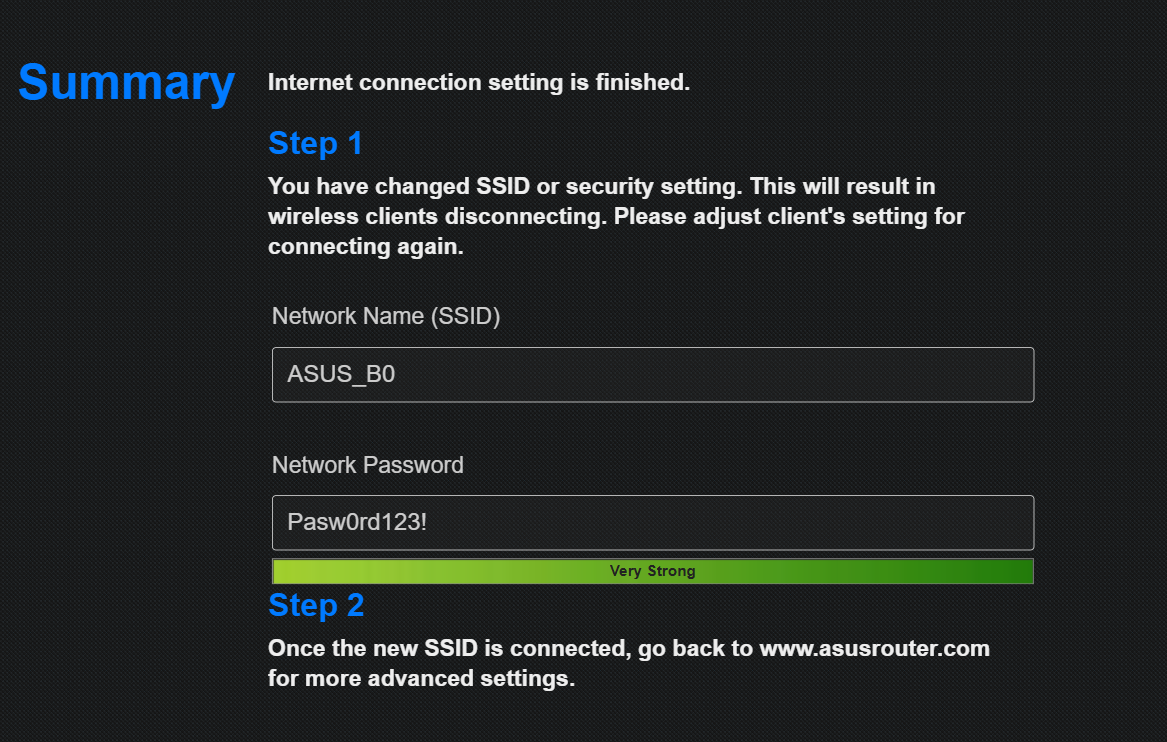
You will need to setup your Wireless Settings:
Create a Network Name (SSID) (step 1).
Set a Network Password (step 2).
You can separate the 2.4 GHz and the 5GHz networks if you want. You will need to set separate Network names and passwords for each (optional).
Click Apply (step 3).
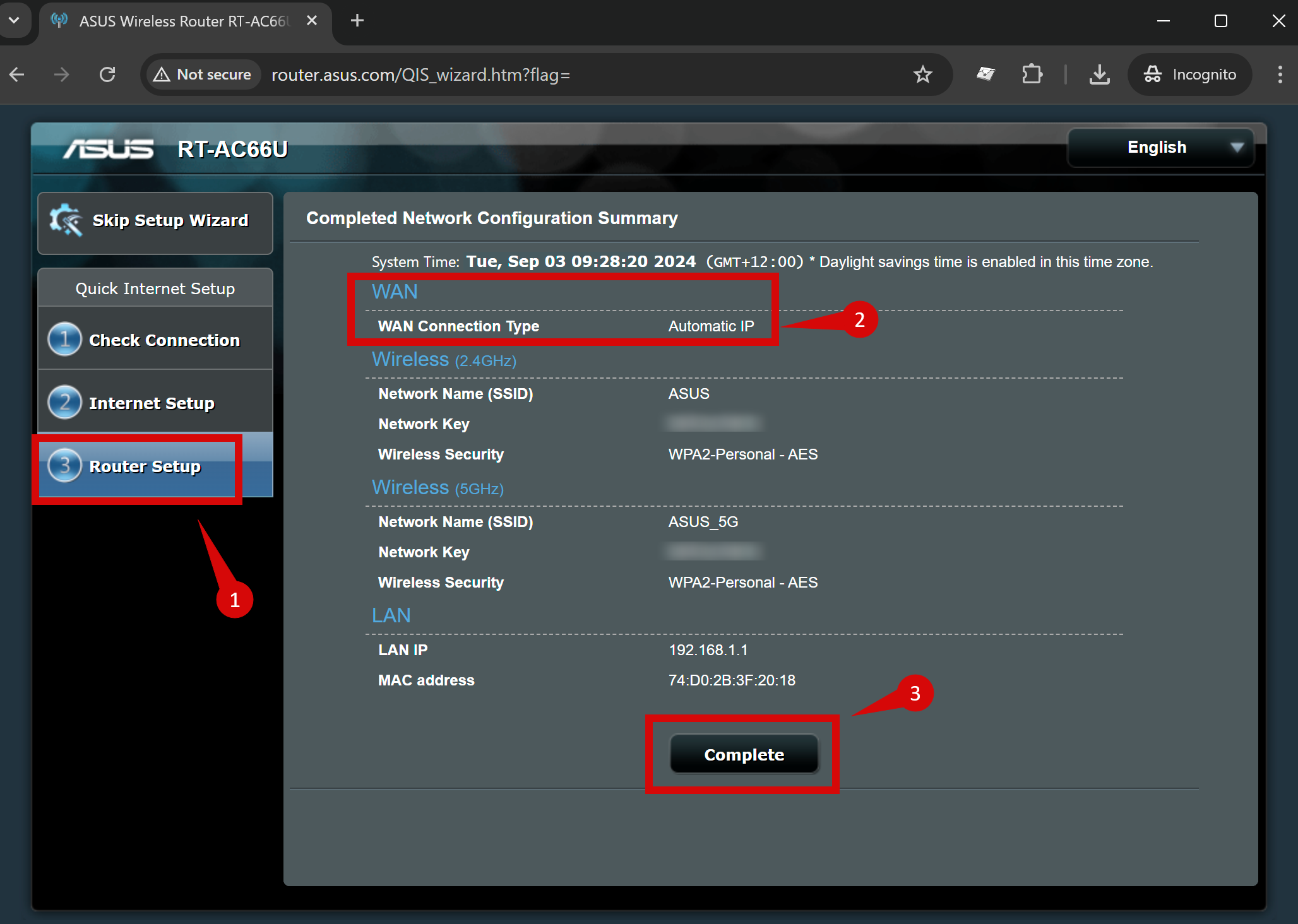
The router will reboot and then will redirect you to the complete admin panel (please see section 3.1 onwards for configuration if you are still not ONLINE).
Once logged in, follow these steps to set up the internet connection type
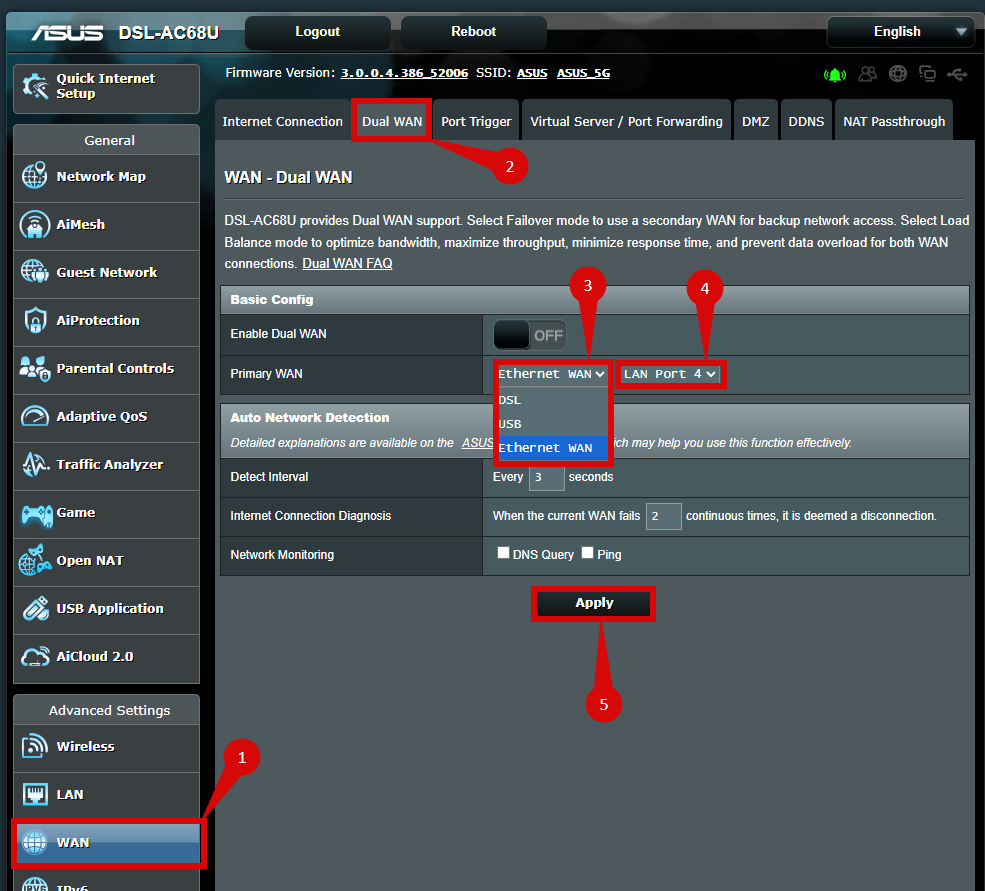
You will need to create a dedicated WAN Port follow instruction below:
Navigate to WAN > Dual WAN (step 1 & 2).
Set Primary WAN to Ethernet WAN,
If your device already has a dedicatedWAN Port then you do not need to set LAN 4 as your WAN Port.
If you do not have a dedicated WAN Port then you will need to set LAN Port 4 as your dedicated WAN Port (this means your WAN port will be LAN 4) (step 3 & 4).
Click Apply (step 5).
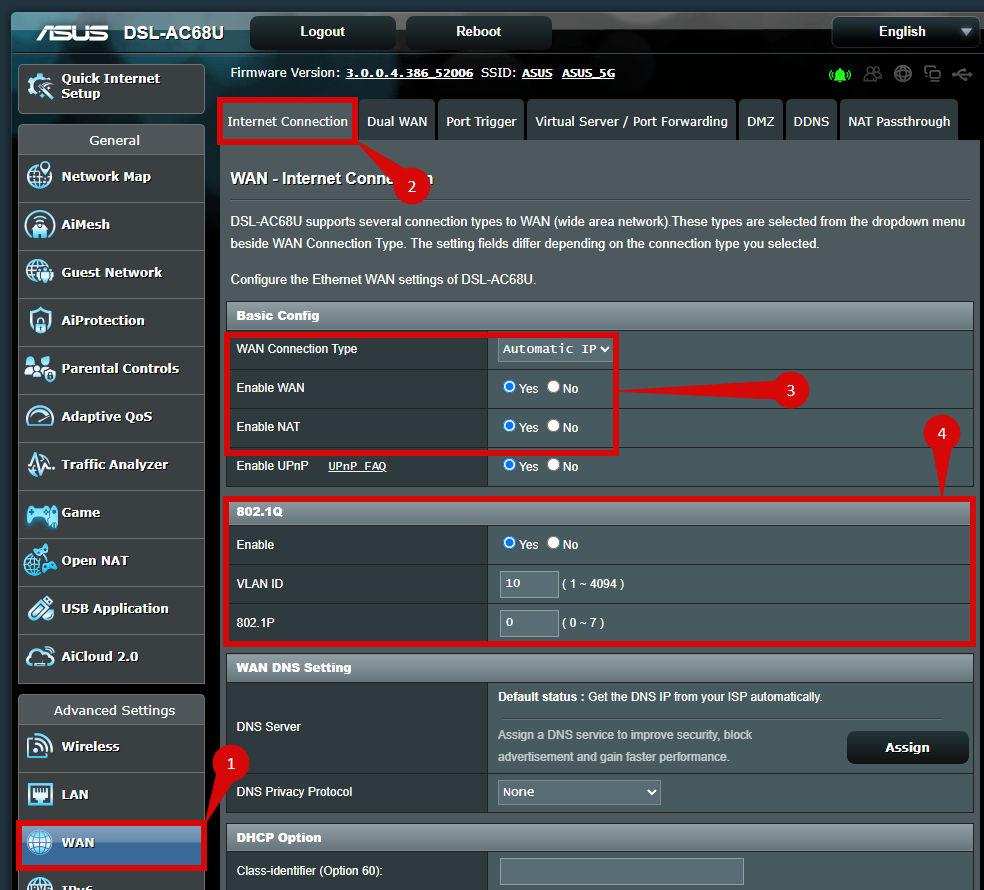
Navigate to WAN > Internet Connection (step 1 & 2).
Configure the following: (step 3).
Set the WAN Connection Type to Automatic IP (DHCP).
Enable WAN = Yes.
Enable NAT = Yes.
To configure VLAN under 802.1Q configure as follows: (step 4).
Once the router has restarted, check the status of your internet connection by looking at the WAN/Internet LED indicator on the router. It should be solid green.
On your connected device, try accessing a website to confirm that your connection is active.
If you are still unable to connect, please reach out to our support team at our Support Portal — https://help.simplybroadband.co.nz — for further assistance.
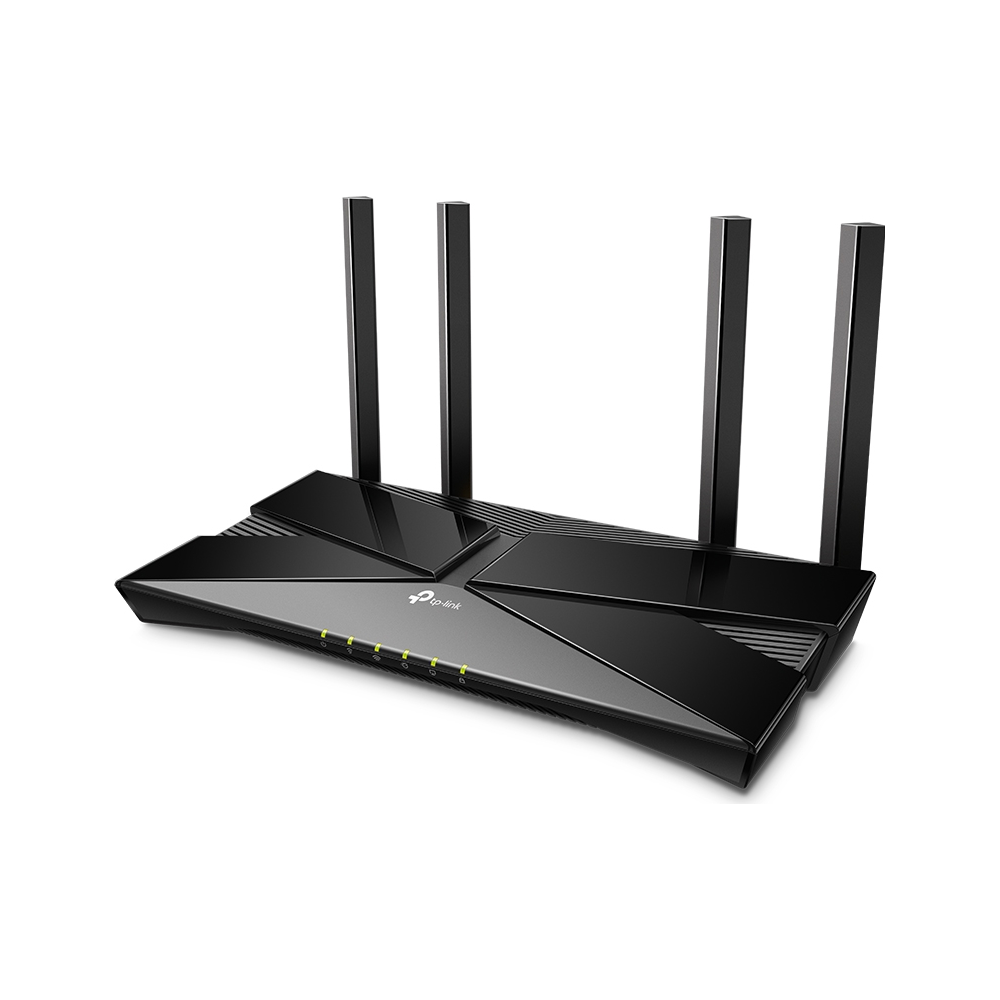
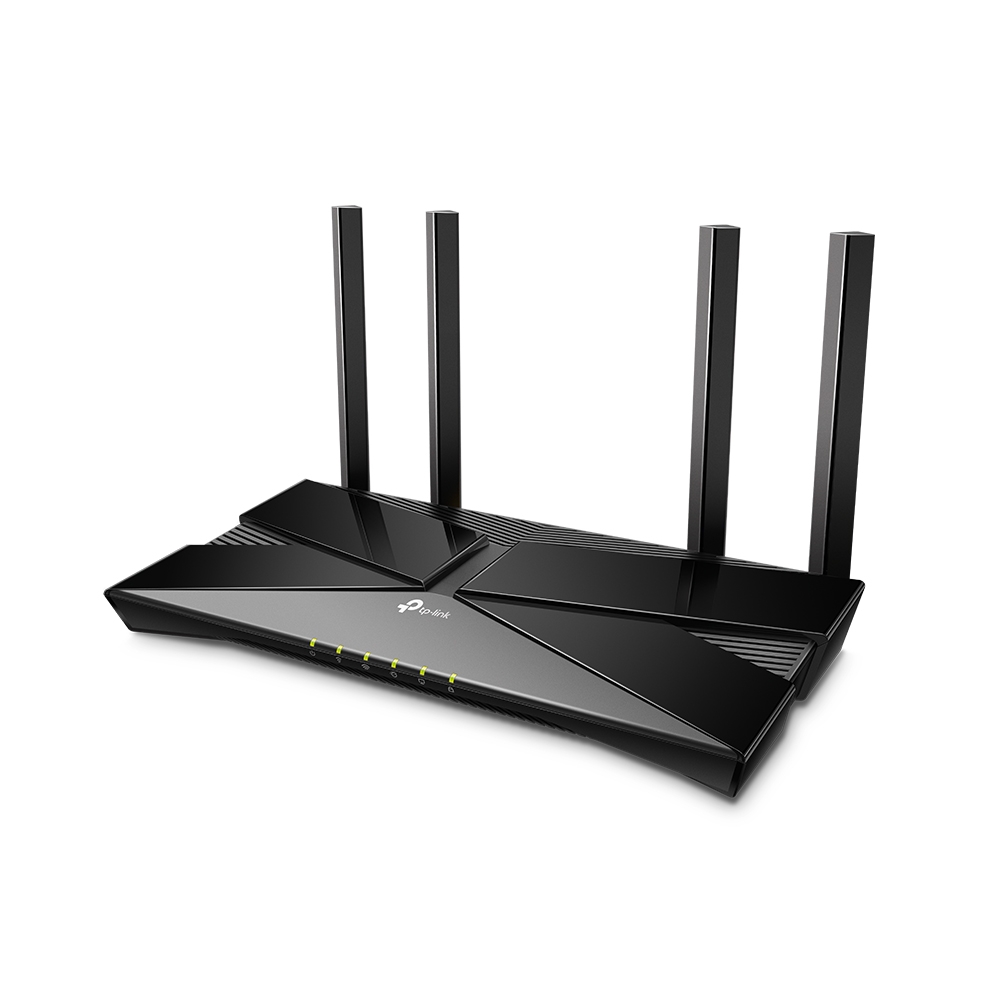
Recommended routers
Simply Broadband does not currently offer a router for sale directly. We can recommend these options which
are available from a number of major retailers. Click image to shop or
compare more routers on PriceMe.


.png)