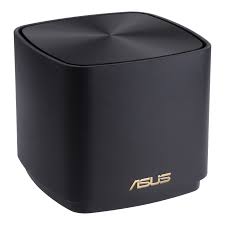
Step-by-step guide to set up ASUS ZenWiFi AX Mini XD4R router
Physical connection:
- Connect the WAN port of the ASUS ZenWiFi AX Mini XD4R router to the first port (LAN1 or GE1) on your Optical Network Terminal (ONT) using an Ethernet cable.
- Sometimes we connect to second port instead of first - check your Welcome email instructions to make sure which port you should use.
- Ensure the router is powered on and that your computer or smartphone is connected to the router via Wi-Fi or a LAN cable.
- Open a web browser on a connected device and enter either http://router.asus.com or
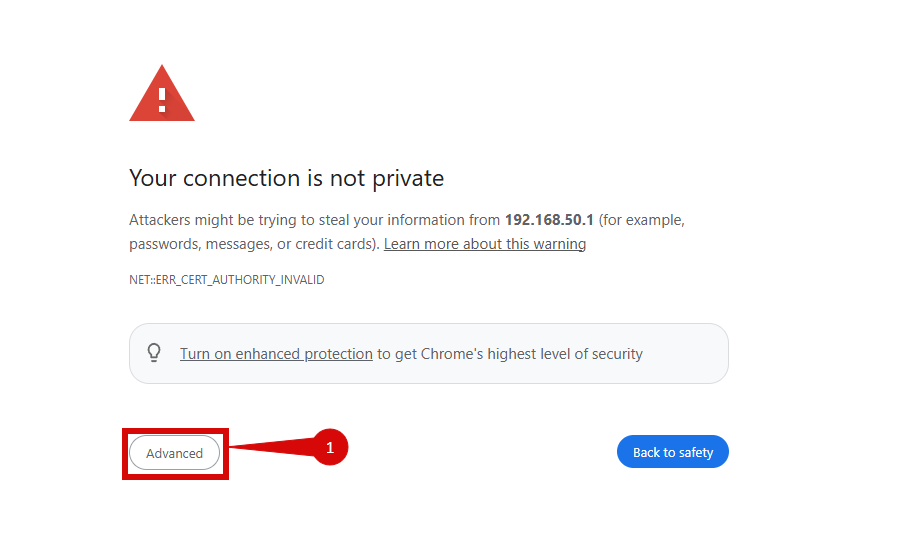
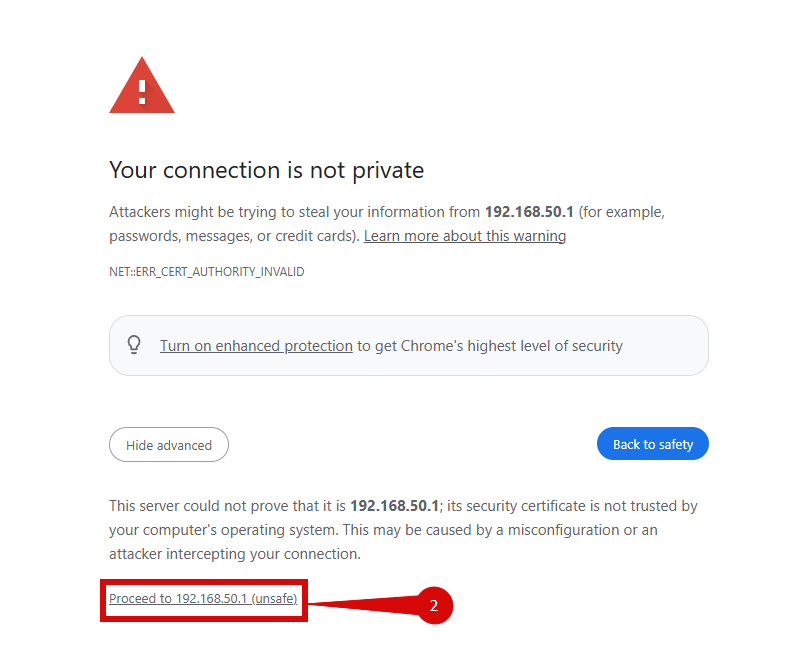
192.168.50.1(if neither of those options work try: 192.168.0.1, or 192.168.1.1) into the address bar. - You may be redirected to the below page, follow steps to reach configuration:
- Click Advanced (step 1).
- Click Proceed to 192.168.50.1 (unsafe) (step 2).
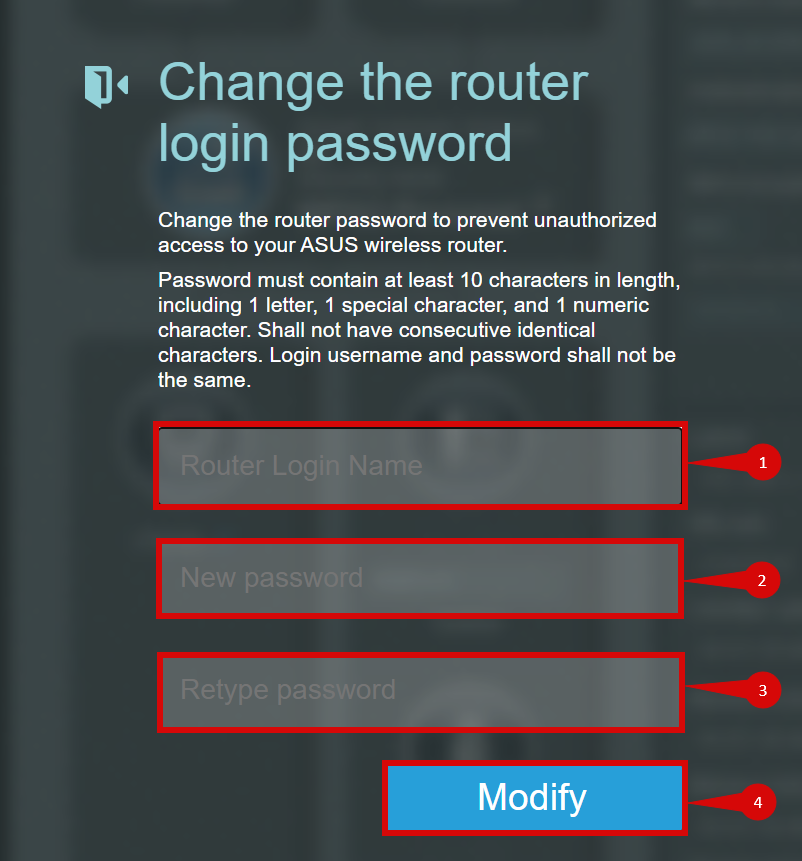
- You might be prompted to Change the router login password
- Enter the Router Login Name (this will be the admin username going forward) (step 1).
- Enter the New password you wish to use to login to the admin panel going forward (step 2).
- Confirm teh New password (step 3).
- Click Modify (step 4).
- You may be prompted to log in. Use the credentials you have just set or try credentials below:
- Username:
admin Password:admin
- Username:
- If you have changed the default credentials and cannot remember them, proceed to 8 for resetting the router.
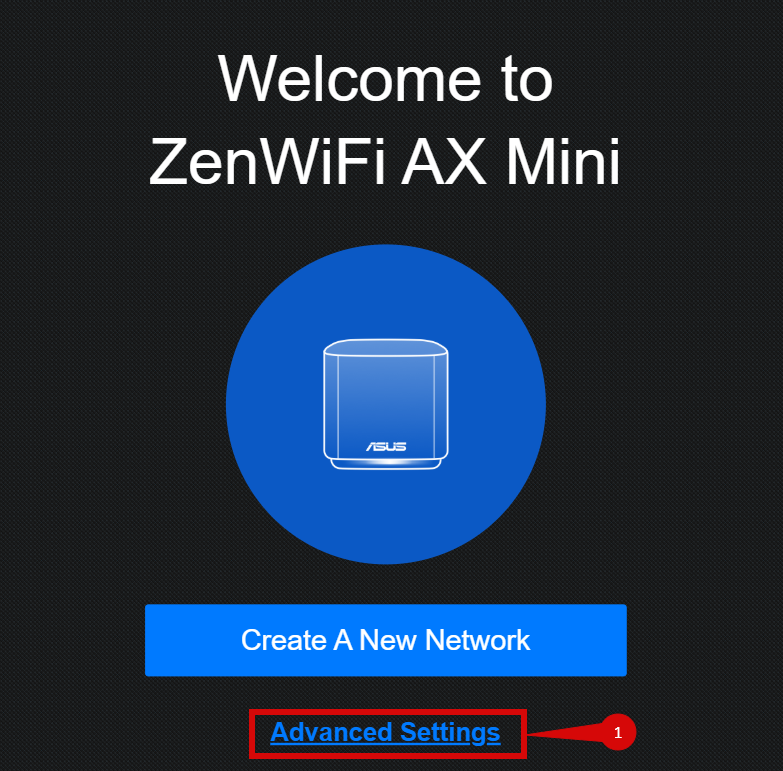
- You may be prompted to go through a "quick setup", this is usually more user friendly:
- Click Advanced Settings (step 1).
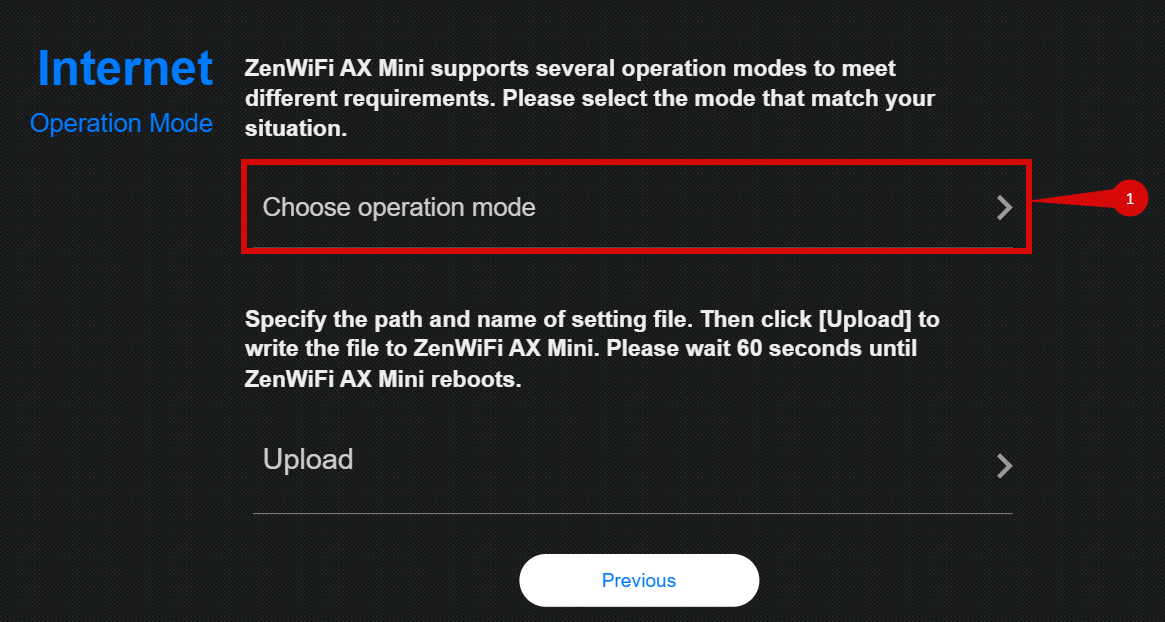
- Click on Choose operation mode (step 1).
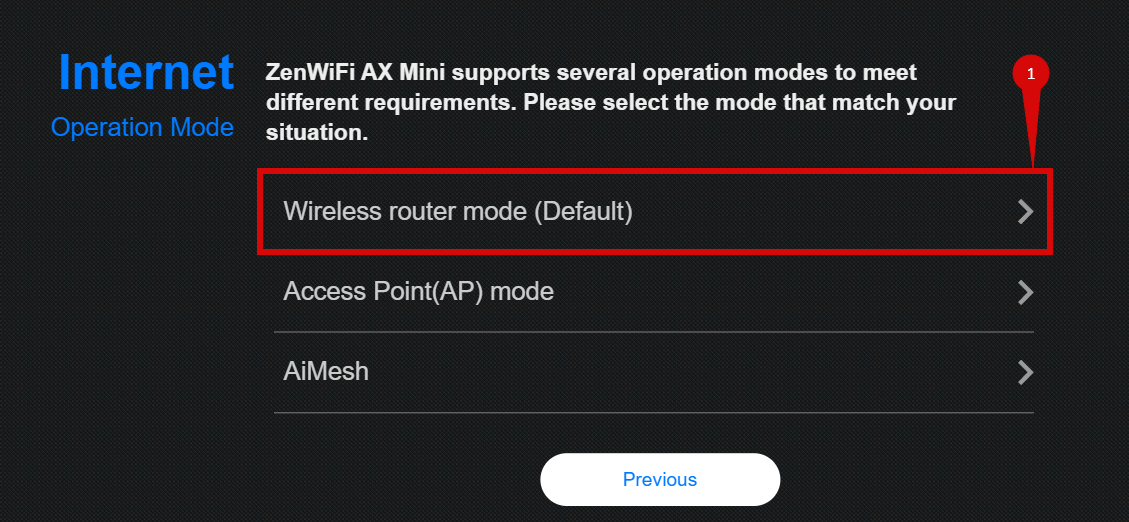
- Click on Wireless router mode (Default) (step 1).
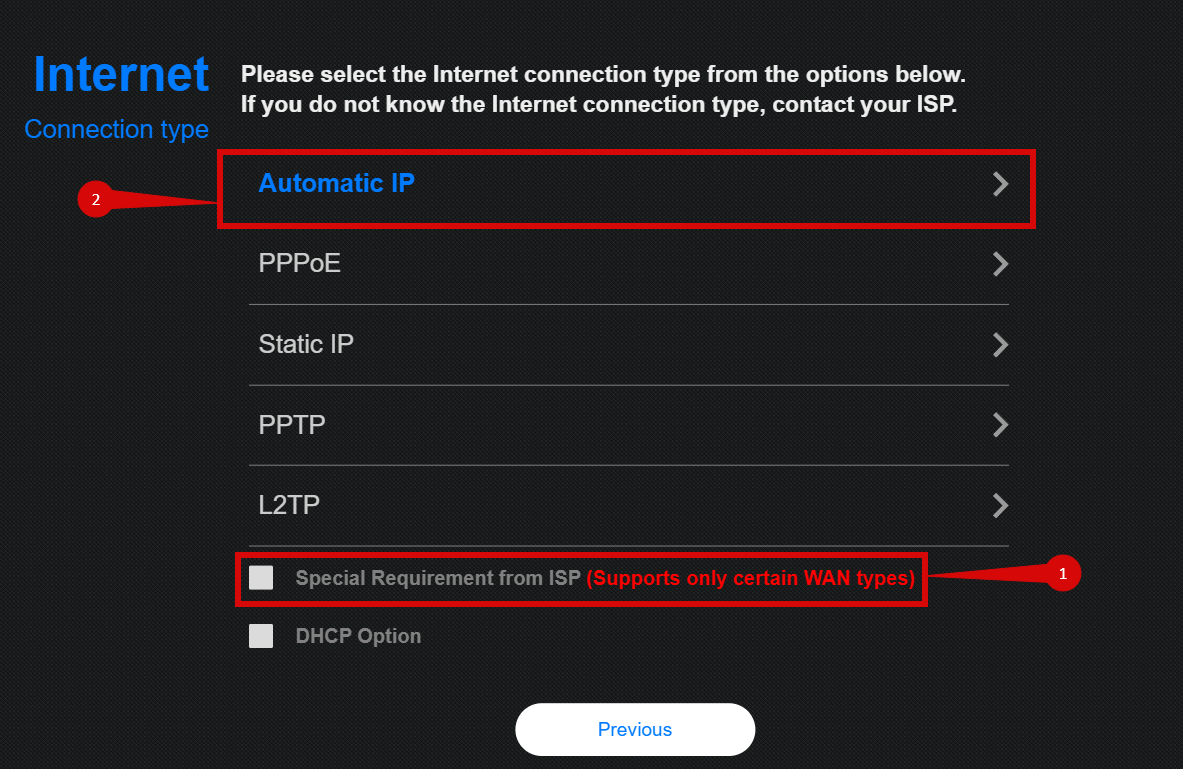
- Make sure that you Tick Special Requirements from ISP (Supports only certain WAN types) (step 1).
- Then click Automatic IP (step 2)
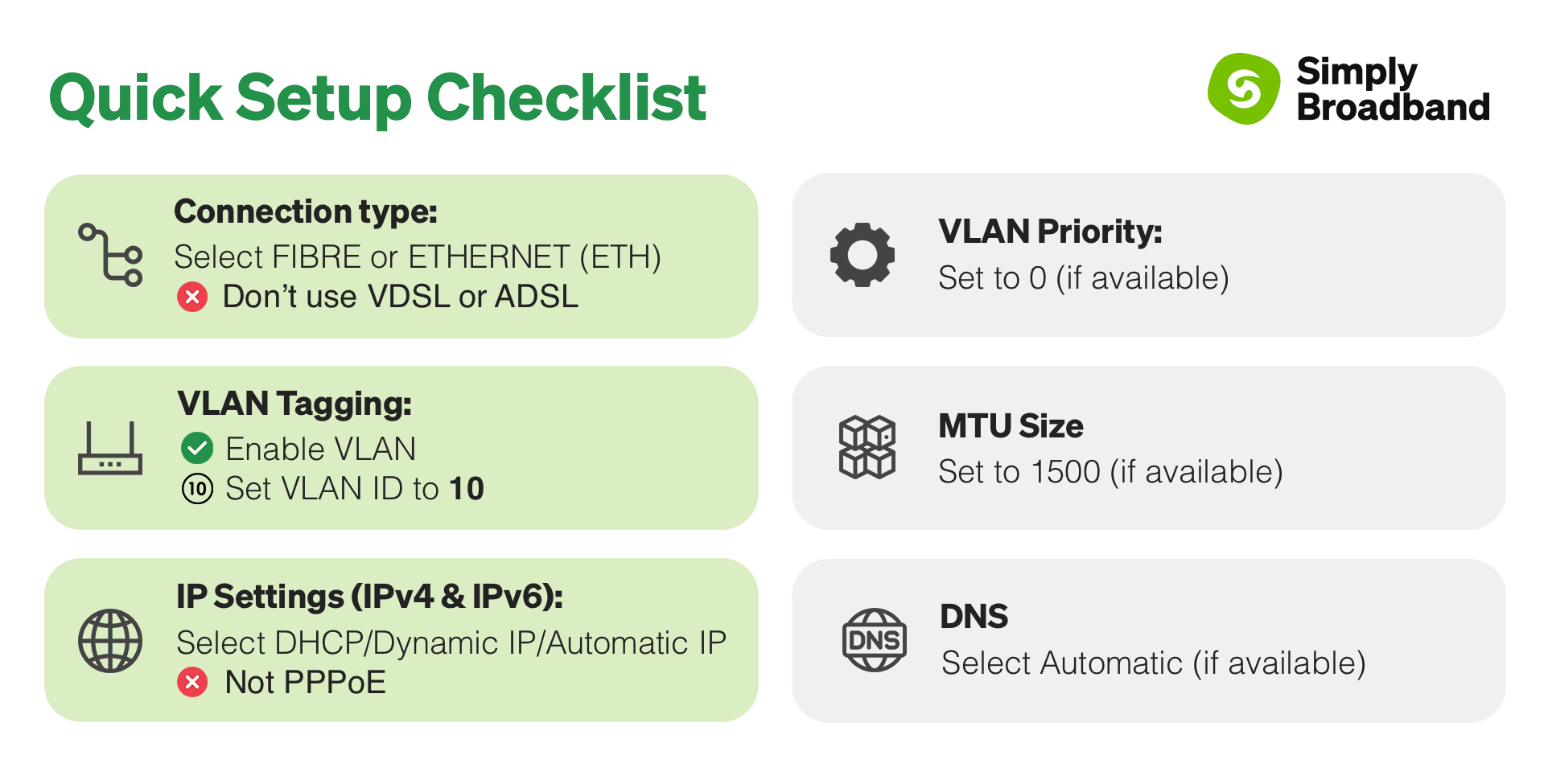
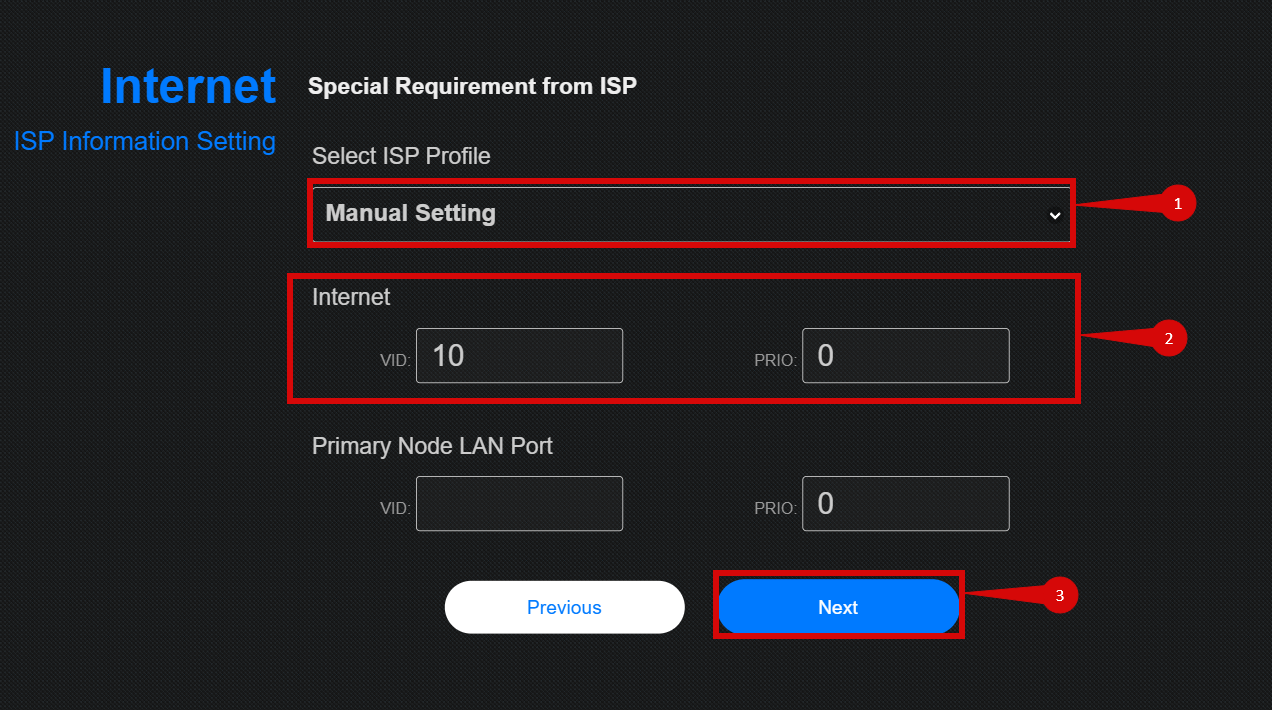
- Under Special Requirements from ISP configure as follows:
- Select Manual Setting from the drop down (step 1).
- Set Internet VID = 10 (step 2).
- Set Internet PRIO = 0 (step 2).
- Select Manual Setting from the drop down (step 1).
- Click Next (step 3).
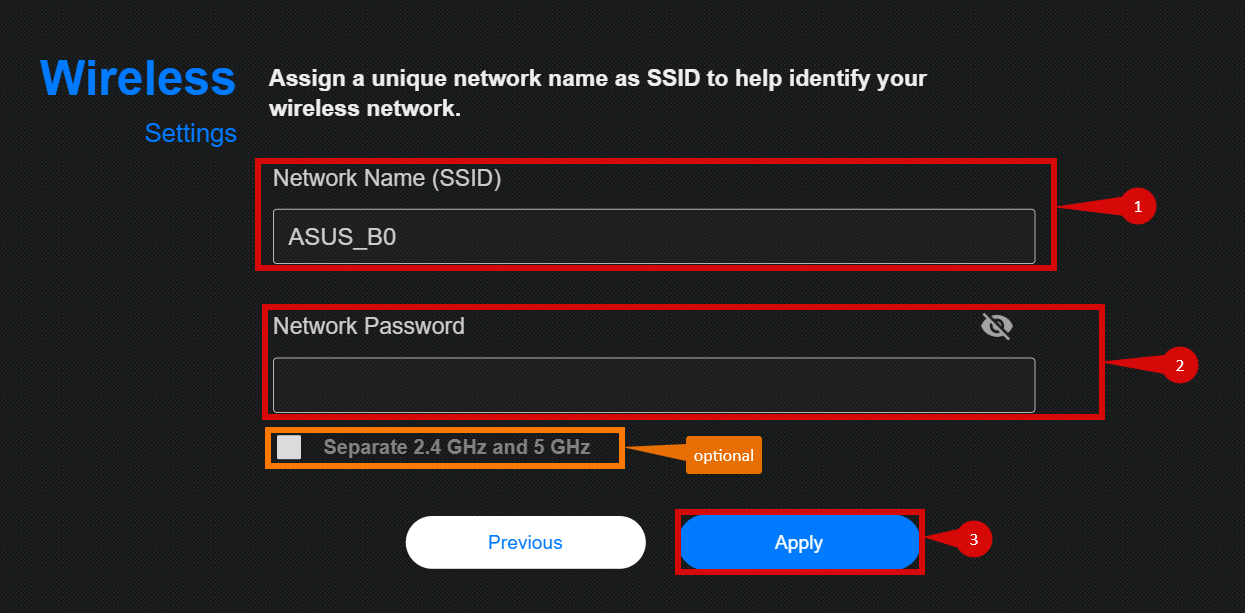
- You will need to setup your Wireless Settings:
- Create a Network Name (SSID) (step 1).
- Set a Network Password (step 2).
- You can separate the 2.4 GHz and the 5GHz networks if you want. You will need to set separate Network names and passwords for each (optional).
- Click Apply (step 3).
- The router will reboot and then will redirect you to the complete admin panel (please see section 3.1 onwards for configuration if you are still not ONLINE).
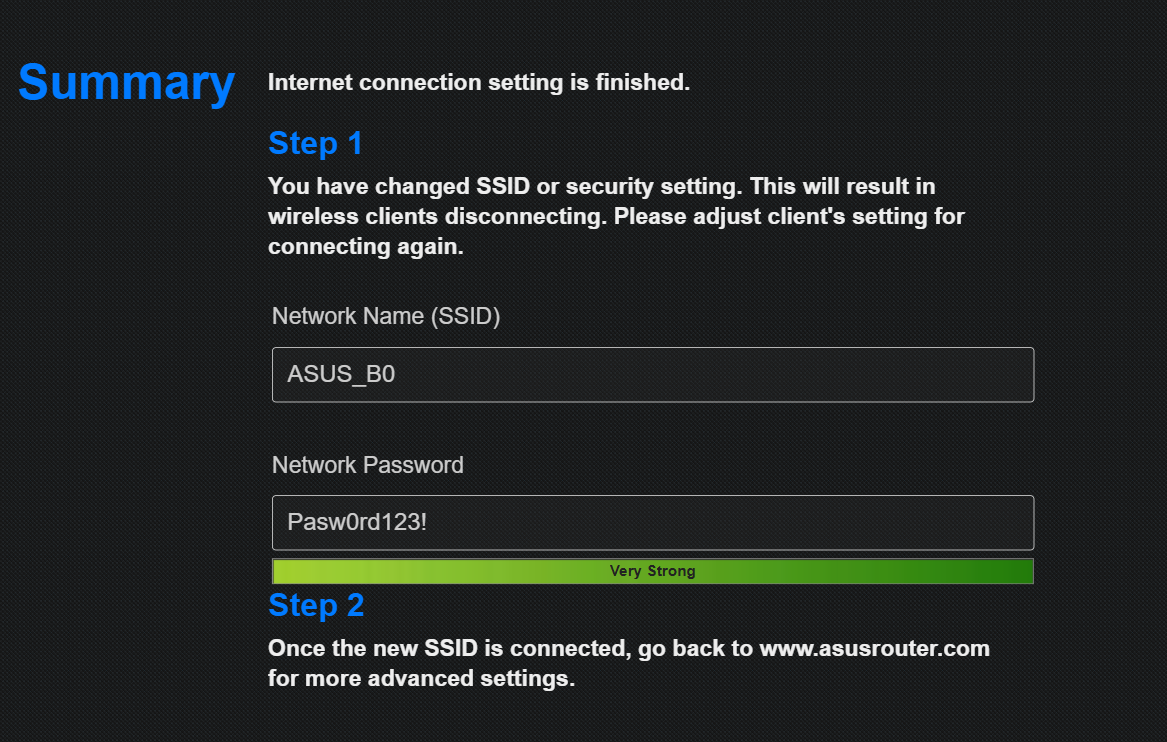
Once logged in, follow these steps to set up the internet connection type:
- Navigate to WAN > Internet Connection.
- Set the WAN Connection Type to Automatic IP (DHCP).
- Find Account Settings section and check that authentication is set to None.
- Click Apply to confirm the changes.
.png)
To set up VLAN:
- Navigate to LAN > IPTV tab (Steps 1 & 2).
- Select ISP Profile: Manual Setting (Step 3).
- Configure the following settings (Step 4):
- Internet VLAN ID:
10 - Priority:
0
- Internet VLAN ID:
- Click Apply to confirm the changes.
.png)
- After entering the VLAN and DHCP settings, click Apply to confirm the changes.
- The router may restart to apply the new settings. Wait a few minutes for the restart to complete.
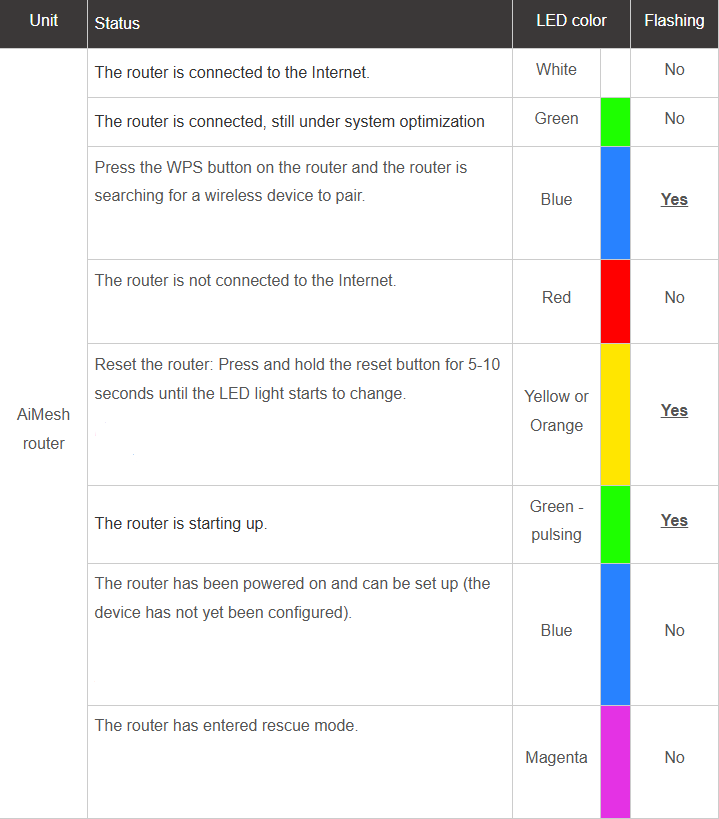
- Once the router has restarted, check the status of your internet connection by looking at the WAN/Internet LED indicator on the router. It should be solid green.
- On your connected device, try accessing a website to confirm that your connection is active.
If your internet connection is not working:
- Restart both the ONT and the router by unplugging them for 30 seconds and plugging them back in.
- Double-check the VLAN and DHCP settings in the router’s configuration.
- Ensure that the ethernet cable is securely connected to the correct ports (first port on the ONT and the WAN port on the router).
If you cannot access the router due to forgotten login credentials or misconfiguration, reset the router to factory settings:
- Find the reset button at the back of the router.
- Press and hold the reset button for about 10-15 seconds using a pin or paperclip.
- Release the button once the router’s lights start flashing. The router will reboot and return to factory settings.
- Log in using the default credentials (admin/admin) and repeat the configuration process from Step 2.
To set up the credentials:
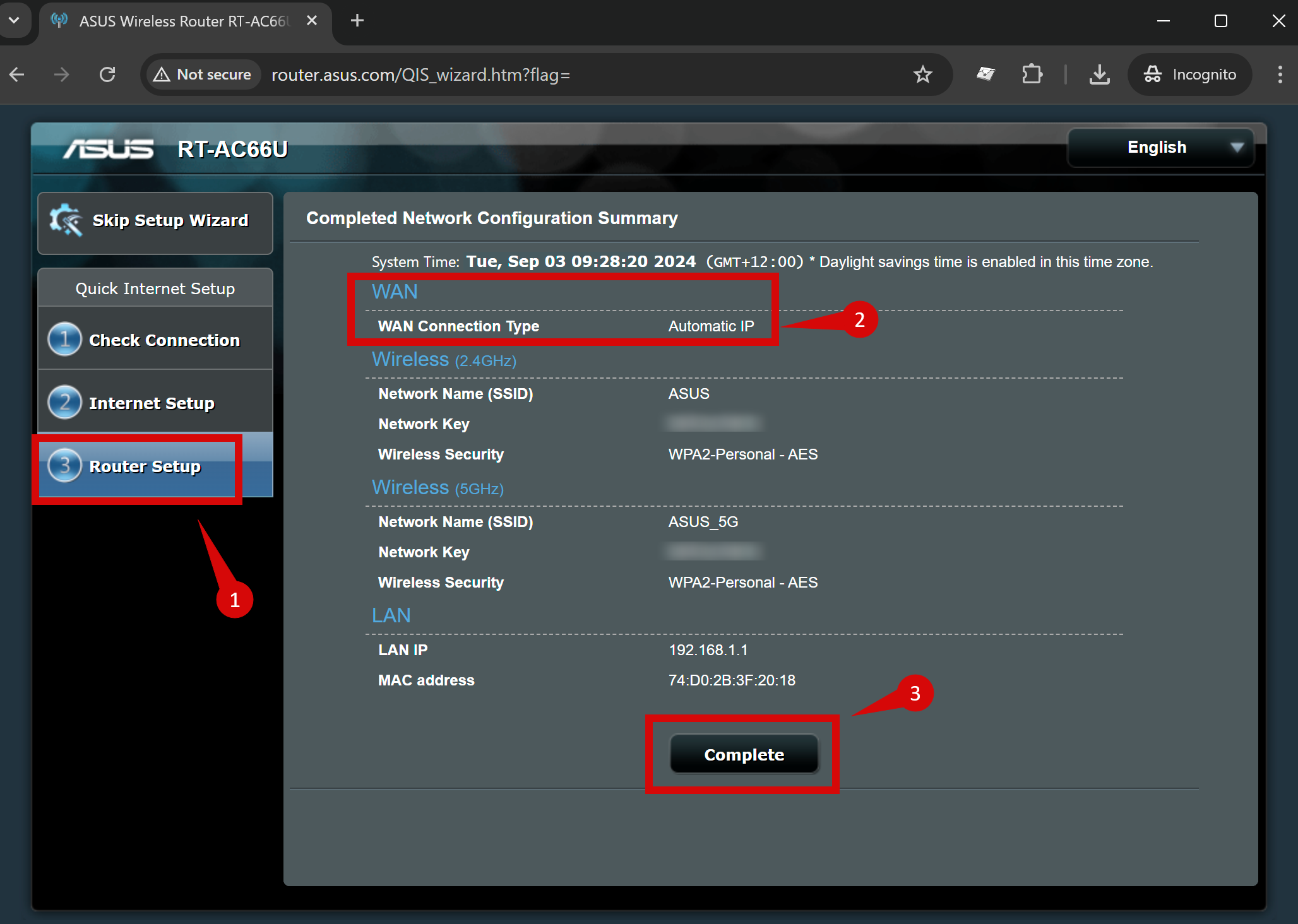
- In Setup Wizard, navigate to Check Connection and set up the credentials (admin/admin).
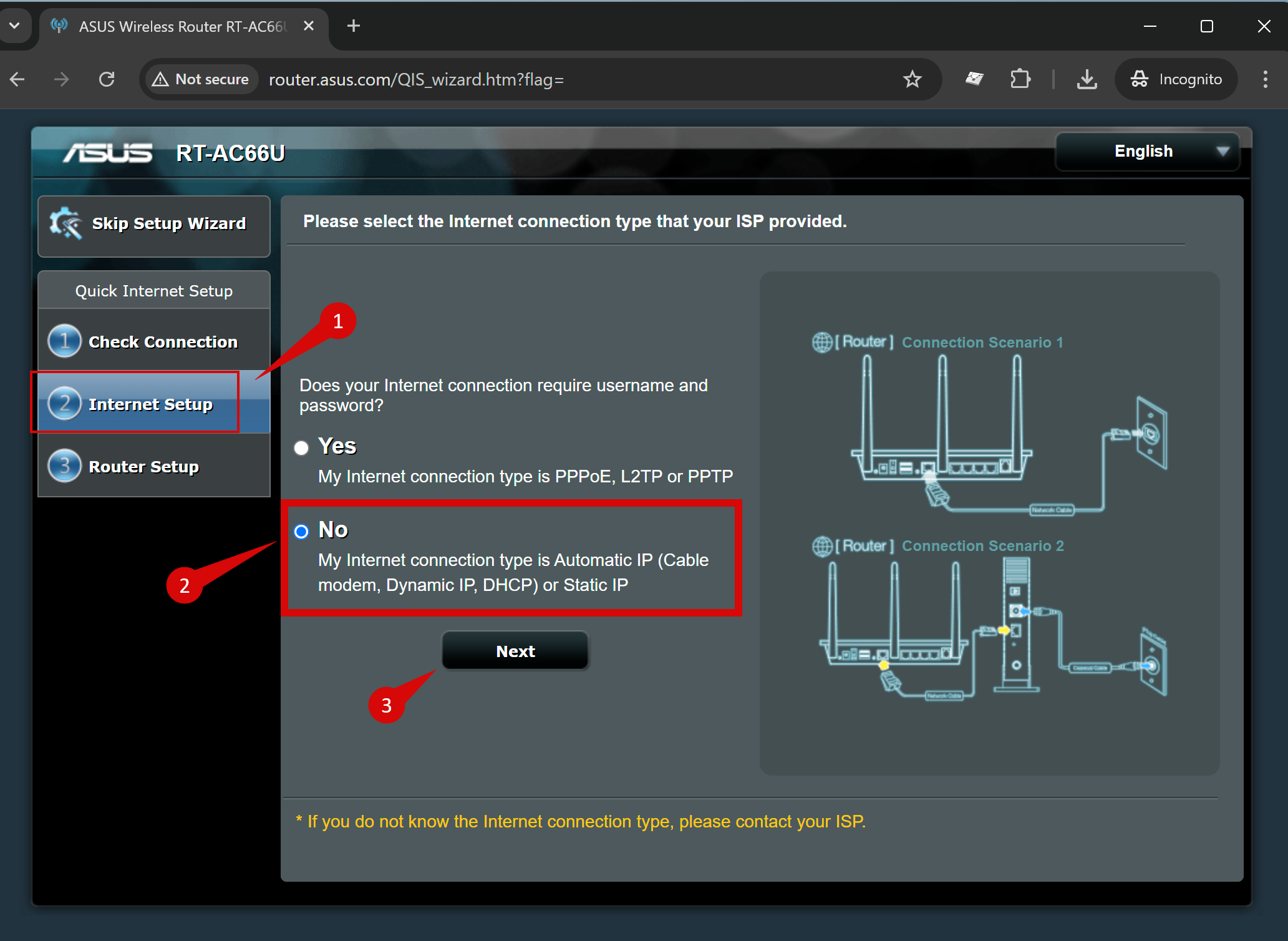
- Navigate to Internet Setup:
- The Setup Wizard will likely detect your internet connection type (Automatic IP/DHCP...), if not, Select No and click Next.
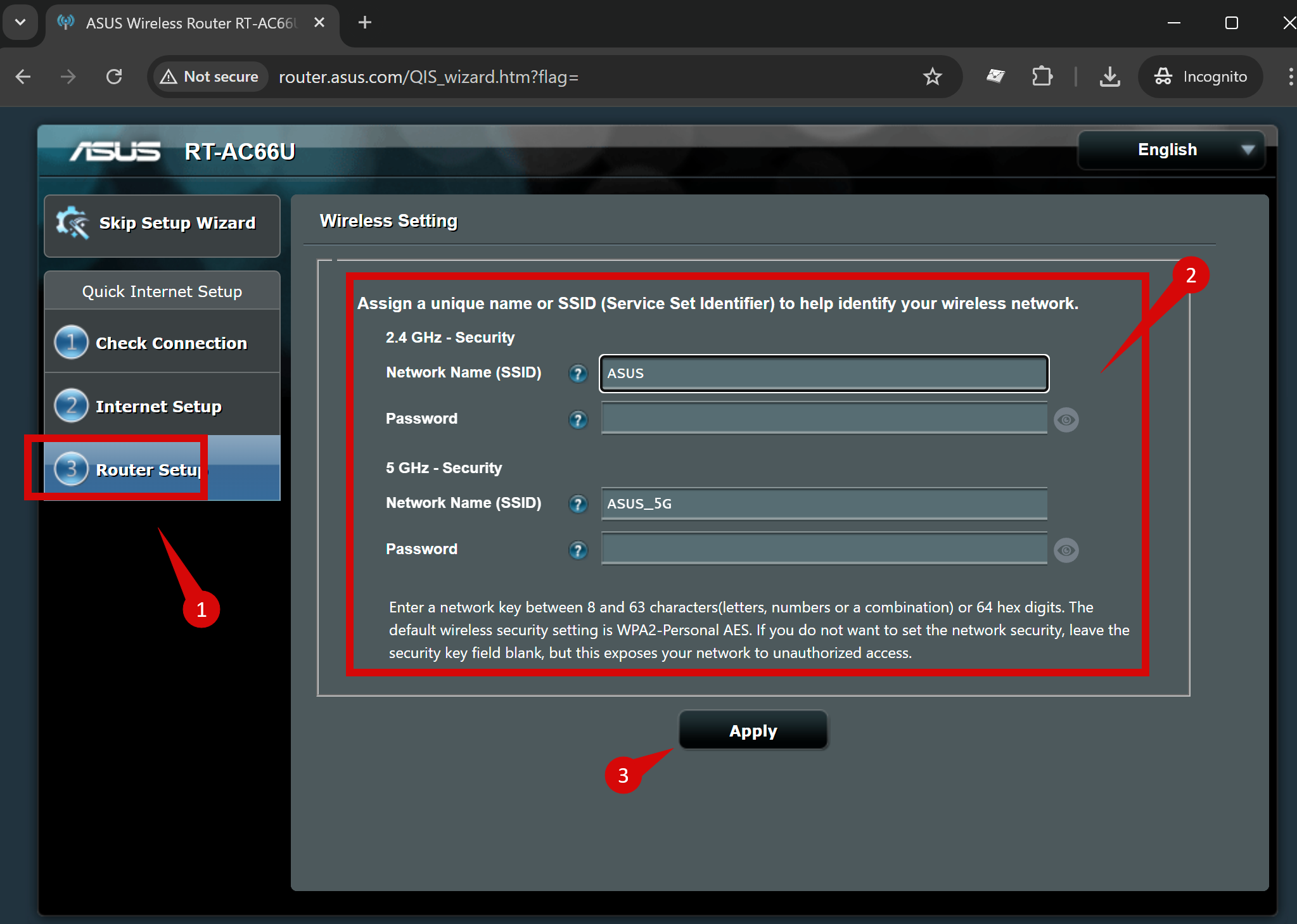
- Navigate to Router Setup:
- You'll be prompted to set the Wi-Fi name (SSID) and password for both the 2.4 GHz and 5 GHz bands.
- You can choose to have separate SSIDs for each band or use the same SSID for both.
- Click Apply.
- Check that everything is correct and click Complete.
.png)
If you are still unable to connect, please reach out to our support team at our Support Portal — https://help.simplybroadband.co.nz — for further assistance.
Step-by-step guide to set up ASUS ZenWiFi AX Mini XD4R router
Physical connection:
- Connect the WAN port of the ASUS ZenWiFi AX Mini XD4R router to the first port (LAN1 or GE1) on your Optical Network Terminal (ONT) using an Ethernet cable.
- Sometimes we connect to second port instead of first - check your Welcome email instructions to make sure which port you should use.
- Ensure the router is powered on and that your computer or smartphone is connected to the router via Wi-Fi or a LAN cable.
- Open a web browser on a connected device and enter either http://router.asus.com (step 1) or
192.168.50.1(if neither of those options work try: 192.168.0.1, or 192.168.1.1) into the address bar.
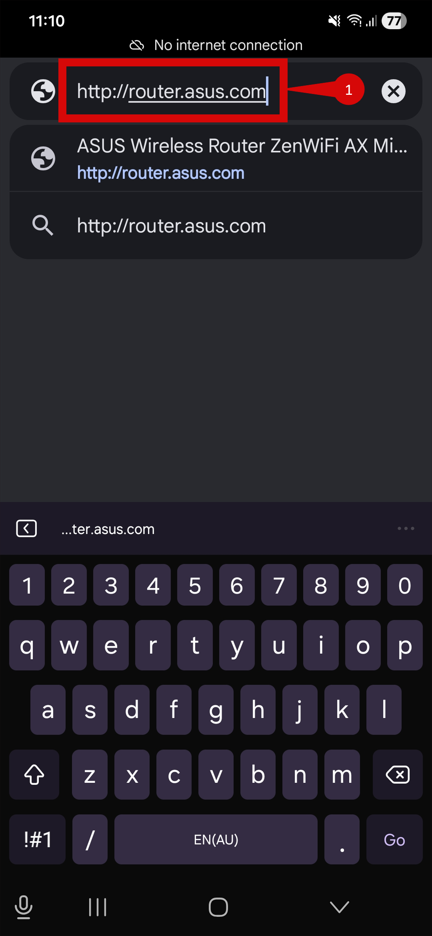
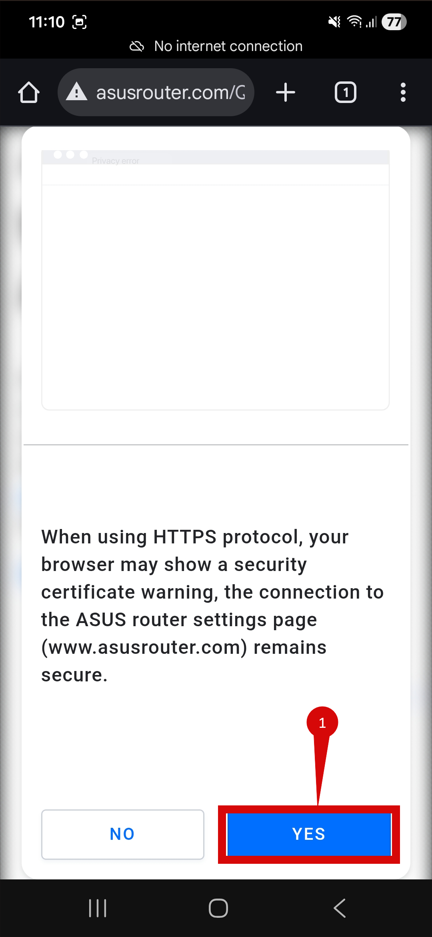
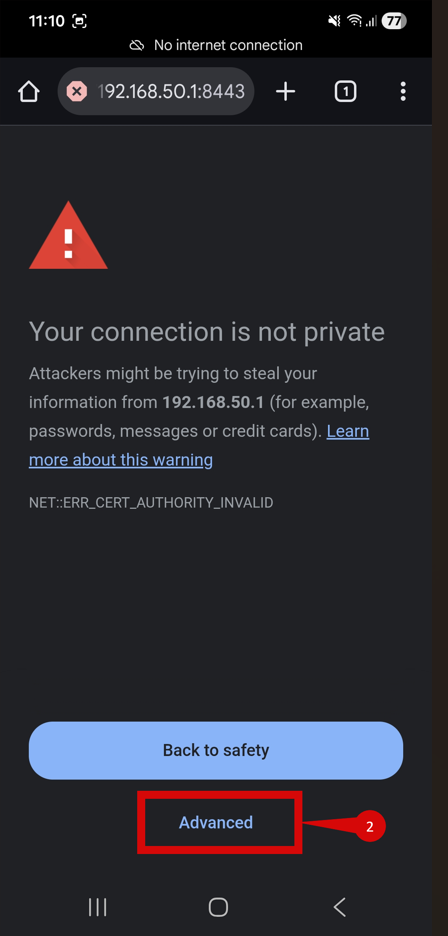
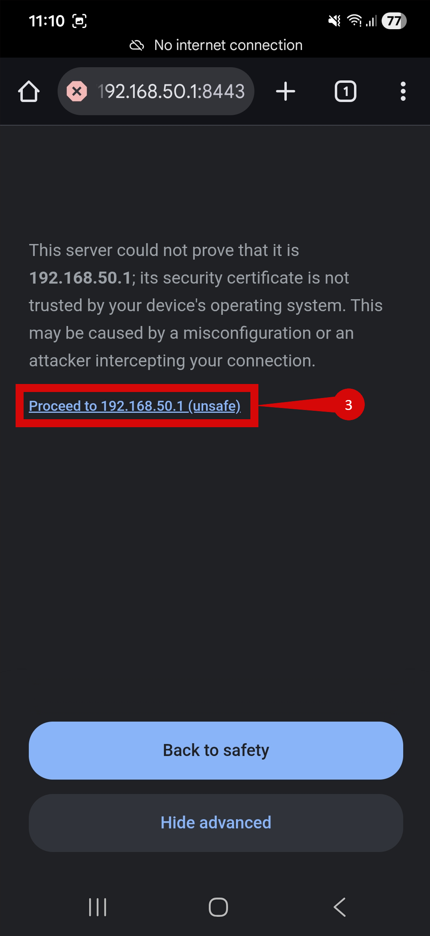
- You may be redirected to the below page, follow steps to reach configuration:
- Click Yes (step 1).
- Click Advanced (step 2).
- Click Proceed to 192.168.50.1 (unsafe) (step 2).
- You might be prompted to Change the router login password
- Enter the Router Login Name (this will be the admin username going forward) (step 1).
- Enter the New password you wish to use to login to the admin panel going forward (step 2).
- Confirm teh New password (step 3).
- Click Modify (step 4).
- You may be prompted to log in. Use the credentials you have just set or try credentials below:
- Username:
admin Password:admin
- Username:
- If you have changed the default credentials and cannot remember them, proceed to 8 for resetting the router.
- You may be prompted to go through a "quick setup", this is usually more user friendly:
- Click Advanced Settings (step 1).
- Click on Choose operation mode (step 1).
- Click on Wireless router mode (Default) (step 1).
- Make sure that you Tick Special Requirements from ISP (Supports only certain WAN types) (step 1).
- Then click Automatic IP (step 2)
- Under Special Requirements from ISP configure as follows:
- Select Manual Setting from the drop down (step 1).
- Set Internet VID = 10 (step 2).
- Set Internet PRIO = 0 (step 2).
- Select Manual Setting from the drop down (step 1).
- Click Next (step 3).
- You will need to setup your Wireless Settings:
- Create a Network Name (SSID) (step 1).
- Set a Network Password (step 2).
- You can separate the 2.4 GHz and the 5GHz networks if you want. You will need to set separate Network names and passwords for each (optional).
- Click Apply (step 3).
- The router will reboot and then will redirect you to the complete admin panel (please see section 3.1 onwards for configuration if you are still OFFLINE ).
Once logged in, follow these steps to set up the internet connection type:
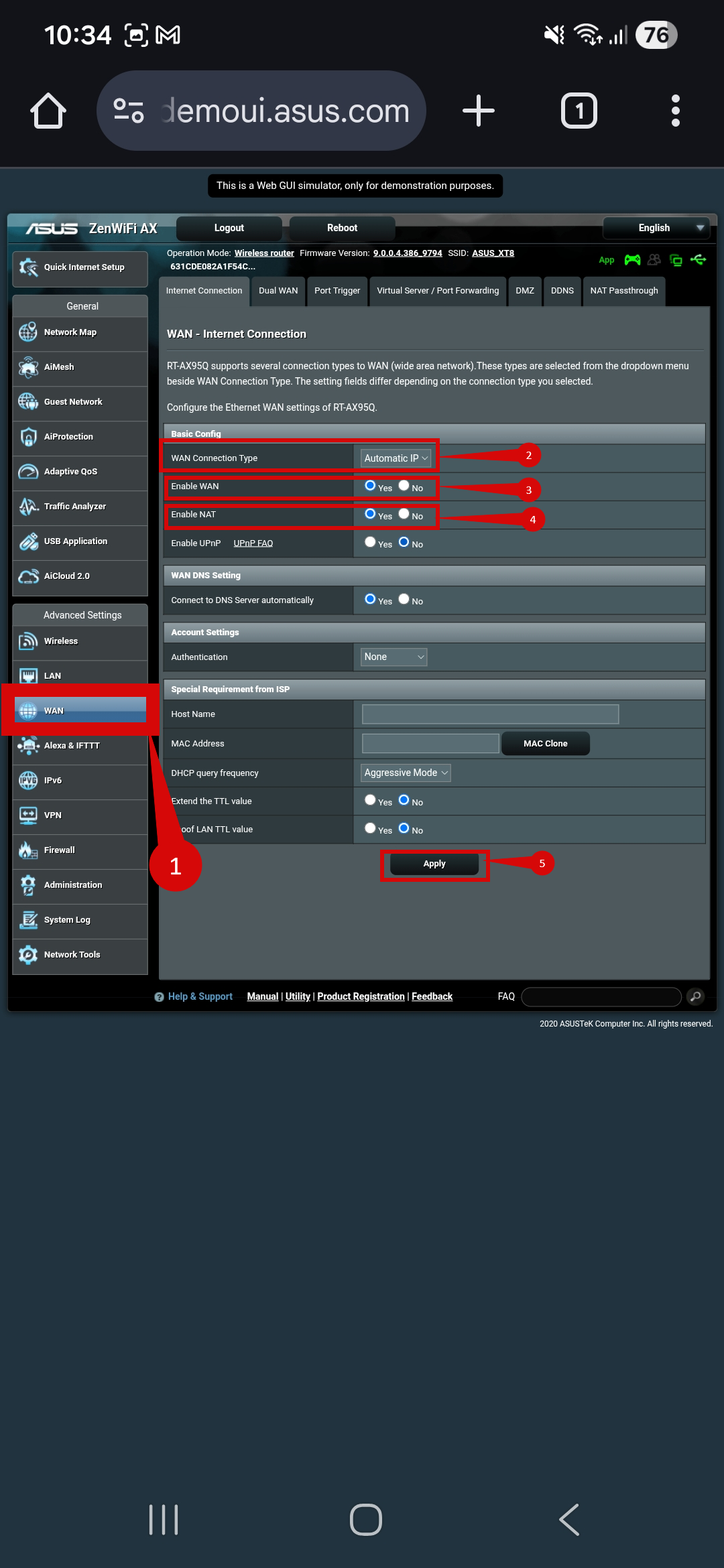
- Navigate to WAN > Internet Connection (step 1).
- Set the WAN Connection Type to Automatic IP (DHCP) (step 2).
- Set Enable WAN to YES (step 3).
- Set Enable NAT to YES (step 4).
- Click Apply (step 5).
To set up VLAN:
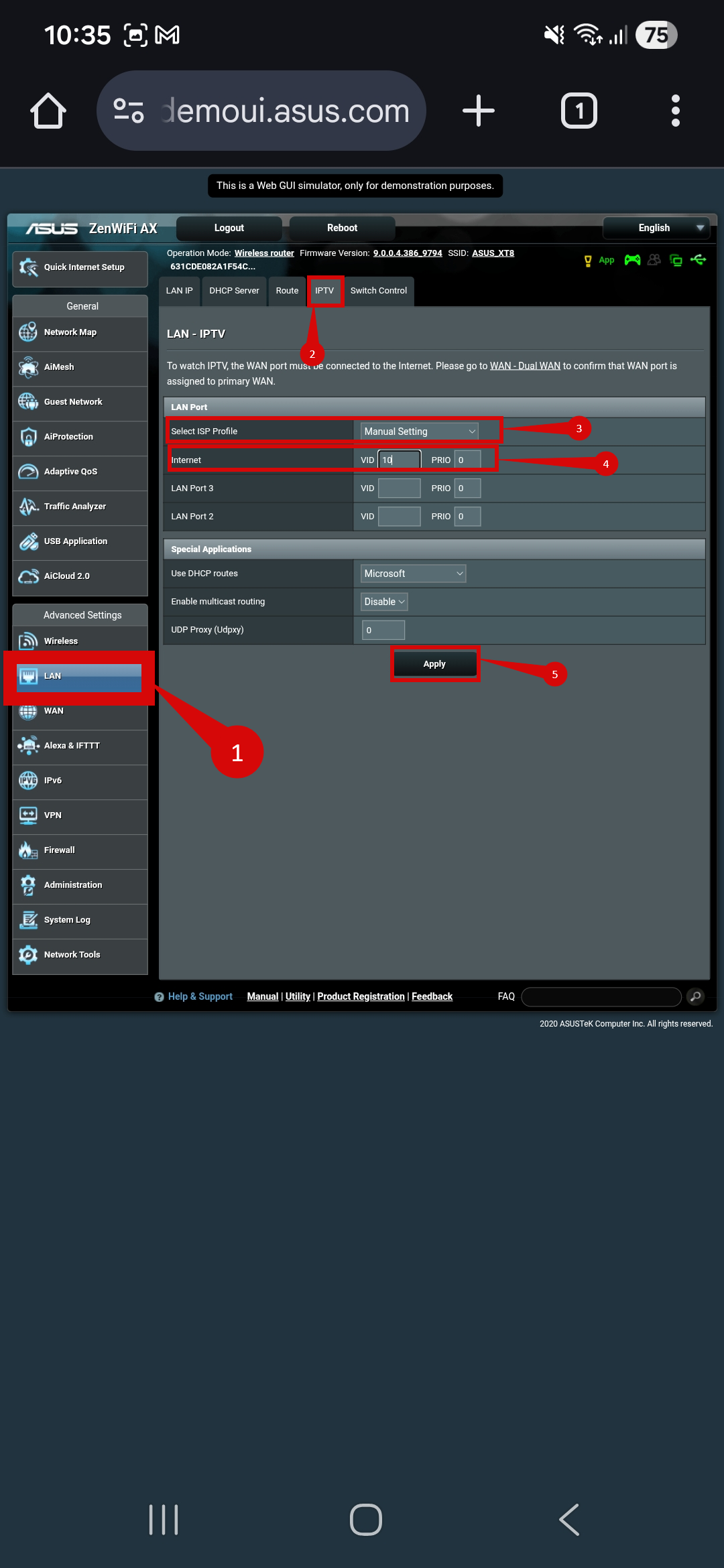
- Navigate to LAN > IPTV tab (Steps 1 & 2).
- Select ISP Profile: Manual Setting (Step 3).
- Configure the following settings (Step 4):
- Internet VLAN ID:
10 - Priority:
0
- Internet VLAN ID:
- Click Apply (step 5).
- After entering the VLAN and DHCP settings, click Apply to confirm the changes.
- The router may restart to apply the new settings. Wait a few minutes for the restart to complete.
- Once the router has restarted, check the status of your internet connection by looking at the WAN/Internet LED indicator on the router. It should be solid green.
- On your connected device, try accessing a website to confirm that your connection is active.
If your internet connection is not working:
- Restart both the ONT and the router by unplugging them for 30 seconds and plugging them back in.
- Double-check the VLAN and DHCP settings in the router’s configuration.
- Ensure that the ethernet cable is securely connected to the correct ports (first port on the ONT and the WAN port on the router).
If you cannot access the router due to forgotten login credentials or misconfiguration, reset the router to factory settings:
- Find the reset button at the back of the router.
- Press and hold the reset button for about 10-15 seconds using a pin or paperclip.
- Release the button once the router’s lights start flashing yellow. The router will reboot and return to factory settings - should pulse green when ready to be setup.
- Continue setup from Step 2.
If you are still unable to connect, please reach out to our support team at our Support Portal — https://help.simplybroadband.co.nz — for further assistance.
Step-by-step guide to set up ASUS ZenWiFi AX Mini XD4R router via the ASUS App
Physical connection:
- Connect the WAN port of the ASUS ZenWiFi AX Mini XD4R router to the first port (LAN1 or GE1) on your Optical Network Terminal (ONT) using an Ethernet cable.
- Sometimes we connect to second port instead of first - check your Welcome email instructions to make sure which port you should use.
- Ensure the router is powered on and that your computer or smartphone is connected to the router via Wi-Fi or a LAN cable.
- Download the ASUS Router app on your device:
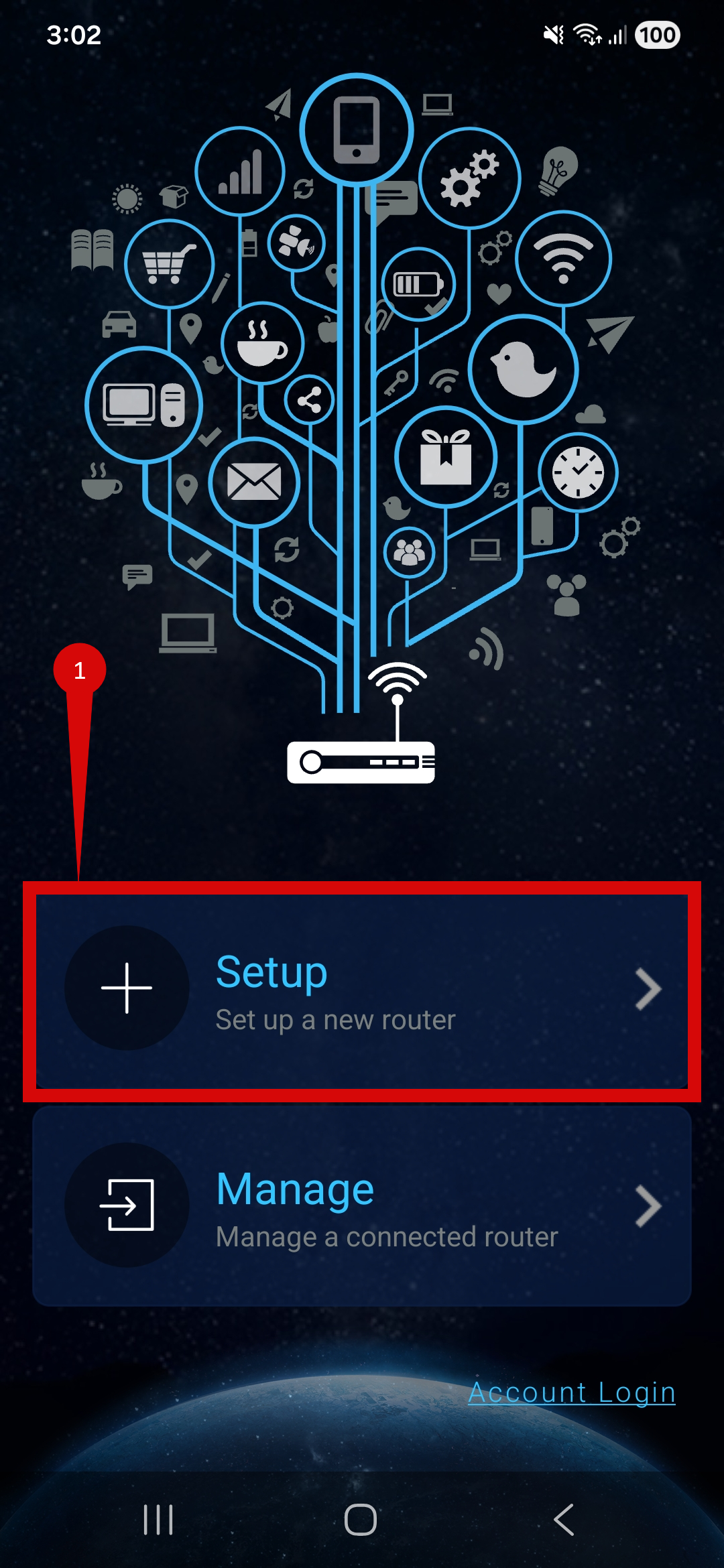
- Launch the app.
- Click Setup (step 1).
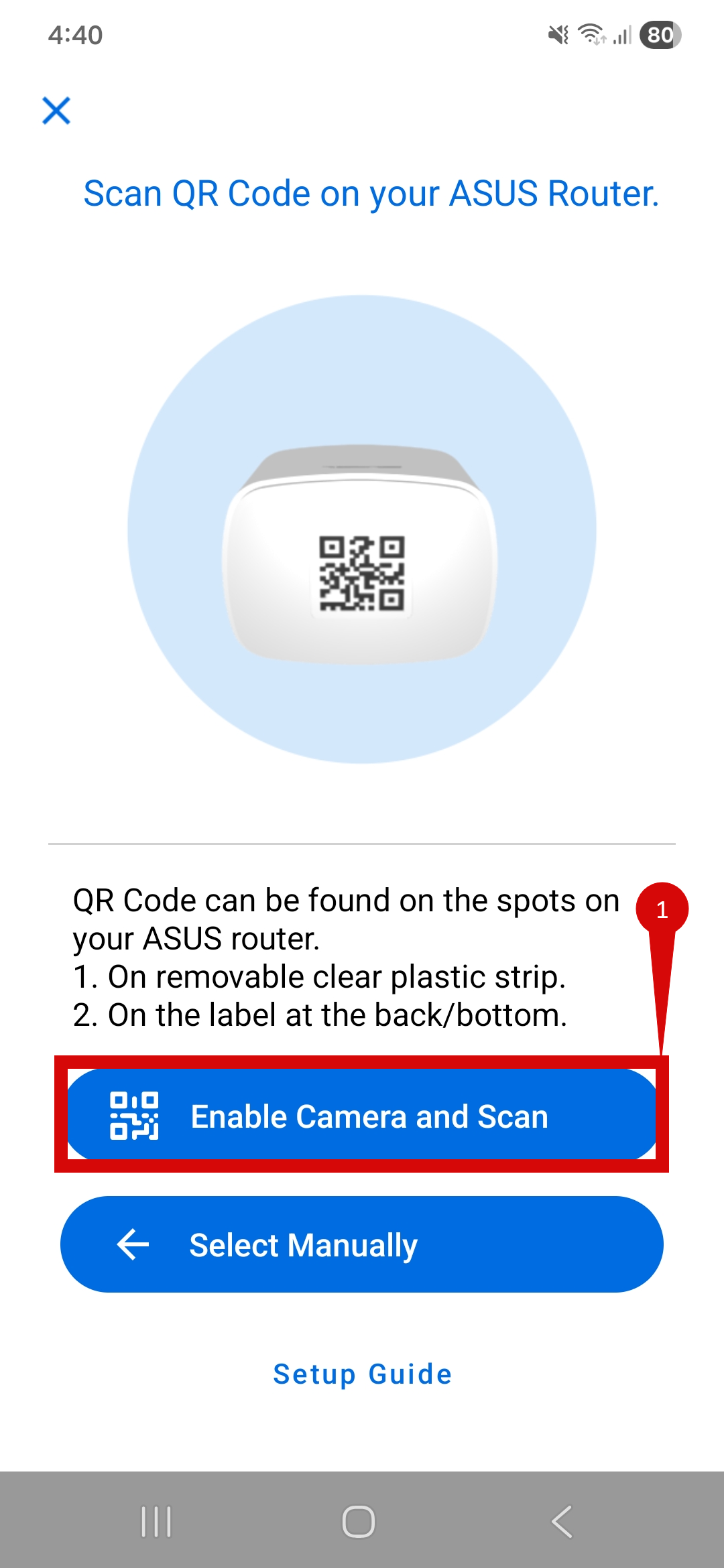
- You will need to connect to your router.
- Click Enable Camera and Scan. QR is usually found on the bottom of your router (step 1).
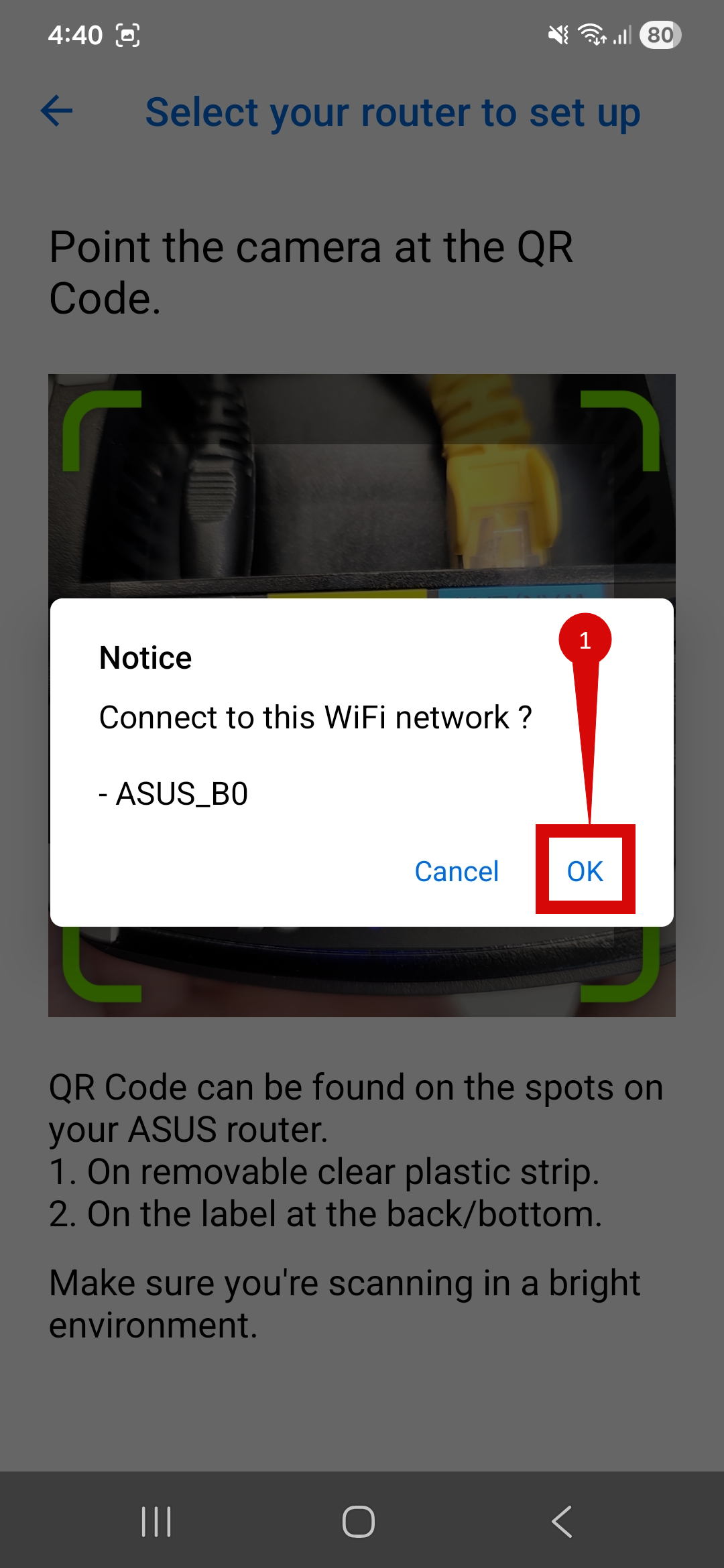
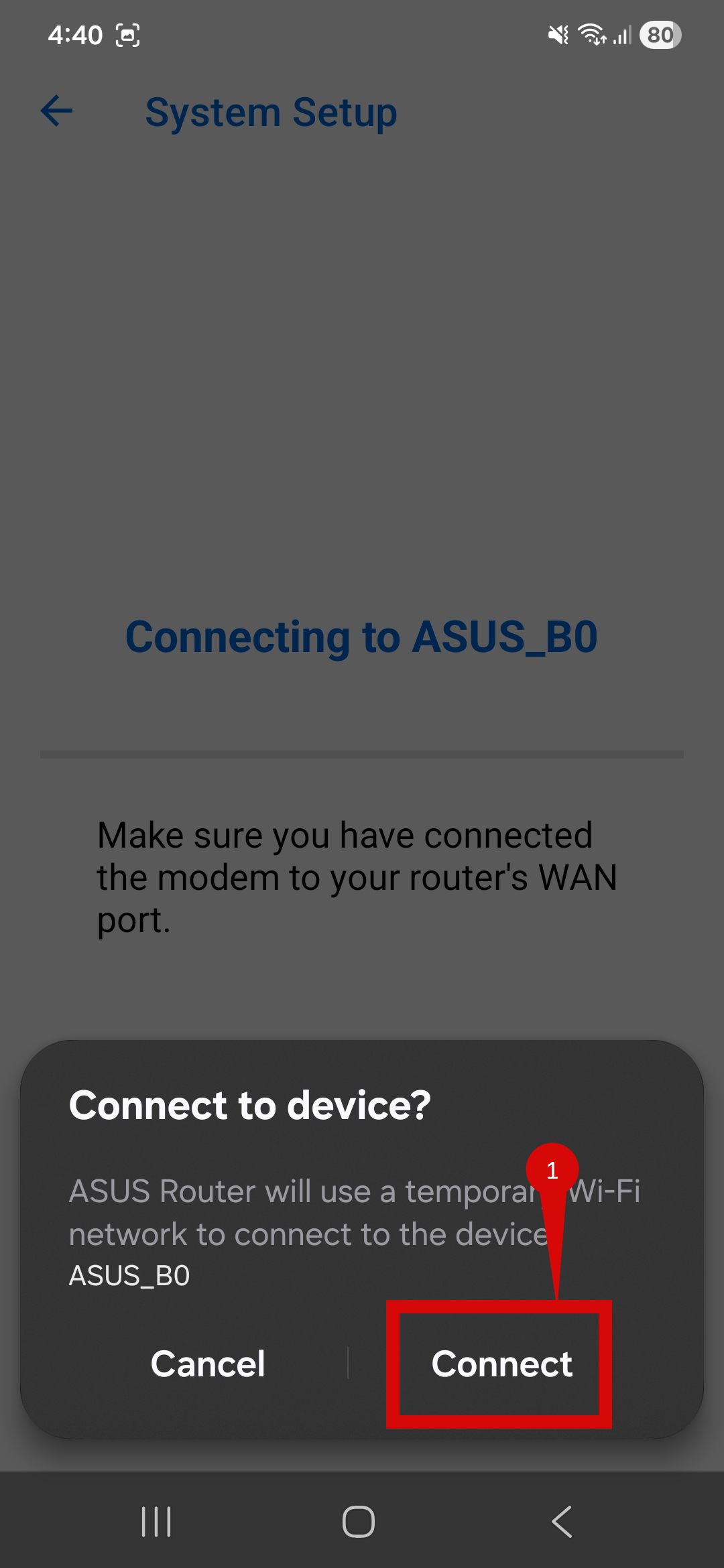
- You may be prompted to connect to your routers Wi-Fi network:
- Click Ok (step 1).
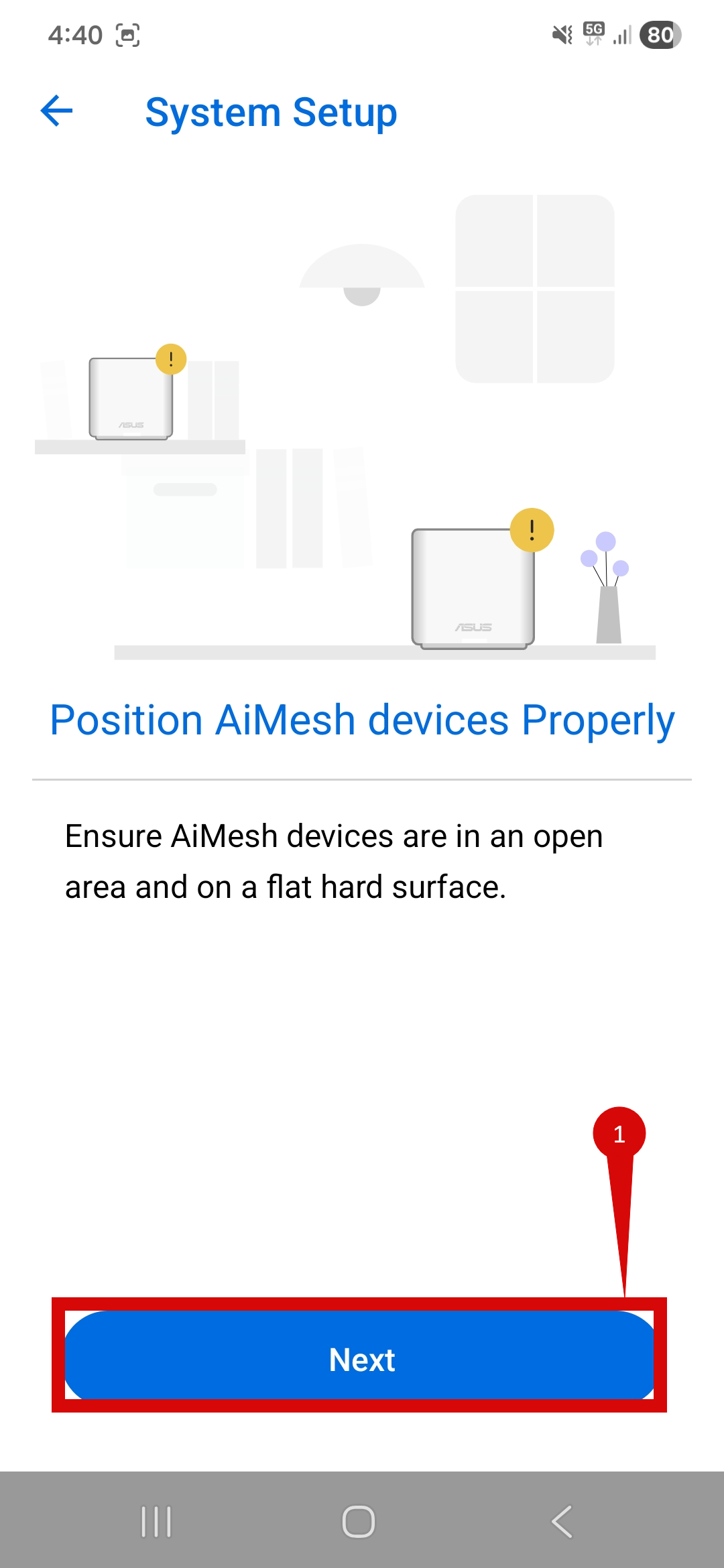
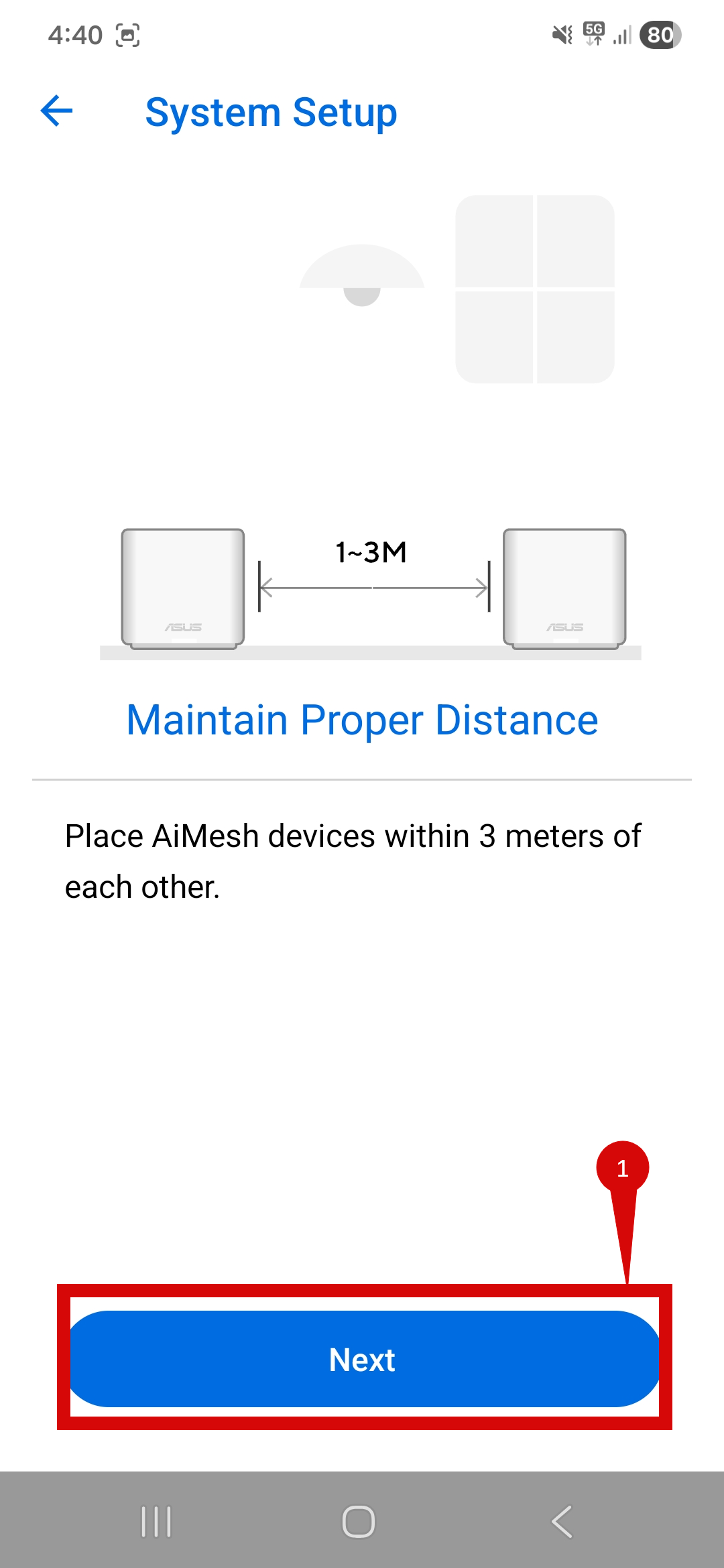
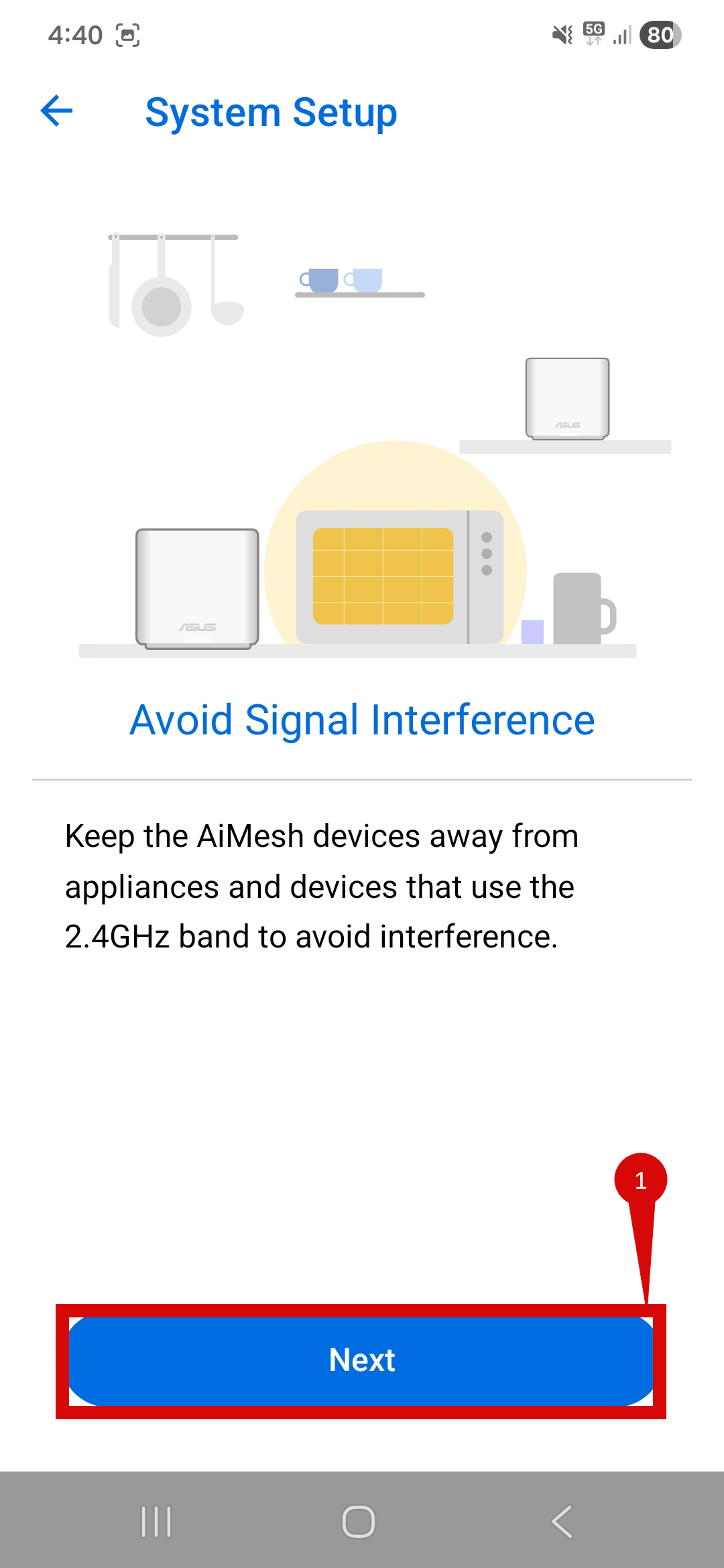
- You will be prompted to ensure that your router is setup in the ideal location, this can have a few pages.
- Click Next to continue through prompts (step 1).
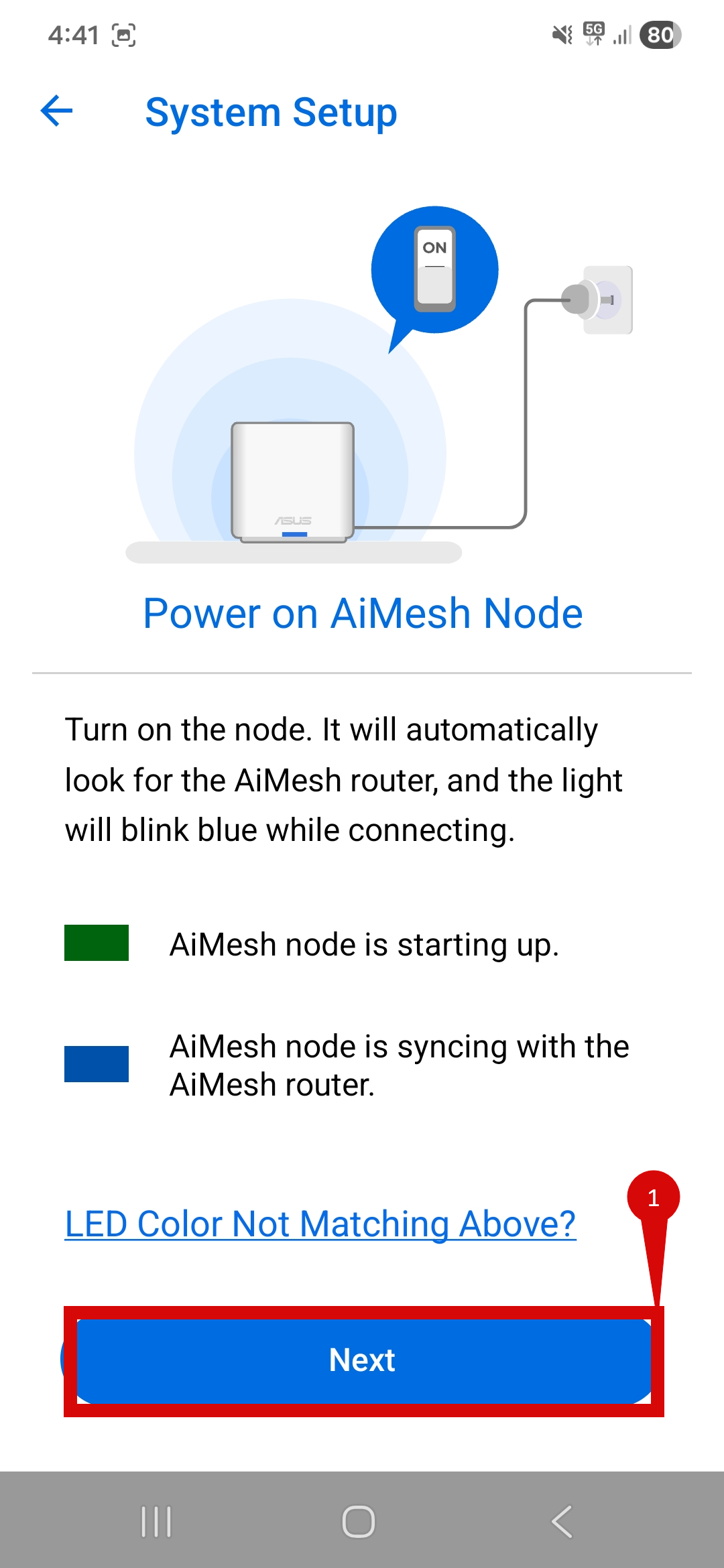
- You will be prompted to check the LED status of your router. If it does not match what is the apps prompt you will need to perform a reset (section 8).
- If LED status is correct click NEXT (step 1).
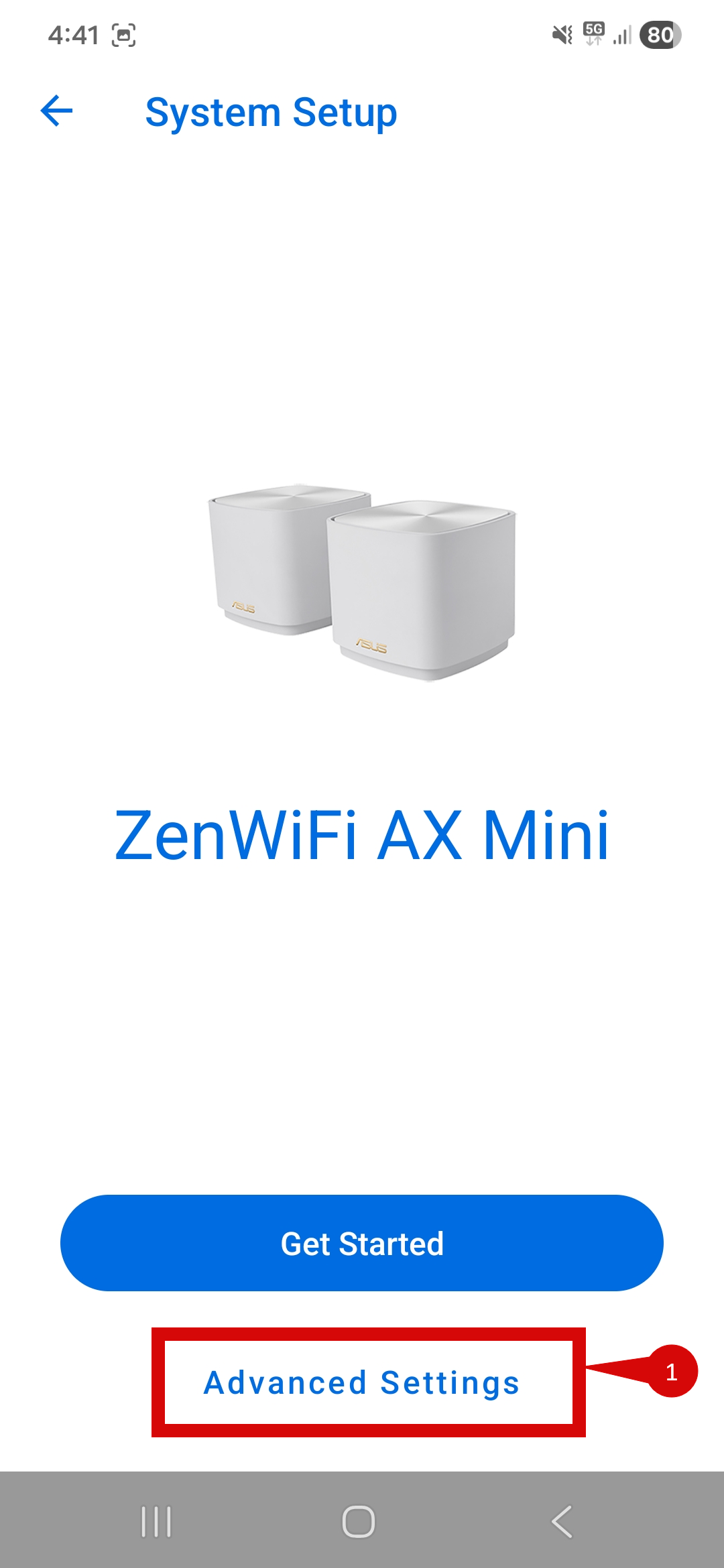
- Click on Advanced Settings (step 1).
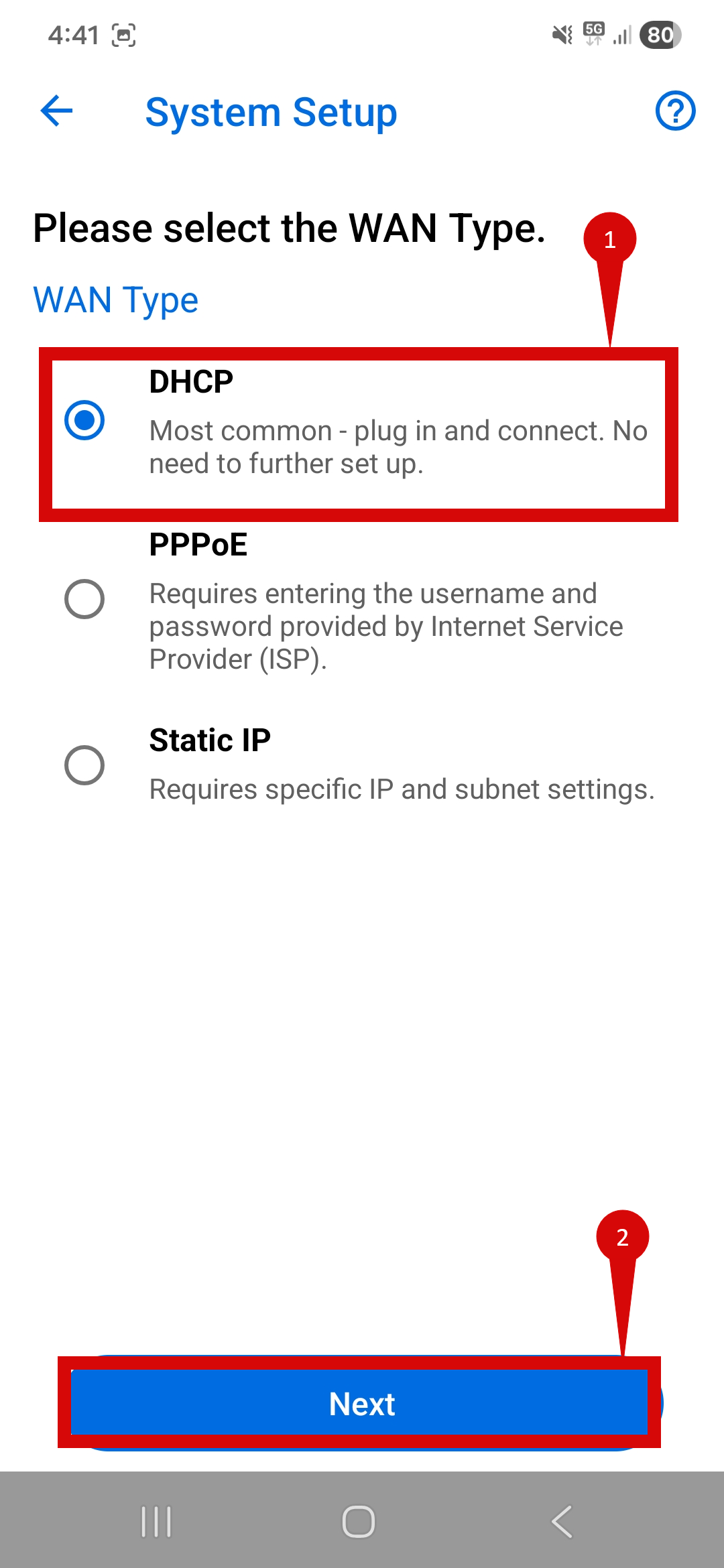
- For WAN Type:
- Set to DHCP (step 1).
- Click Next (step 2).
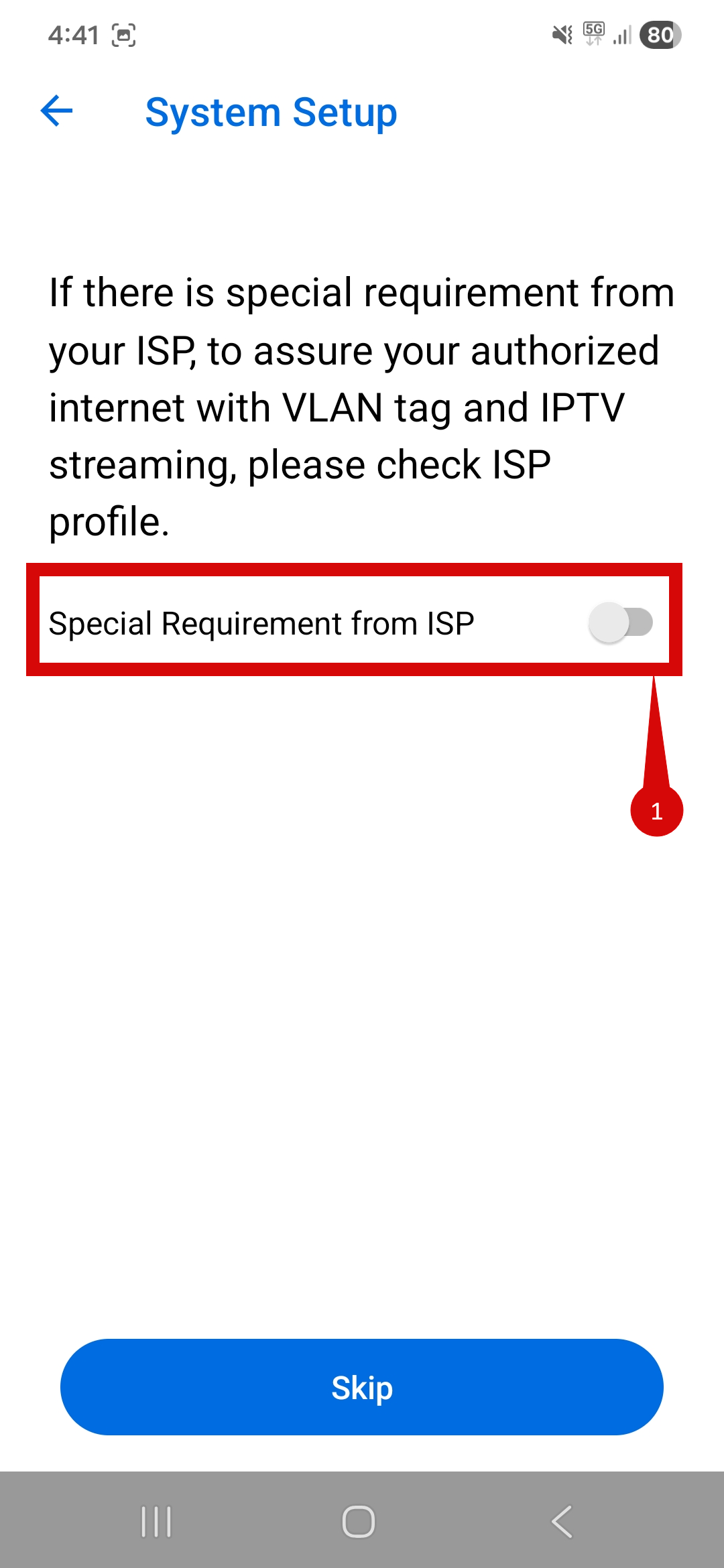
- Ensure that you enable Special Requirement from ISP (step 1).
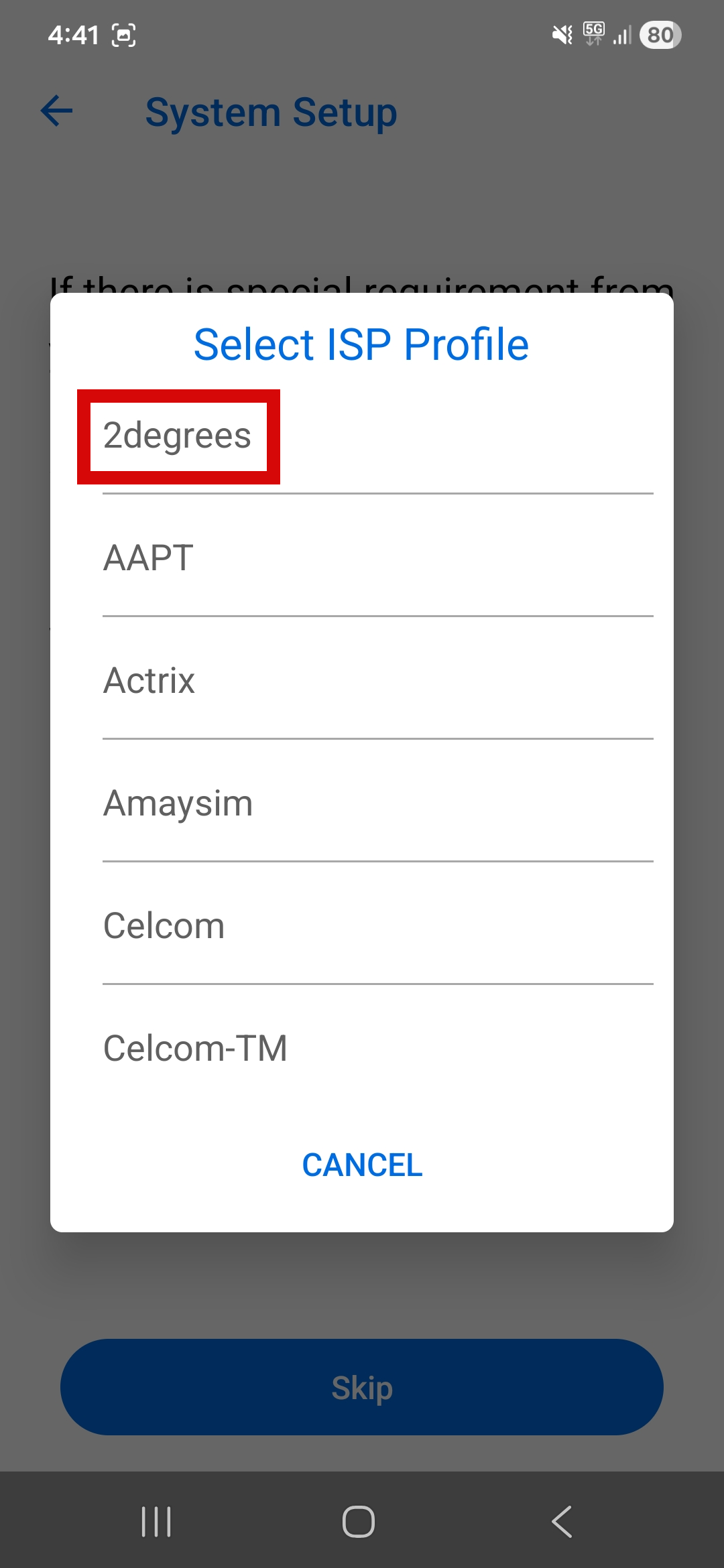
- When shown the options select 2degrees (they use the same VLAN settings as us) (step 1).
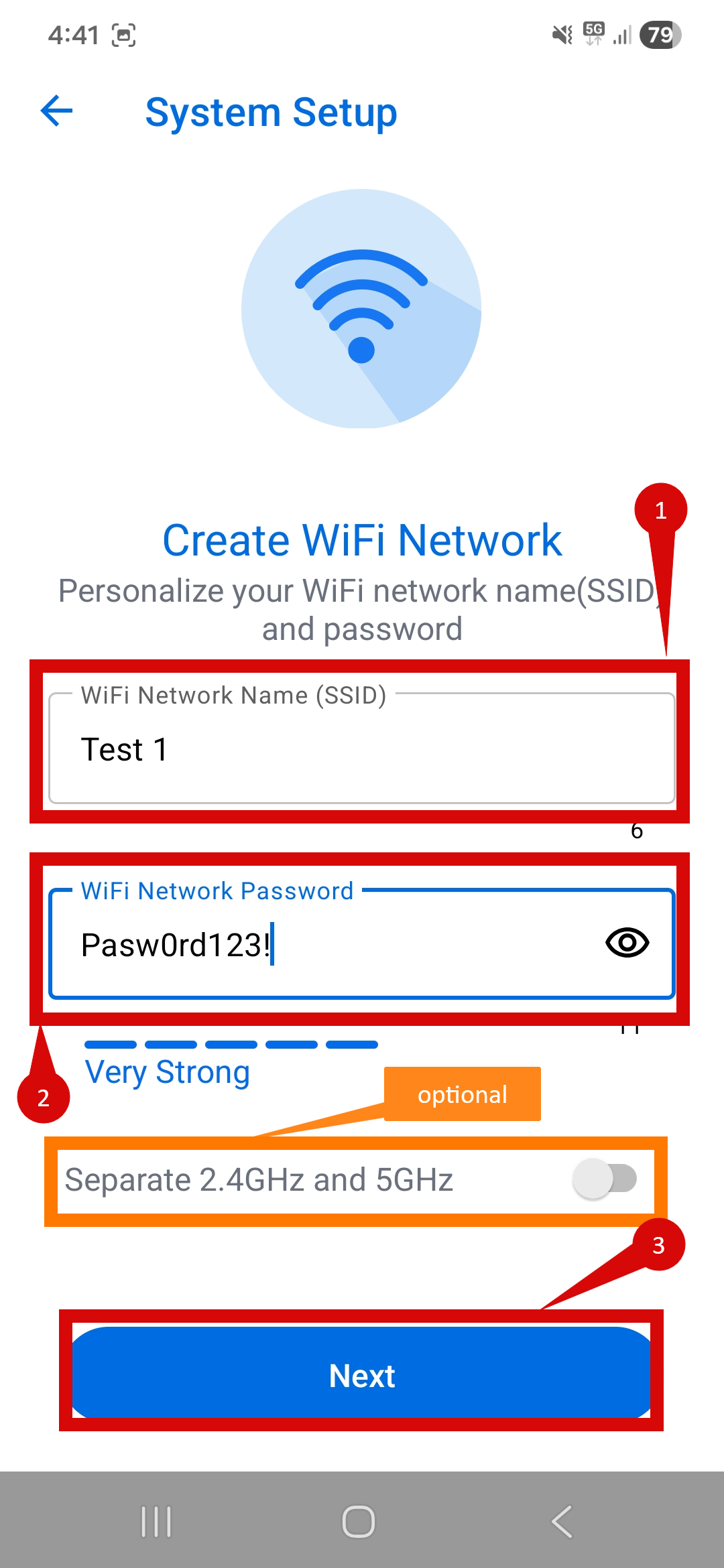
- You will be prompted to Create WiFi Network.
- Set a WiFi Network Name (SSID) (step 1).
- Set a WiFi Network Password (step 2).
- You will have the option to separate the 2.4GHz and 5GHz networks, this is up to you and will mean that you will need to set the WiFi Network Name & WiFi Network Password for both networks (optional).
- Click Next (step 3).
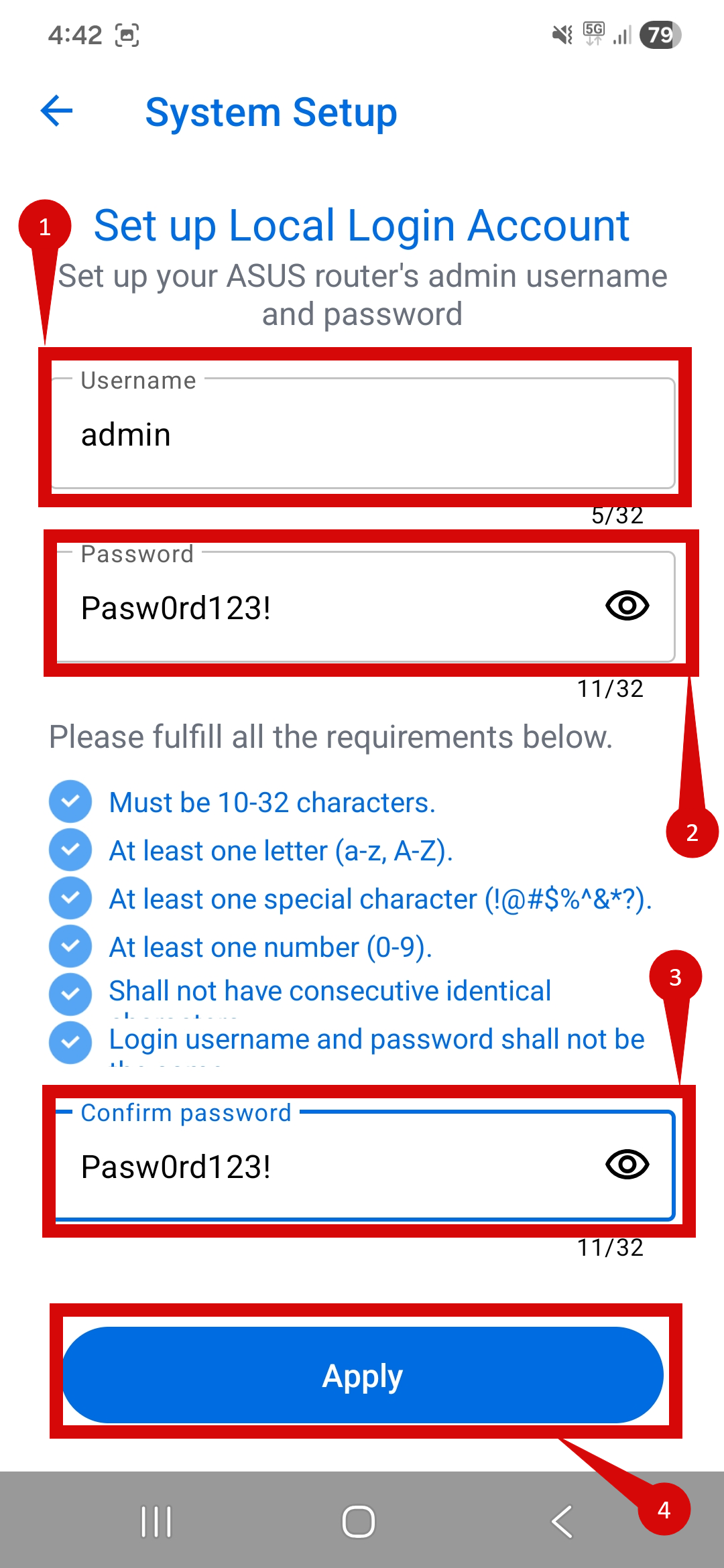
- You will then be prompted to create a Local Login Account.
- You will need to set a Username (step 1).
- You will need to set a Password. The password will need to meet security requirements (step 2).
- Re-enter your Password (step 3).
- Click Apply (step 4).
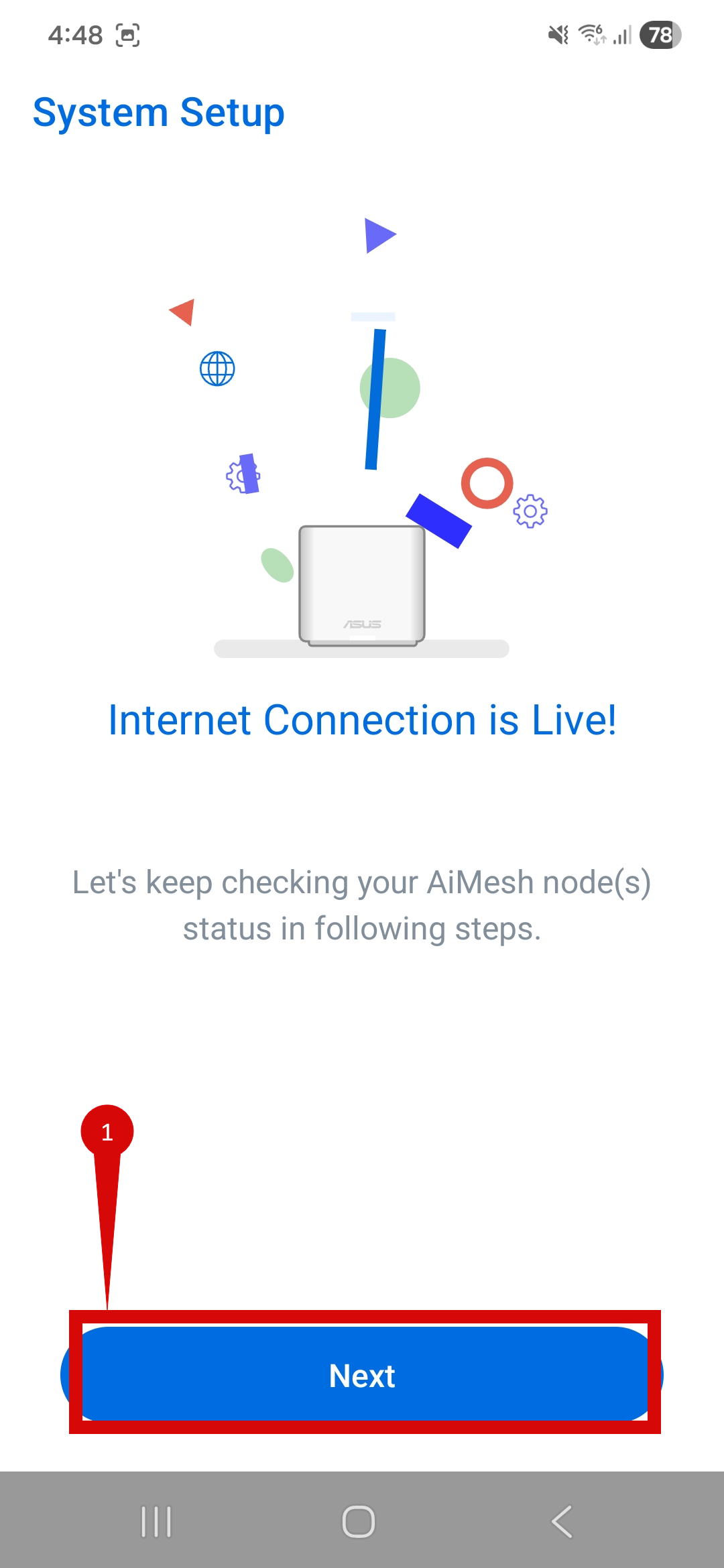
- The app will run an internet connection test.
- If internet connection is not successful then you will need to reset and reconfigure (section 8)
- If successful click Next (step 1).
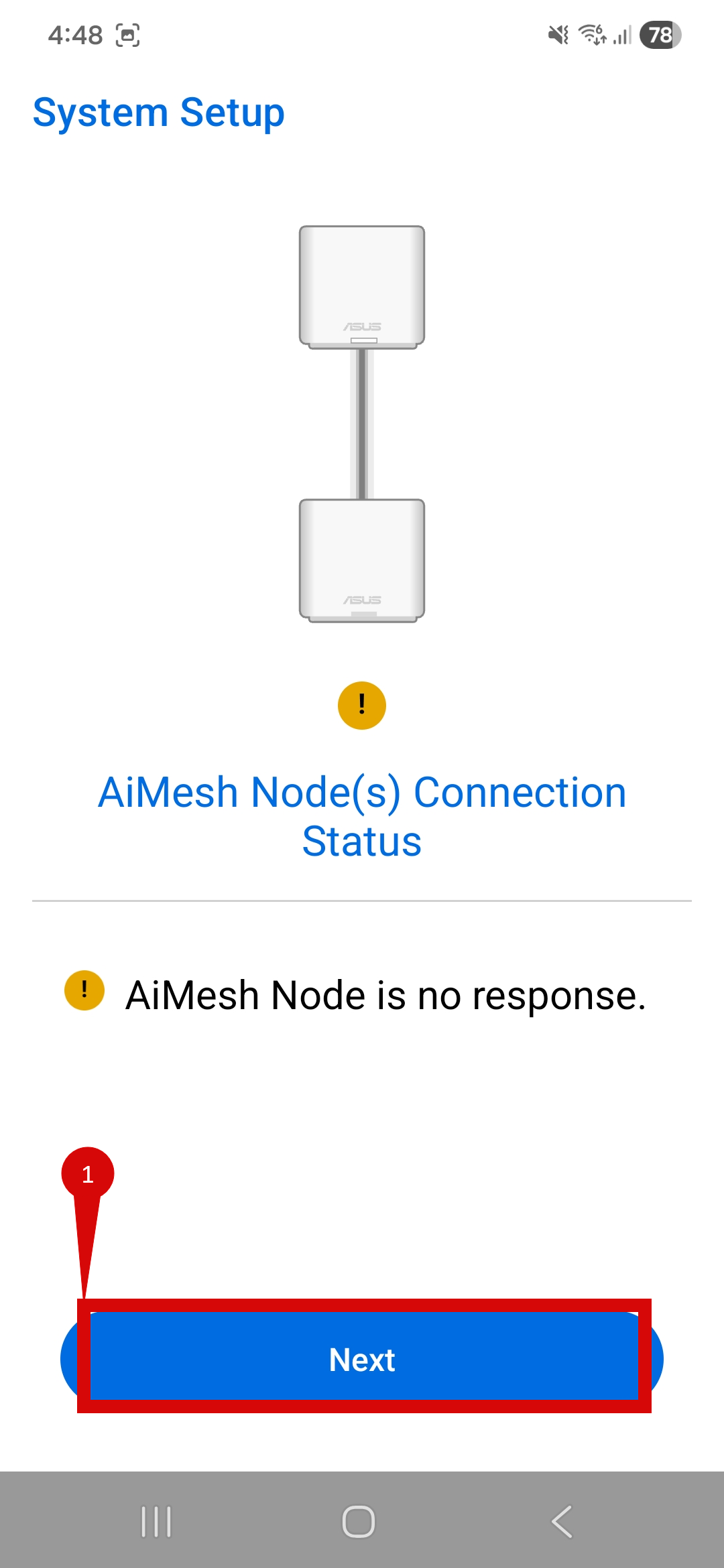
- If you have other nodes available the app will automatically try to detect.
- Click Next (step 1).
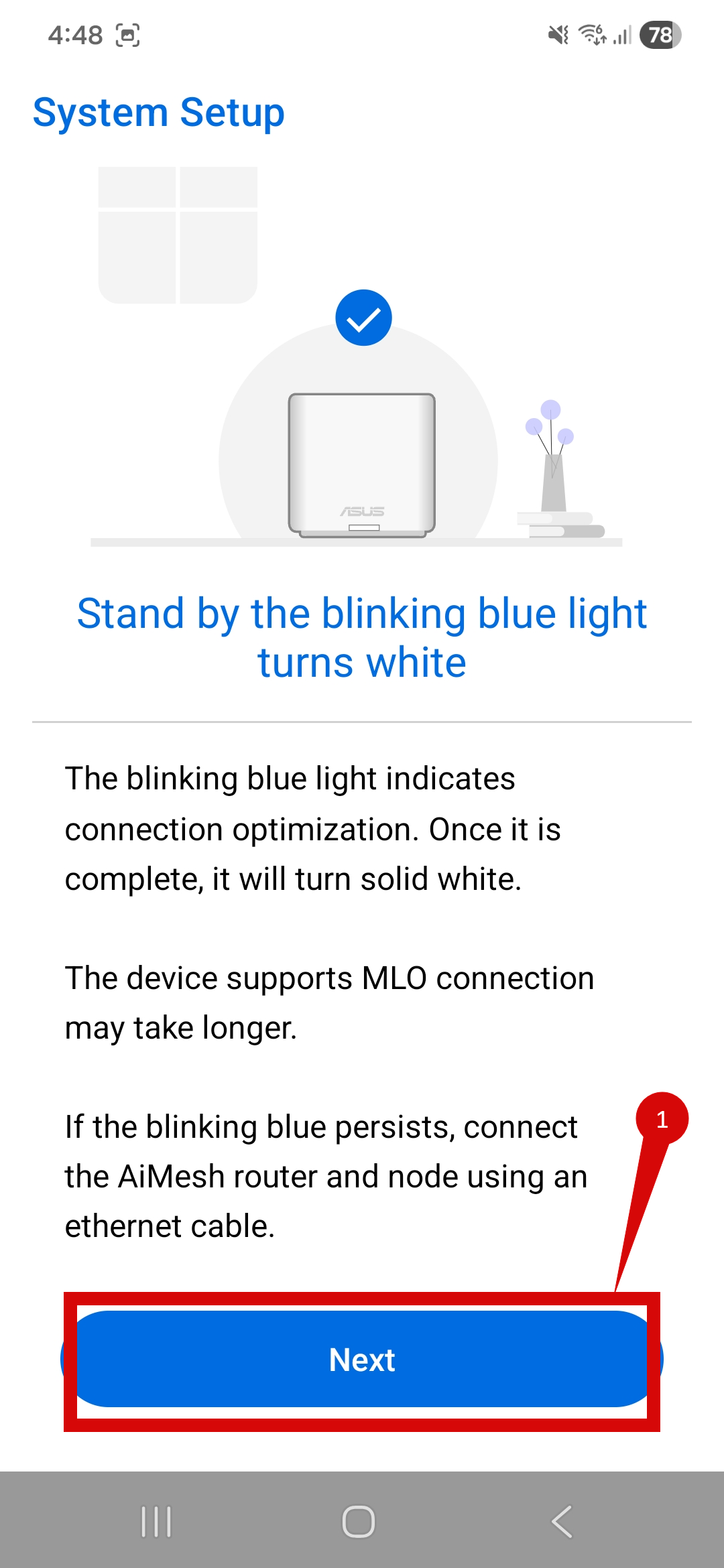
- Check that the LED indicator turns from Blinking Blue to White.
- If LED turns RED you will need to do a reset and reconfigure (Section 8).
- If LED has changed colour correctly click Next (step 1).
- Ensure that your device is in an optimal location.
- Once completed click Next (step 1).
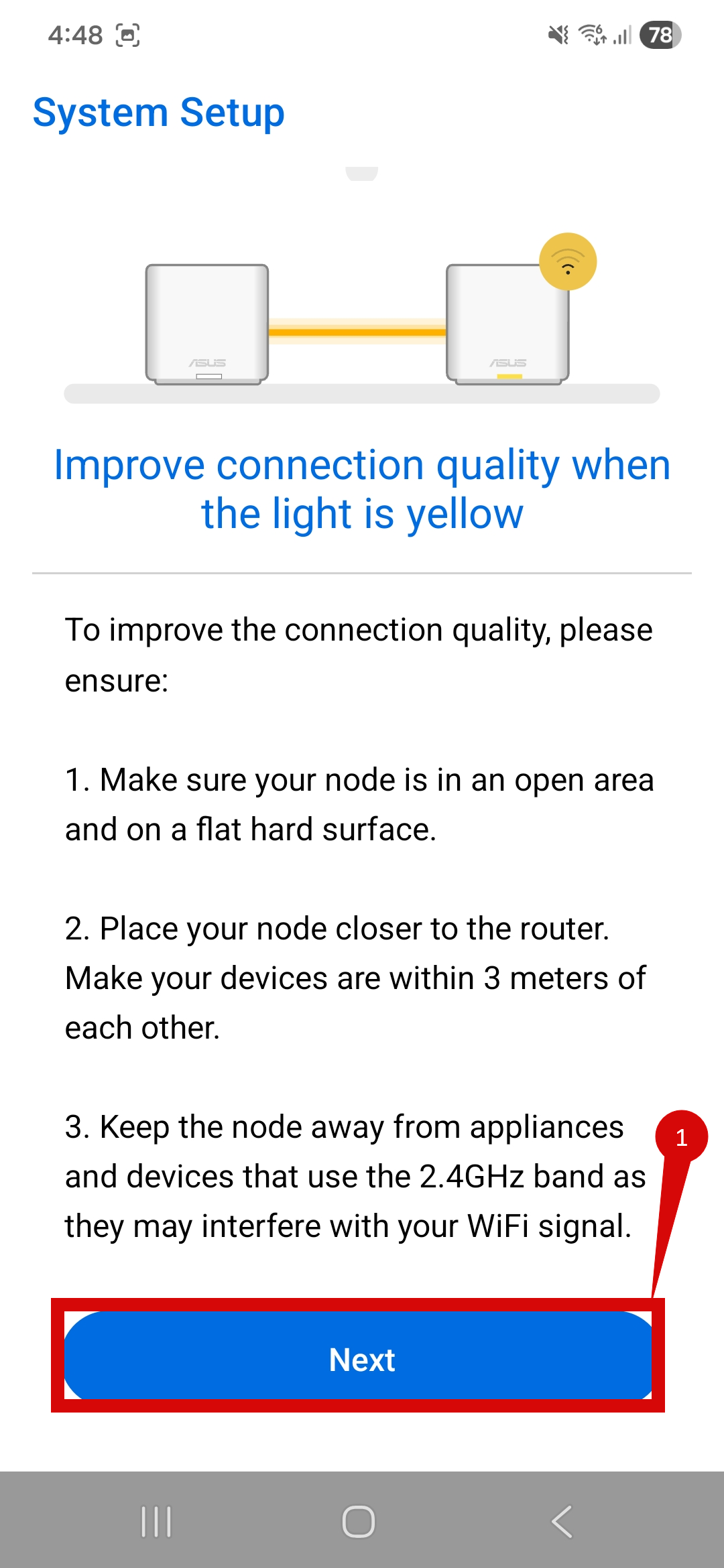
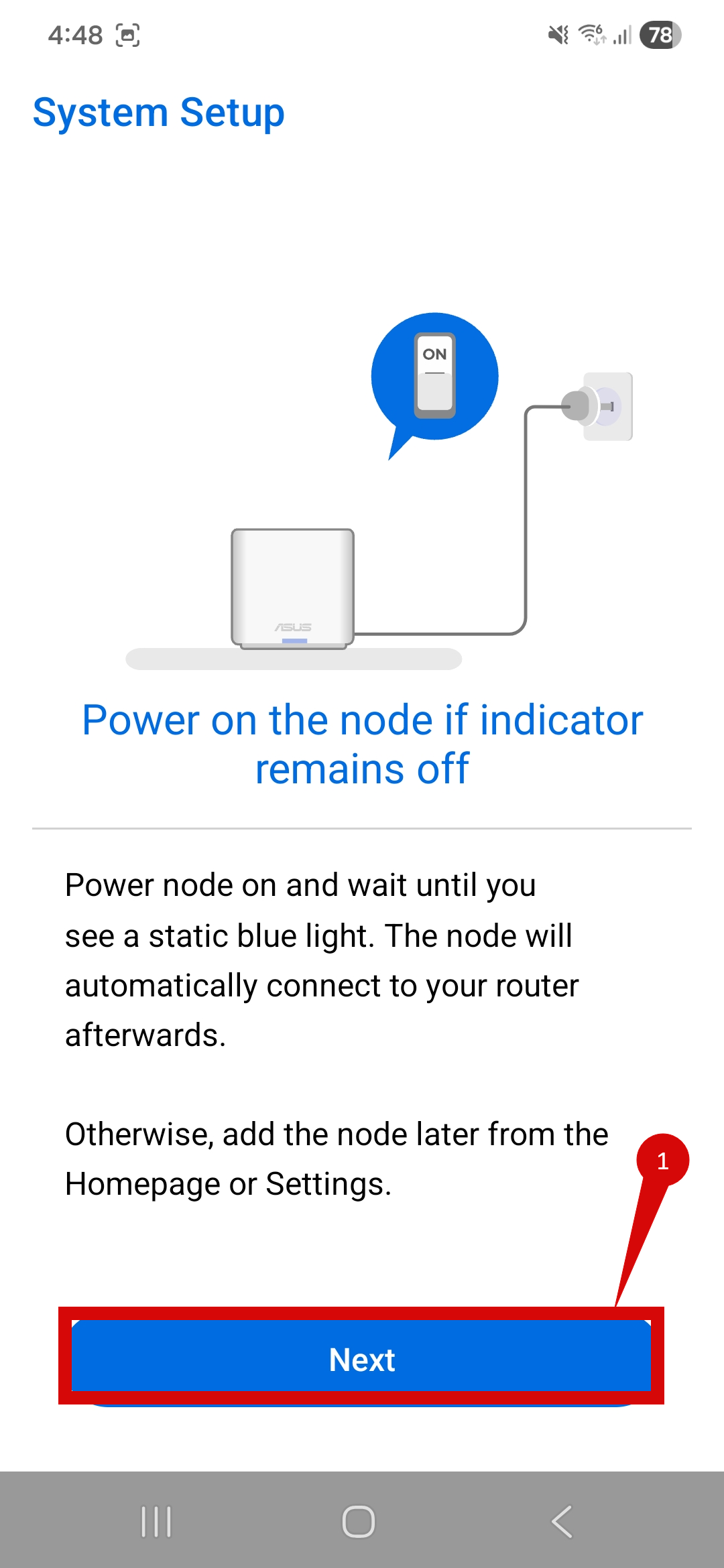
- You will be prompted to add node(s) in. If you have others follow prompt instruction.
- If no other nodes click Next (step 1).
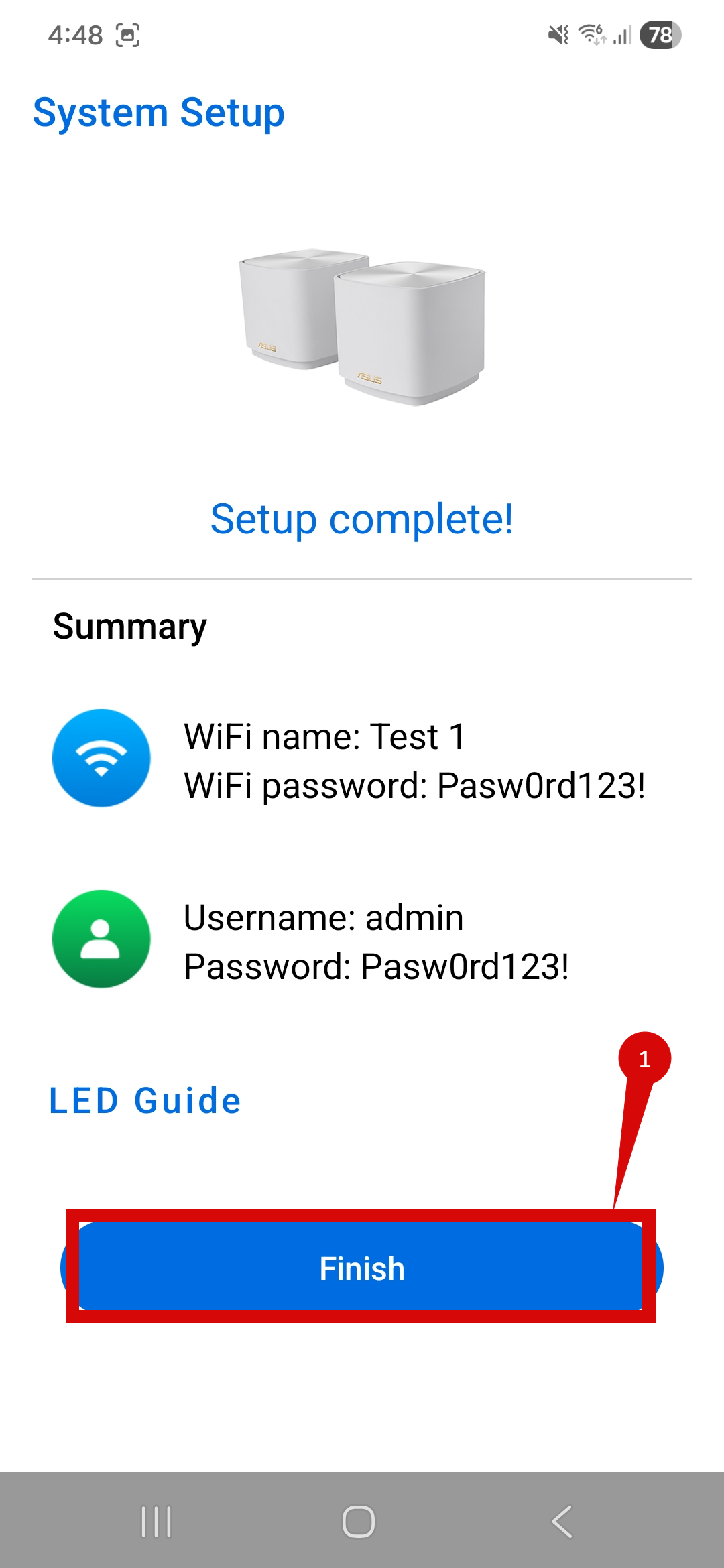
- A Summary of your connection will be displayed.
- Click Finish (step 1).
- Once the router has restarted, check the status of your internet connection by looking at the WAN/Internet LED indicator on the router. It should be solid green.
- On your connected device, try accessing a website to confirm that your connection is active.
If your internet connection is not working:
- Restart both the ONT and the router by unplugging them for 30 seconds and plugging them back in.
- Double-check the VLAN and DHCP settings in the router’s configuration.
- Ensure that the ethernet cable is securely connected to the correct ports (first port on the ONT and the WAN port on the router).
If you cannot access the router due to forgotten login credentials or misconfiguration, reset the router to factory settings:
- Find the reset button at the back of the router.
- Press and hold the reset button for about 10-15 seconds using a pin or paperclip.
- Release the button once the router’s lights start flashing yellow. The router will reboot and return to factory settings - should pulse green when ready to be setup.
- Continue setup from Step 2.
If you are still unable to connect, please reach out to our support team at our Support Portal — https://help.simplybroadband.co.nz — for further assistance.