← Back to Ubiquiti Modem / Router UFB Settings
Important considerations for this router
- This device has its own dedicated app that you can setup on.
- The app is a good way to configure, but the web UI offers more options.
- Once set up, the UniFi app will allow you to connect to your device remotely.
- The initial setup of your device is done exclusively through the UniFi app.
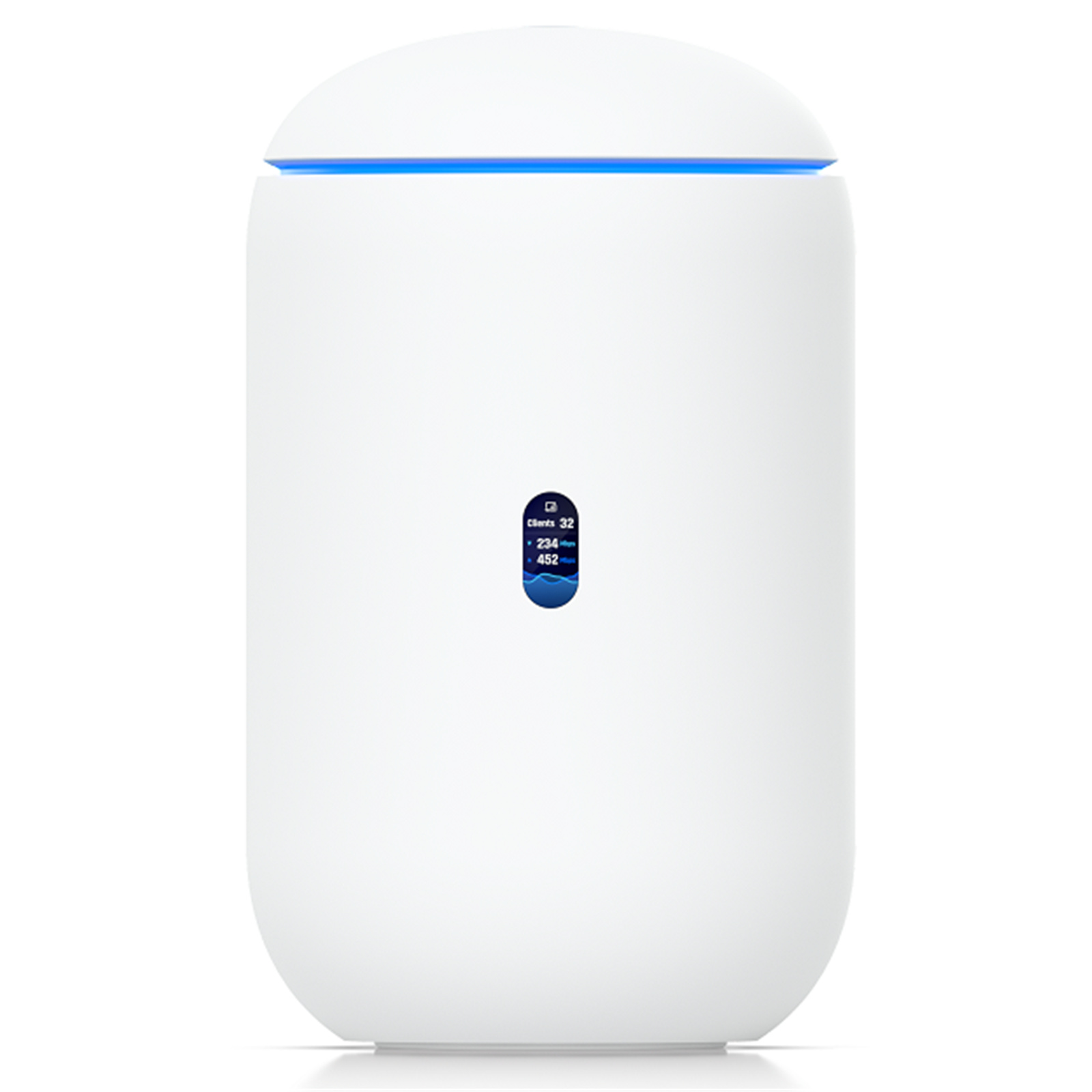
Step-by-step guide to setup Ubiquiti UniFi Dream Router 7 (UDR7)
1. Connect your router to the ONT
- Physical connection:
- Connect the WAN port of the Ubiquiti UniFi Express 7 router to the first port (LAN1 or GE1) on your Optical Network Terminal (ONT) using an ethernet cable.
- Sometimes we connect to second port instead of first - check your Welcome email instructions to make sure which port you should use.
- Ensure the router is powered on and that your computer or smartphone is connected to the router via Wi-Fi or a LAN cable.
1.1. Download the UniFi app
It is highly recommended that you use the UniFi App for this device. Initial setup is done exclusively through the app, and the web UI only offers limited configuration.
Make sure to download the UniFi App:
- For Android: https://play.google.com/store/...
- For Apple: https://apps.apple.com/us/app/...
- You will need to make an account and login to the app.
- Login.
- Follow in app prompts to setup device.
2. Configure your router settings
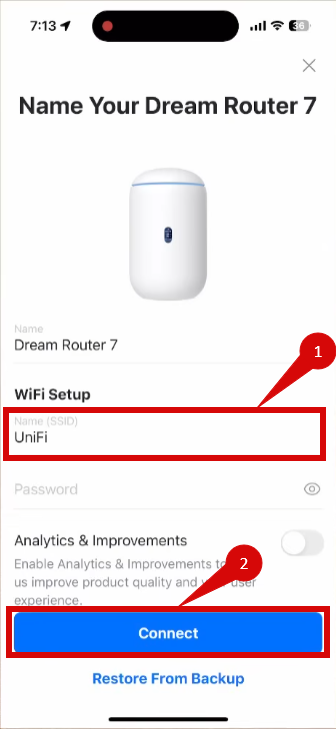
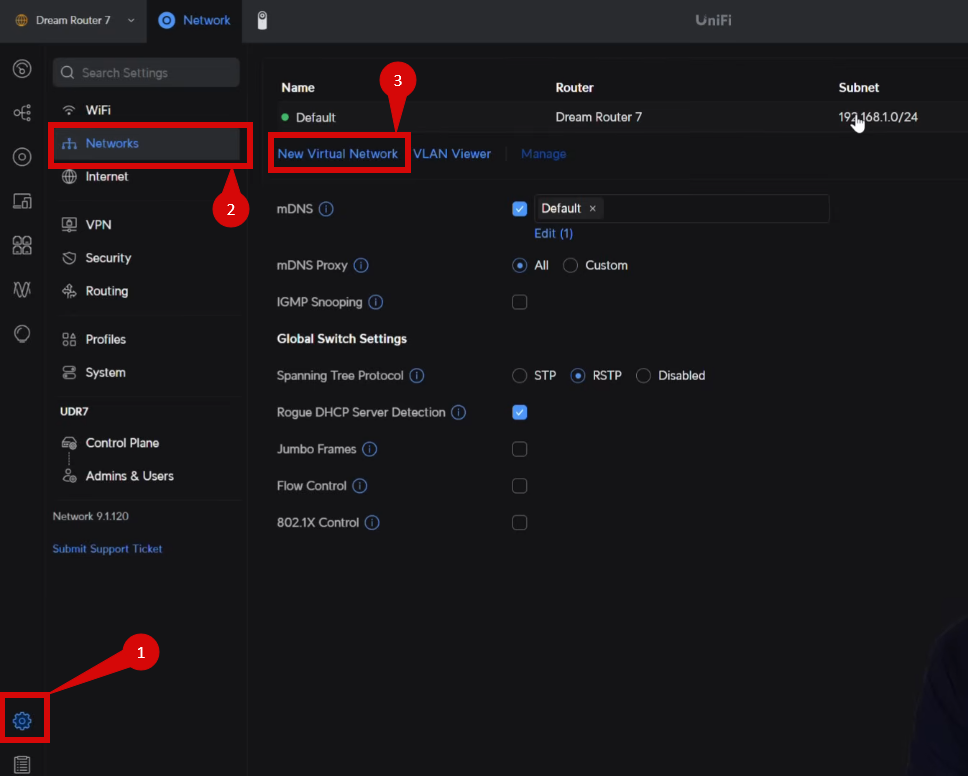
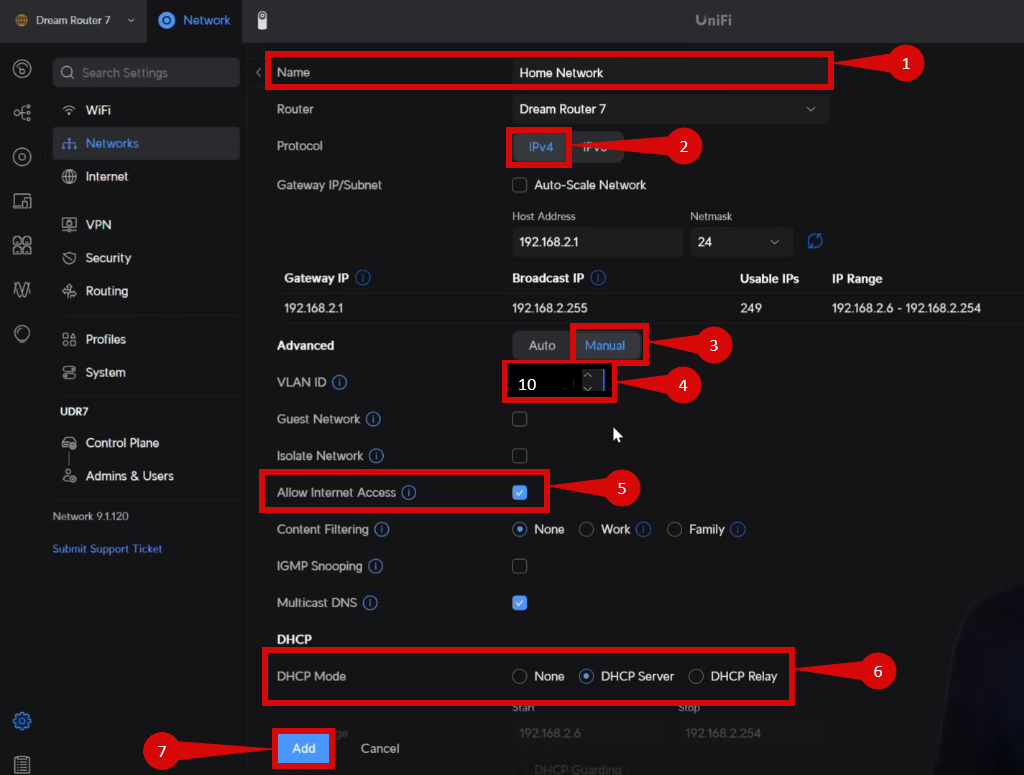
Once physical connection is completed follow instructions below to configure your device:
- Open UniFi app and connect to your router.
- Set a WiFi name (SSID) (step 1).
- Click Connect (step 2).
Once you have connected to your router in the UniFi app, minimise the app and open a Web Browser and enter 192.168.1.1 (or try 192.168.0.1 or 192.168.10.1).
Once signed in to the Web UI Follow steps below:
- Navigate to Settings (COG) > Networks (step 1 & 2).
- Click New Virtual Network (step 3)
- Create a Name (step 1).
- Set Protocol to IPV4 (step 2).
- Under Advanced set to Manual (step 3).
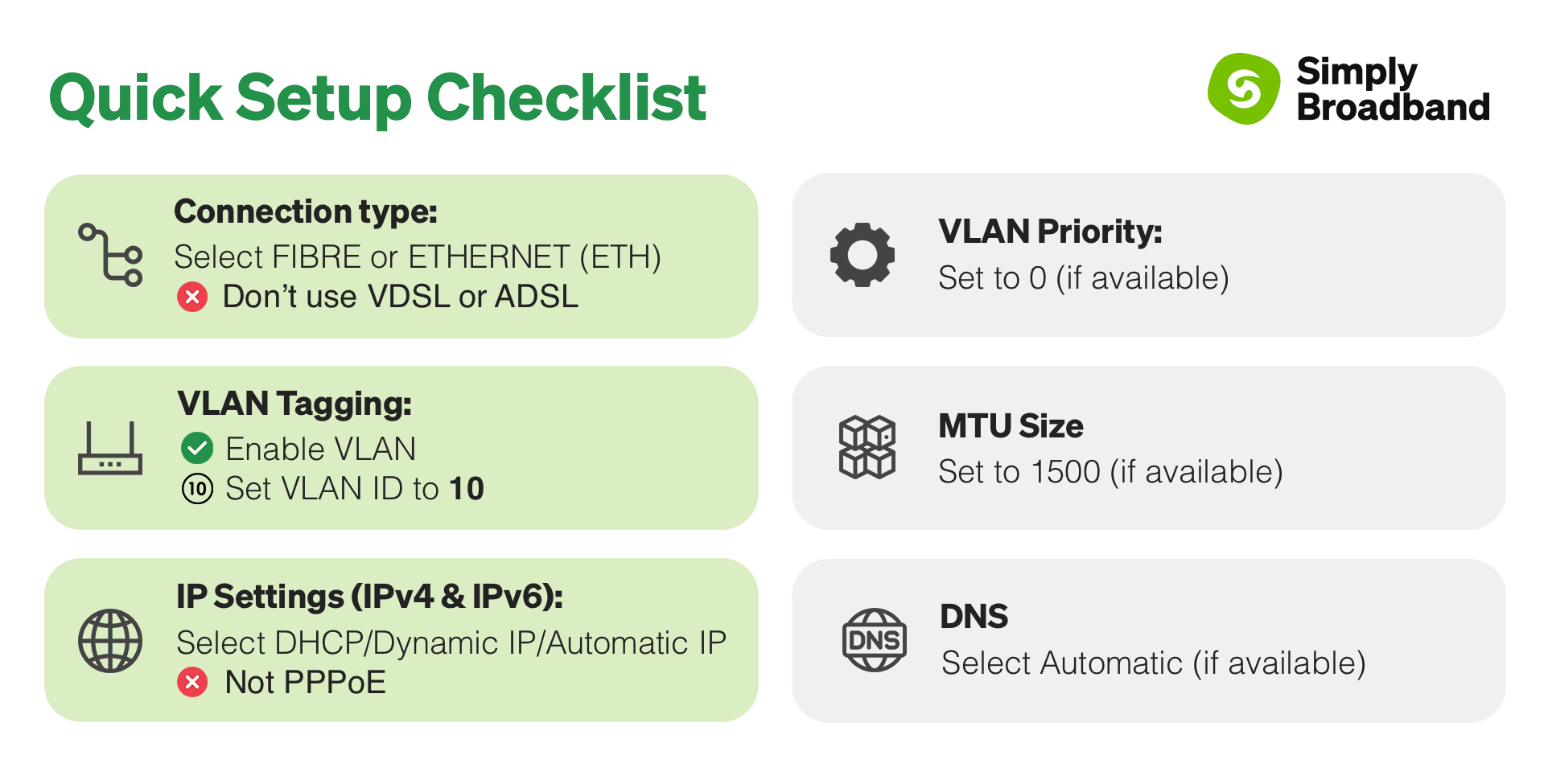
- Set the VLAN ID = 10 (step 4).
- Tick Allow Internet Access (step 5).
- Set DHCP Mode to DHCP Server (step 6).
- Click Add (step 7).
3. Verify the internet connection
- Once the router has restarted, check the status of your internet connection by looking at the WAN/Internet LED indicator on the router. It should be solid green.
- On your connected device, try accessing a website to confirm that your connection is active.
4. Troubleshooting (if needed)
- If your internet connection is not working:
- Restart both the ONT and the router by unplugging them for 30 seconds and plugging them back in.
- Double-check the VLAN and DHCP settings in the router’s configuration.
- Ensure that the ethernet cable is securely connected to the correct ports (first port on the ONT and the WAN port on the router).
5. Reset the router (if required)
- If you cannot access the router due to forgotten login credentials or misconfiguration, reset the router to factory settings:
- Find the reset button at the bottom of the router.
- Press and hold the reset button for about 10-15 seconds using a pin or paperclip.
- Release the button once the router’s lights start flashing. The router will reboot and return to factory settings.
- Log in using your TP-Link ID and repeat the configuration process from step 2.
6. Contact support
- If you are still unable to connect, please reach out to our support team at our Support Portal -https://help.simplybroadband.co.nz for further assistance.