← Back to Ubiquiti Modem / Router UFB Settings
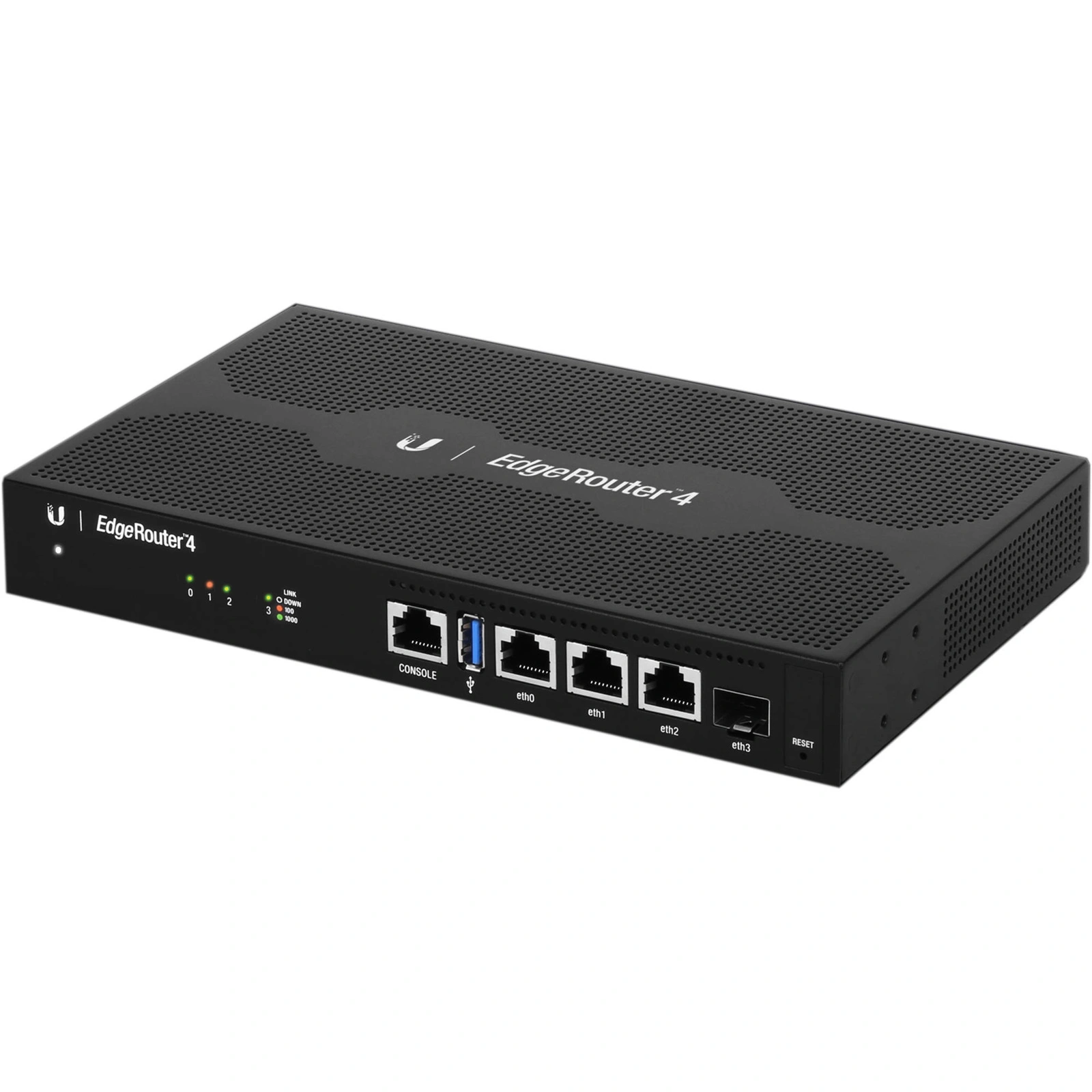
Ubiquiti Ubiquiti EdgeRouter Settings
Official page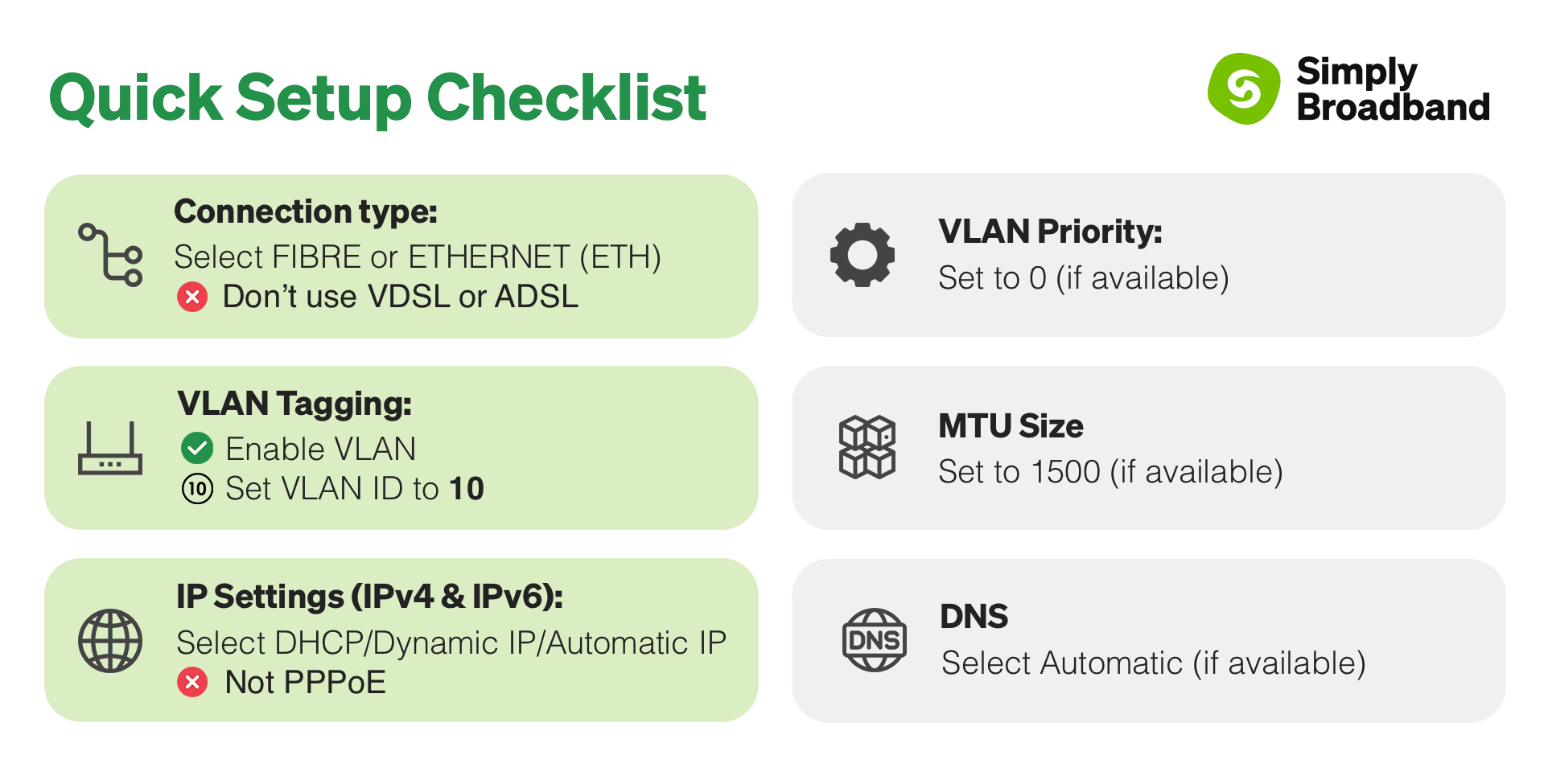
Important considerations for this router
- These routers are designed for more advanced users, IT professionals & Networking enthusiasts.
- If you are not experienced in Networking/ IT, it is recommended that you choose a different router.
- These routers do not have built-in Wi-Fi and will need to be connected via ethernet cable to your device(s).
- Configuration will need to be done on a wired device.
- As setup is more complex, we can only provide a limited amount of support.
- These routers are more complex then other Ubiquiti routers & APs!
- Uses Web UI or Command Line Interface (CLI, this is powerful but very technical).
Step-by-step guide to setup Ubiquiti EdgeRouter(s)
1. Initial setup for EdgeRouter(s)
- Physical connection:
- Connect to eth0 port of the Ubiquiti EdgeRouter(s) to your computer. (The Edgerouter might take upto 5 mins to boot up).
- Initial configuration:
- Set an IP on your computer (192.169.1.0/24 range).
- Navigate to the IP address you have assigned.
- Login with username + password ubnt.
- Click No if prompted to use the Basic Setup Wizard.
2. Configure your router settings

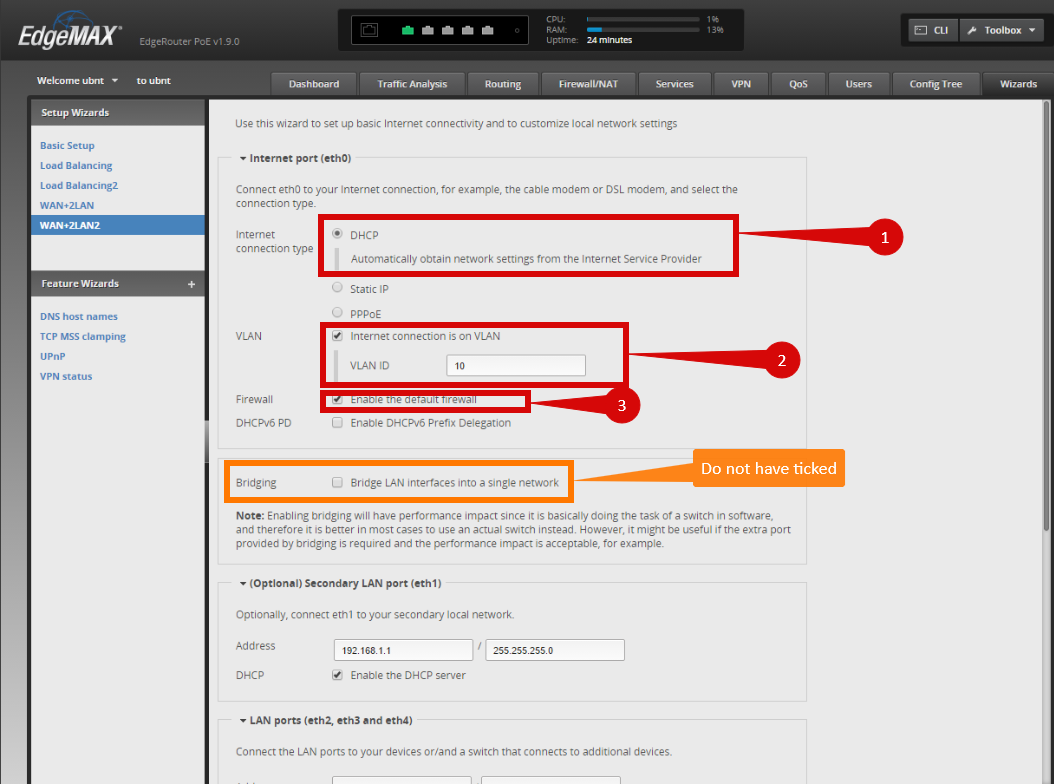

- Click on Wizards (step 1).
- Select the WAN+2LAN2 option (step 2).
Configure as follows:
- Internet connection type: DHCP (step 1).
- Tick VLAN: (step 2).
- Set VLAN ID to 10 (step 2).
- Enable the default firewall (step 3).
- ENSURE THAT BRIDGE IS NOT SELECTED (Orange box).
- Save/ Apply Changes (step 1).
Once this is done, connect your ONT:
- Connect your ONT from your provisioned port (Usually LAN/ GE Port 1) to eth0 on your EdgeRouter.
- Connect your devices on other available ports.
3. Verify the internet connection
- Once the router has restarted, check the status of your internet connection by looking at the WAN/Internet LED indicator on the router. It should be solid green.
- On your connected device, try accessing a website to confirm that your connection is active.
4. Troubleshooting (if needed)
- If your internet connection is not working:
- Restart both the ONT and the router by unplugging them for 30 seconds and plugging them back in.
- Double-check the VLAN and DHCP settings in the router’s configuration.
- Ensure that the ethernet cable is securely connected to the correct ports (first port on the ONT and the WAN port on the router).
5. Reset the router (if required)
- If you cannot access the router due to forgotten login credentials or misconfiguration, reset the router to factory settings:
- Find the reset button at the bottom of the router.
- Press and hold the reset button for about 10-15 seconds using a pin or paperclip.
- Release the button once the router’s lights start flashing. The router will reboot and return to factory settings.
- Log in using your TP-Link ID and repeat the configuration process from step 2.
6. Contact support
- If you are still unable to connect, please reach out to our support team at our Support Portal -https://help.simplybroadband.co.nz for further assistance.