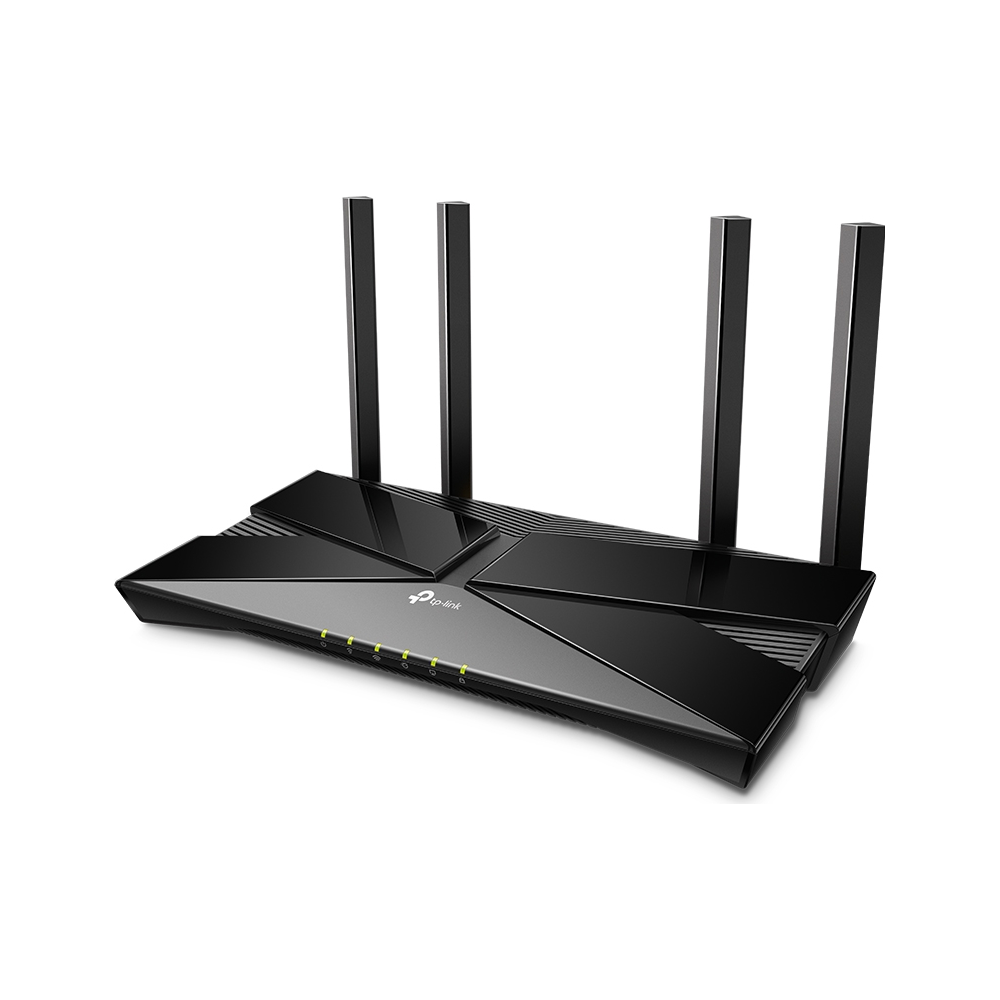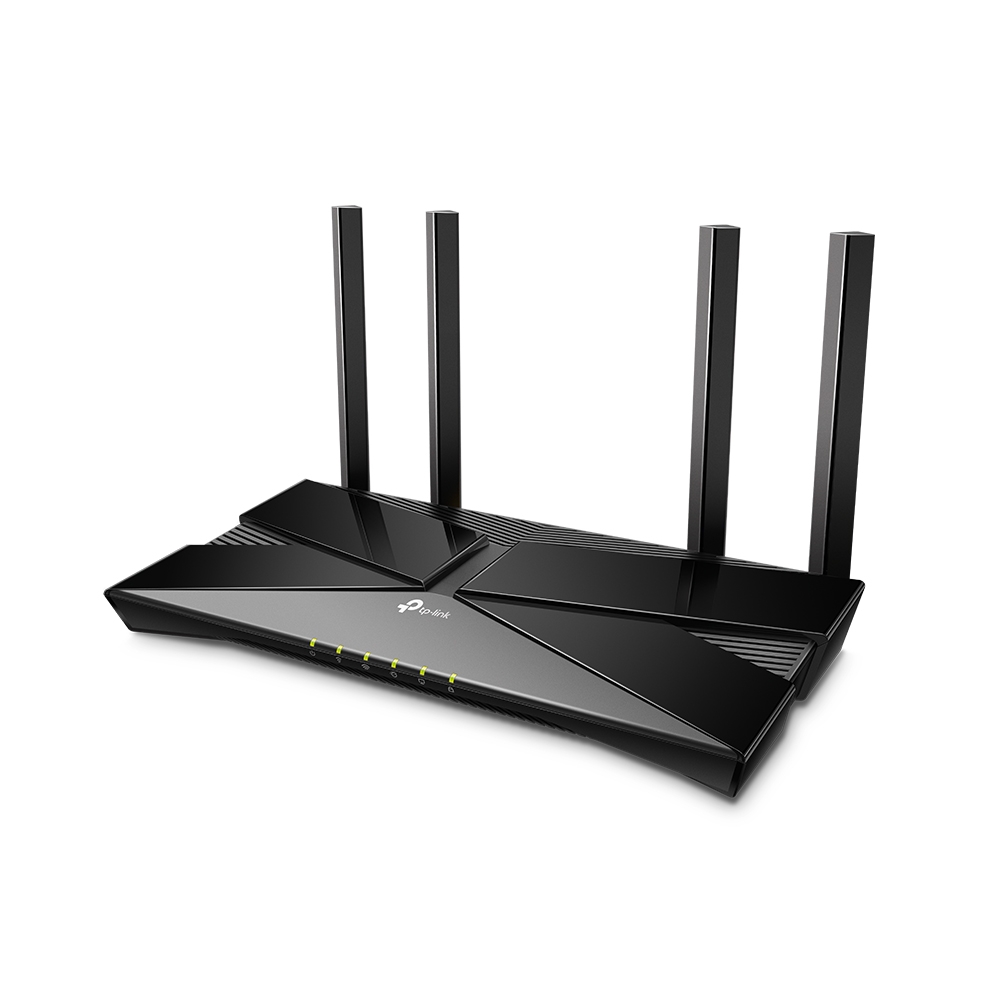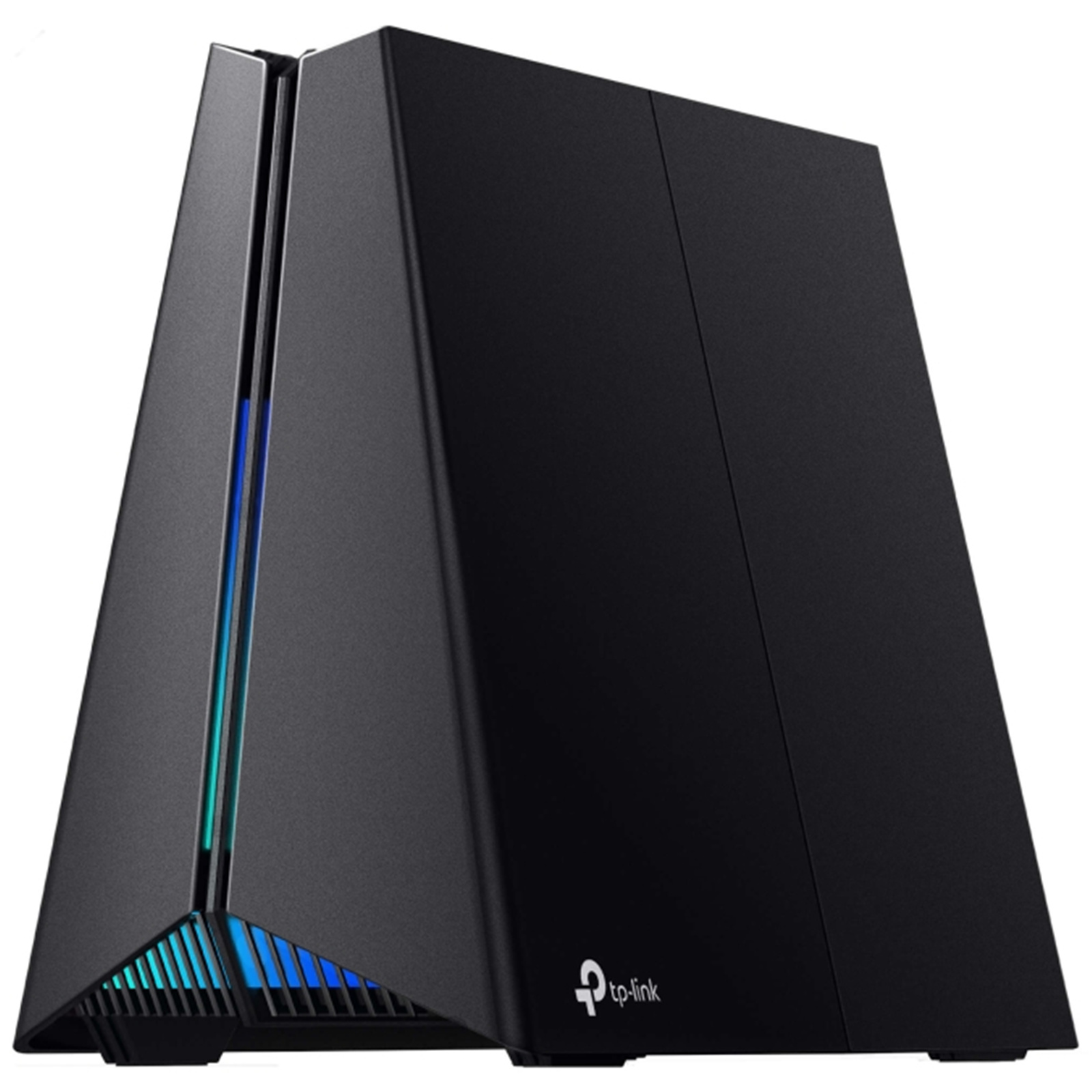
Step-by-step guide to set up TP-Link Archer GXE75 AXE5400 router
Physical connection:
- Connect the WAN (Internet) port of the TP-Link Archer GXE75 AXE5400 to the first port (LAN1 or GE1) on your Optical Network Terminal (ONT) using an ethernet cable.
- Sometimes we connect to second port instead of first - check your Welcome email instructions to make sure which port you should use.
- Ensure the router is powered on and that your computer or smartphone is connected to the router via Wi-Fi or a LAN cable.
- Open a web browser on a connected device and type the default IP address: http://192.168.0.1 (or try: http://192.168.1.1, http://tplinkwifi.net) into the address bar.
- You might be prompted to set a new password or you will be prompted to log in. The default credentials are usually:
- Username: admin
- Password: admin
- If you have changed the default credentials and cannot remember them, proceed to Step 8 for resetting the router.
Once logged in, you may be redirected to the Quick Setup wizard. Follow the steps below to get online:
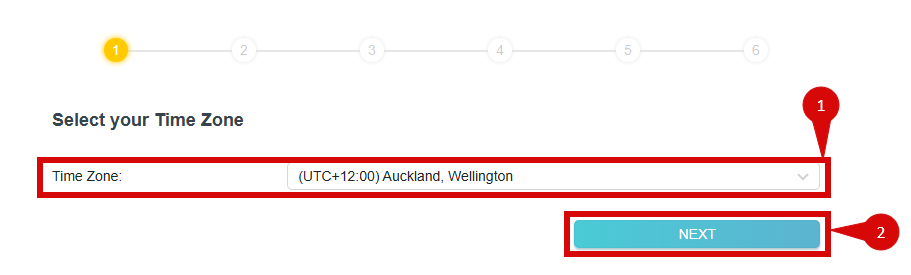
- Select your Time Zone and set it to (UTC+12:00) Auckland, Wellington. This is near the bottom of the list (step 1).
- Click Next (step 2).
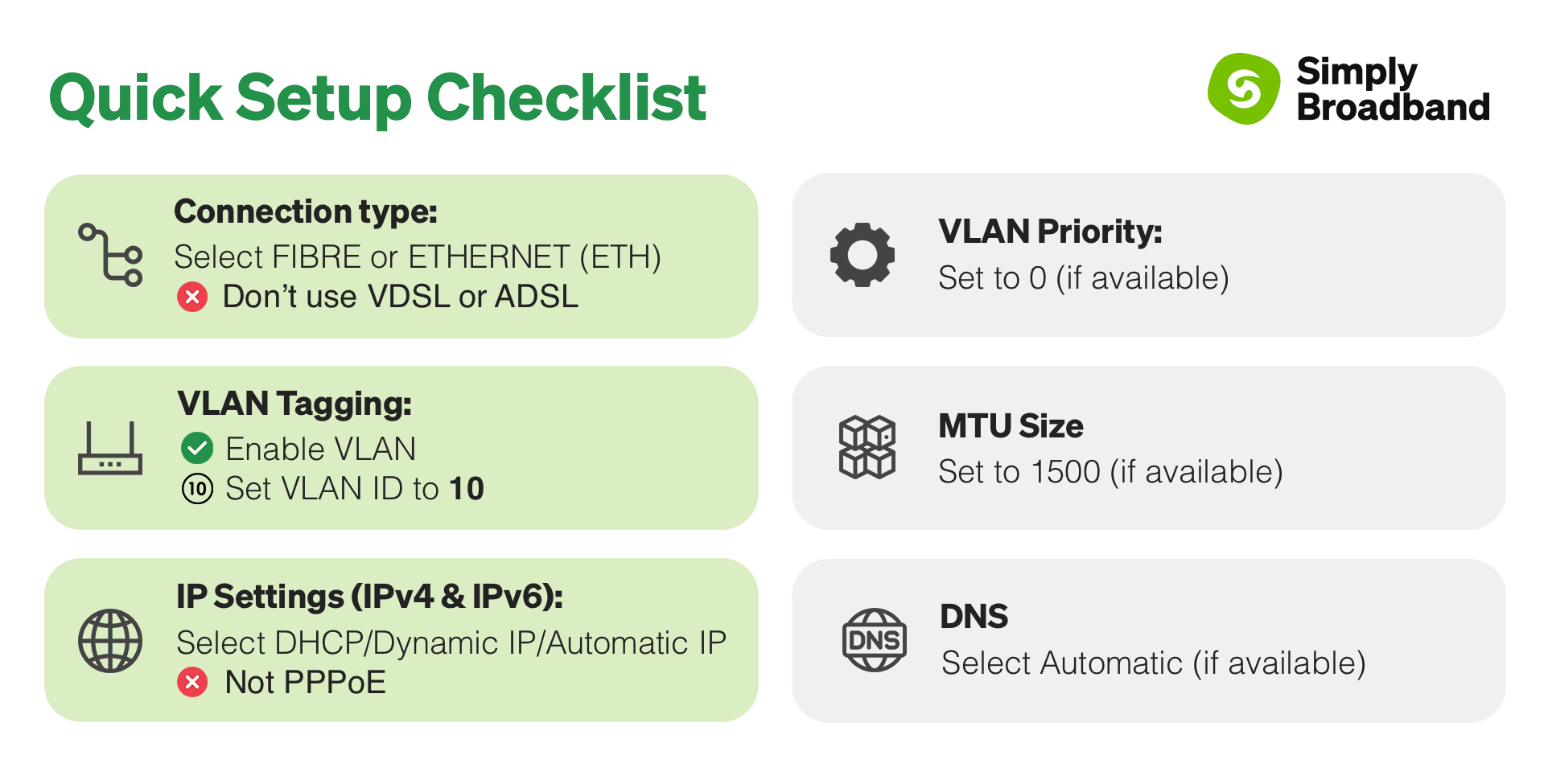
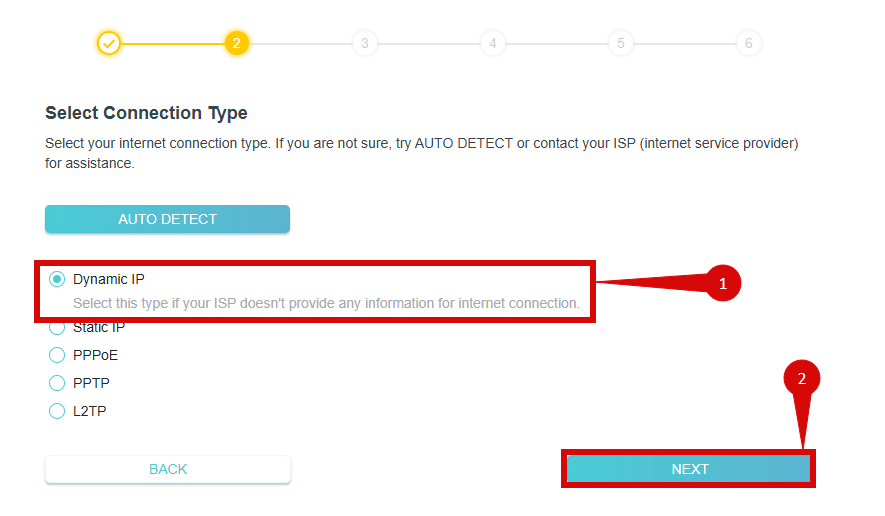
- Under Select Connection Type, choose Dynamic IP (step 1).
- Click Next (step 2).
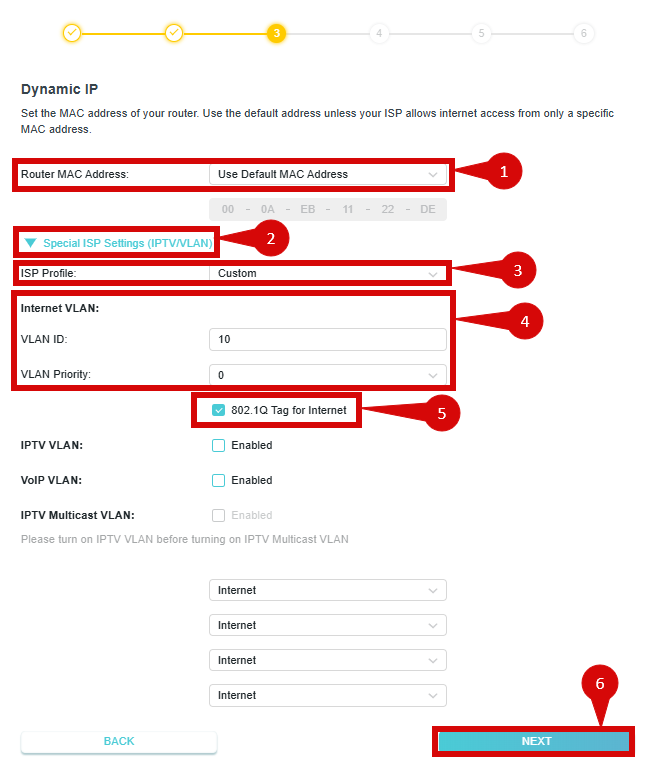
Under Dynamic IP, configure the following:
- Router MAC Address:
- Select Use Default Address (step 1).
- Click Special ISP Settings (IPTV / VLAN) (step 2).
- Set ISP Profile to one of the following (step 3):
- NZ / New Zealand UFB (preferred)
- Custom
- If you select Custom, configure as follows (step 4):
- Internet VLAN ID:
10 - VLAN Priority:
0
- Internet VLAN ID:
- Ensure 802.1Q Tag for Internet is enabled (step 5).
- Set ISP Profile to one of the following (step 3):
- Click Next (step 6).
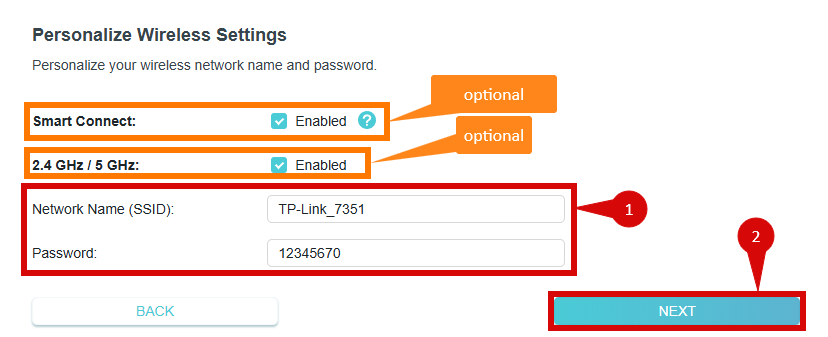
Under Personalise Wireless Settings:
- You may enable Smart Connect and 2.4GHz / 5GHz. This is optional.
- You can also change your wireless network name (SSID) and password (step 1).
- Click Next (step 2).
A connection test will begin. Please wait for this to complete.

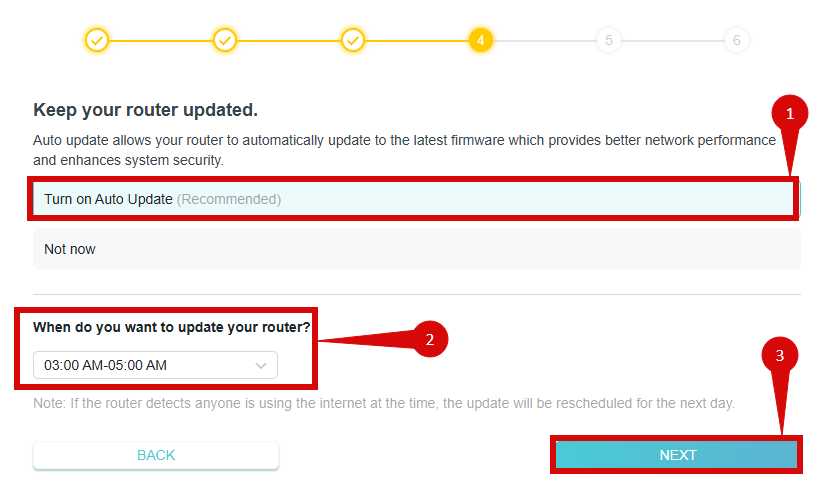
You will then be prompted to keep your router updated.
- It is strongly recommended to enable Auto Update (step 1).
- You may choose when updates occur (step 2).
- Click Next (step 3).
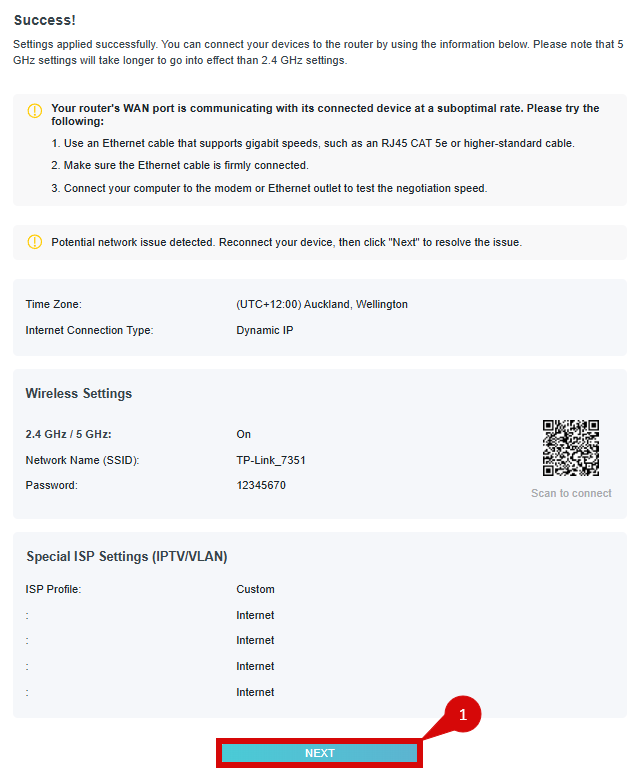
Once you reach the success page, follow the remaining prompts and your connection should be ready to use.
- Click Next to finish.
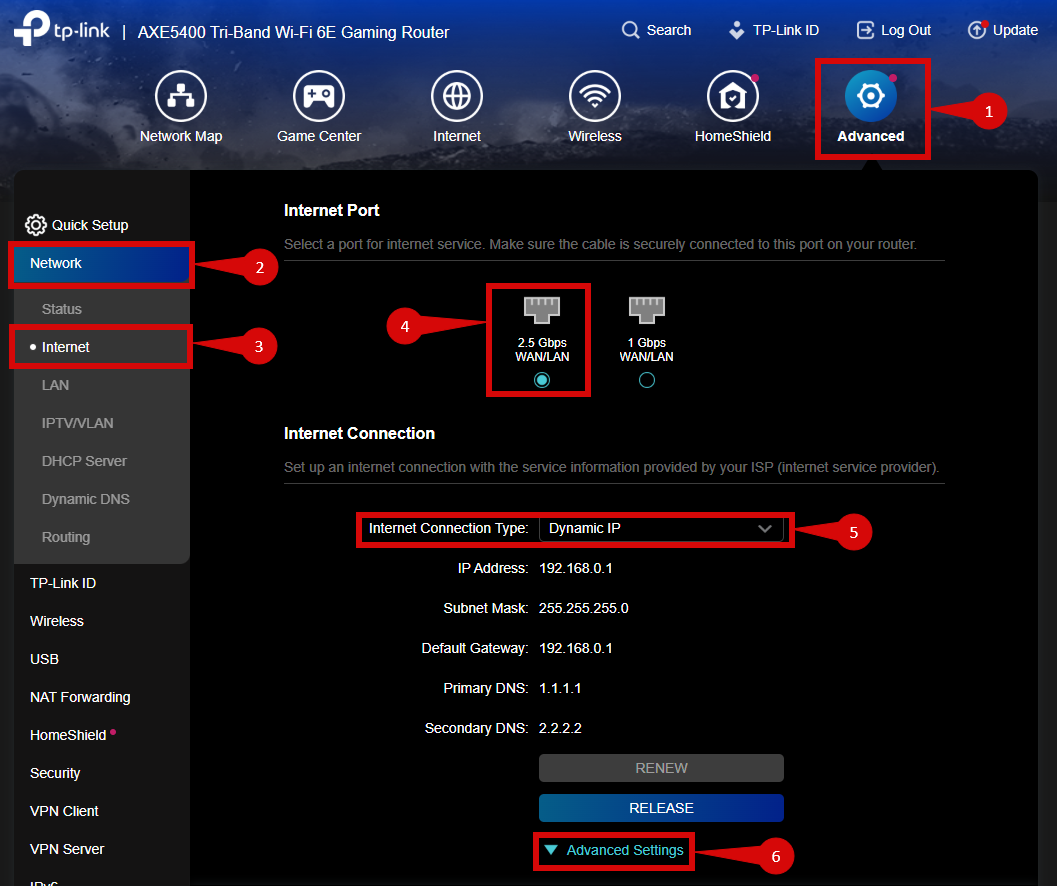
Once logged in, follow these steps to set up internet connection type:
- Navigate to Advanced > Network > Internet (step 1–3)
- Select the 2.5Gbps WAN/ LAN (step 4).
- Under the Internet Connection Type section, set to Dynamic IP (DHCP) (step 5)
- Click Advanced Settings (step 6).
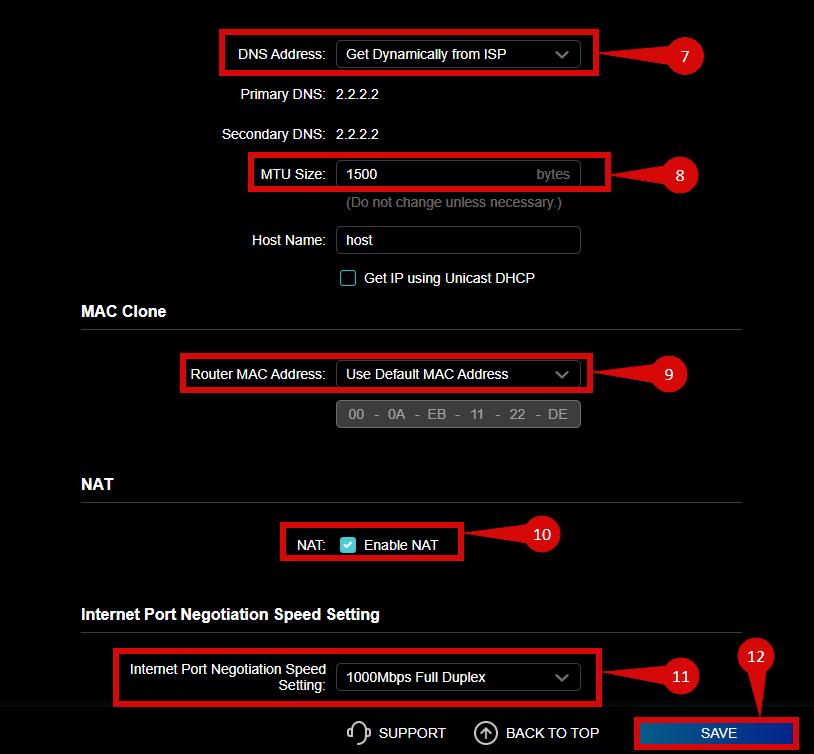
- Set DNS Address to Get Dynamically from ISP (step 7).
- Set MTU Size = 1500 (step 8).
- Set Router MAC Address to Use Default MAC Address (step 9).
- Tick Enabe NAT (step 10).
- Make sure that Internet Port Negotiation Speed Setting is set to either: (step 11)
- 1000 Mbps Half/Full Duplex
- Auto
- Click Save (step 12).
Once logged in, follow these steps to set up VLAN:
- Navigate to Advanced > Network > IPTV/VLAN, then tick Enable (step 1 - 3).
- Make sure to Enable IPTV/ VLAN (step 4).
- Change the Mode to New Zealand UFB or Custom (either option will work) (step 5).
- Configure VLAN as follows:
- Tick 802.1Q Tag for Internet (step 5).
- Internet VLAN ID = 10 (step 6).
- Internet VLAN Priority = 0 (step 6).
- You can set the following or leave them as default: (You can un-tick VoIP VLAN & IPTV VLAN).
- VoIP VLAN ID: 20
- VoIP VLAN Priority: 1
- IPTV VLAN ID: 30
- IPTV VLAN Priority: 2
- Save / Apply (step 7).
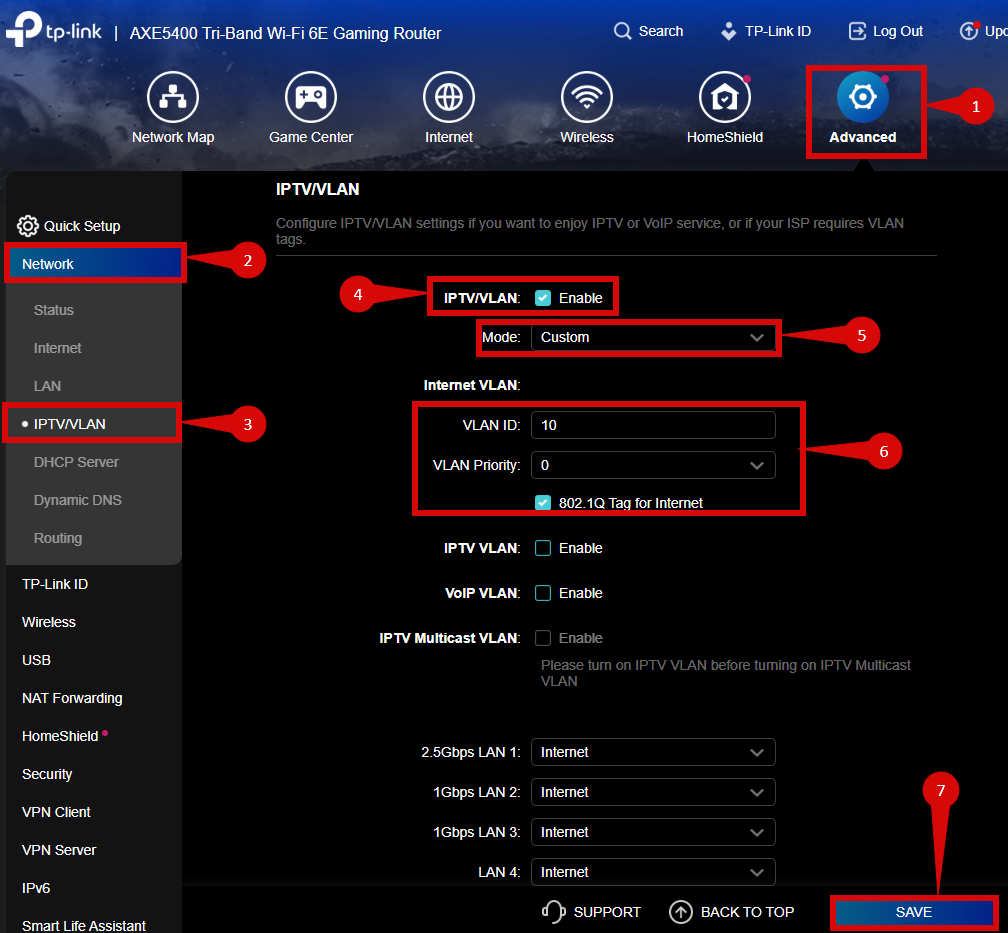
- After entering the VLAN and DHCP settings, click Save or Apply to confirm the changes.
- The router may restart to apply the new settings. Wait a few minutes for the restart to complete.
- Once the router has restarted, check the status of your internet connection by looking at the WAN/Internet LED indicator on the router. It should be solid green.
- On your connected device, try accessing a website to confirm that your connection is active.
If your internet connection is not working:
- Restart both the ONT and the router by unplugging them for 30 seconds and plugging them back in.
- Double-check the VLAN and Dynamic IP (DHCP) settings in the router’s configuration.
- Ensure that the ethernet cable is securely connected to the correct ports (first port on the ONT and the WAN port on the router).
If you cannot access the router due to forgotten login credentials or misconfiguration, reset the router to factory settings:
- Find the reset button at the back of the router.
- Press and hold the reset button for about 10-15 seconds using a pin or paperclip.
- Release the button once the router’s lights start flashing. The router will reboot and return to factory settings.
- Log in using the default credentials (admin/admin) and repeat the configuration process from Step 2.
- TP-Link has a dedicated Toll-Free number to assist customers with tricky configurations in New Zealand. You can contact TP-Link support in New Zealand by calling 0800 875 465.
- If you are still unable to connect, please reach out to our support team at our Support Portal -https://help.simplybroadband.co.nz for further assistance.